
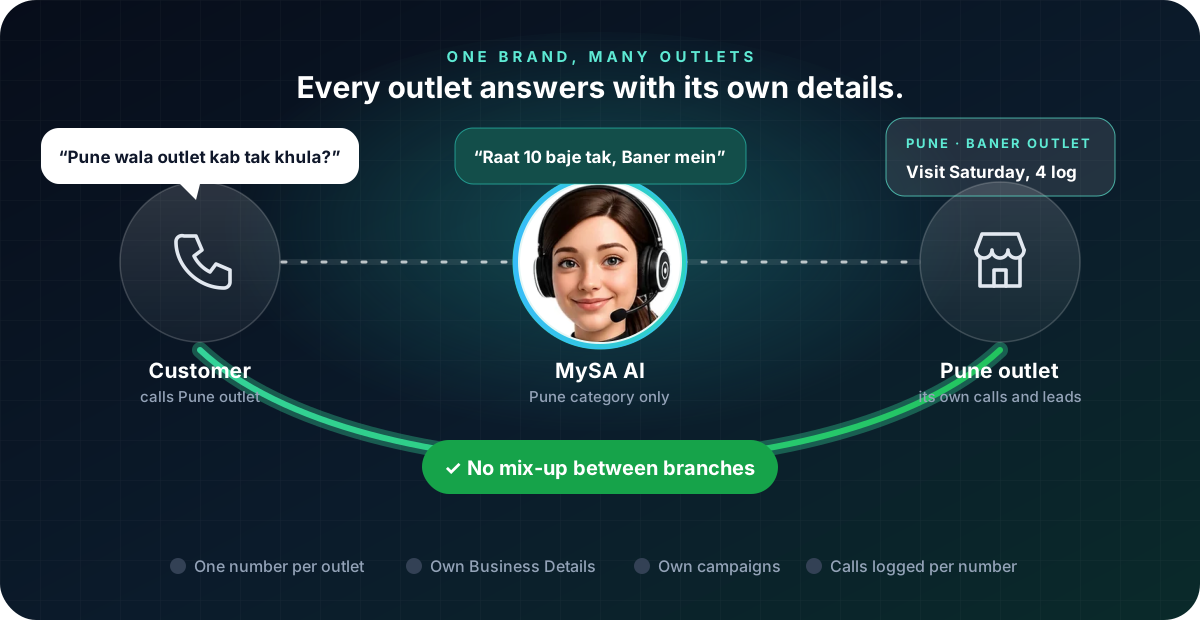
AI voice calling for franchises means every outlet of a brand gets its phone answered, and its customers called, by an AI that knows that outlet's own timings, address, menu or price list and offers. In MySA Business you keep one workspace for the brand, write one Business Details category per outlet, give each outlet its own number, and point that number and that outlet's campaigns at its own category. A caller to the Pune outlet hears about Pune, not about Nagpur.
The franchise phone problem
A franchise brand has one name and many counters:
- Each outlet has its own facts. Timings, address, parking, a local offer, which services or items it carries, the outlet manager's name.
- Customers ring the outlet, not the head office. They found the number on Google Maps or a pamphlet.
- Outlets answer the phone very differently. One picks up every call, another is too busy at lunch, a third goes unanswered after 9 pm.
- Head office cannot hear any of it. There is no record of what was asked or promised.
An AI that answers every outlet's calls the same way, with that outlet's own facts, fixes the first three. A shared call log fixes the fourth.
Step 1: one Business Details category per outlet
Business Details is what the AI answers from on calls and chats. For a franchise, the rule is simple: one category per outlet, plus, if you like, one for the brand.
- In Business Details, choose + Add your own… in the category picker and name it by outlet: "Pune – Baner", "Nagpur – Dharampeth".
- Upload that outlet's details and build it. Put in only what is true for that outlet: timings, address, landmark, parking, the items or services it offers, local prices if they differ, and the local offer.
- Fill the gaps it highlights with Review & edit, then Approve it. Only approved categories go live.
Brand-wide facts, such as the franchise story, quality standards or the loyalty programme, can be written into every outlet's category, so each one stands on its own.
Each workspace keeps up to 10 business documents by default, and a new version of an existing category does not count extra. A brand with more outlets than that asks support to raise the limit. See Business Details.
Warning: Approved wording cannot be edited. To change an outlet's timings or offer, build a new version of that outlet's category. Plan offers a few days ahead.
Step 2: inbound, each outlet's number answers as that outlet
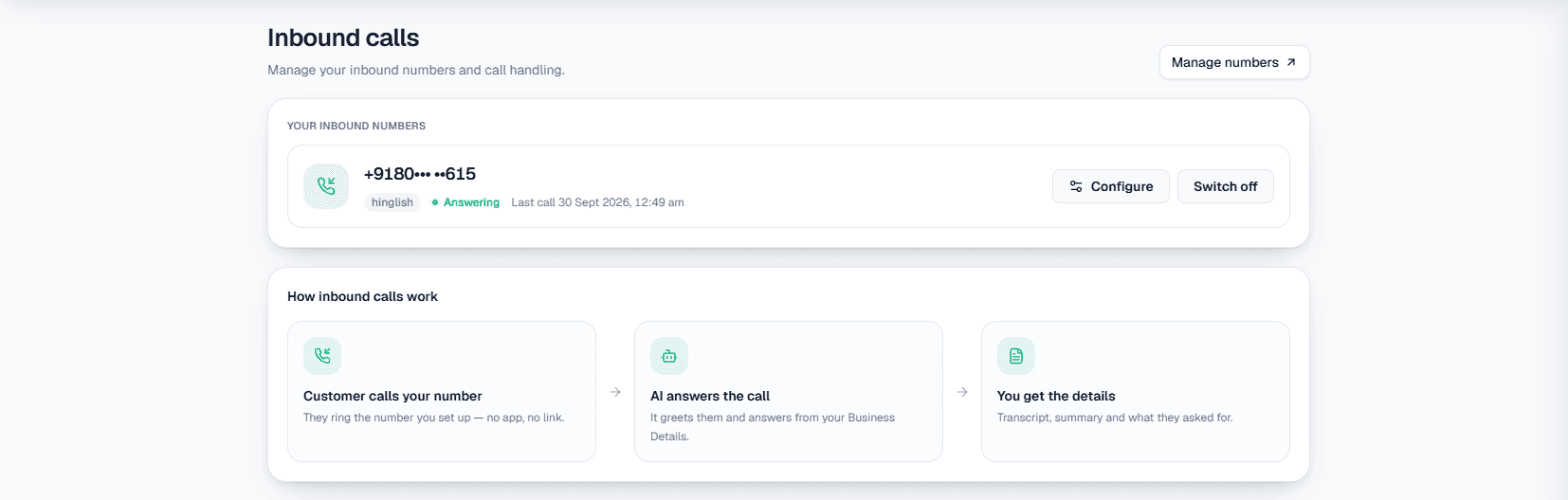
Give each outlet its own number. You can buy Indian numbers in the app, searching by STD code so each outlet gets a local-looking number, or have numbers assigned by your account manager. See Numbers and caller ID.
Then open Phone system → Inbound and set up each number:
| Setting | For the Pune outlet's number |
|---|---|
| Company name | "Brand Name, Baner" |
| Business knowledge | The "Pune – Baner" category |
| AI instructions | What to do on these calls: answer, take a table booking or a visit, note the call-back time |
| Language | The language the area's customers speak, from the Language dropdown; hear it on a test call first |
The same steps on the Nagpur number, with its own category, make that number answer as Nagpur. Inbound can be switched on per number, so an outlet that prefers to take its own calls in the day can leave its number with staff.
Example: a call to one outlet
Caller: Hello, Baner wala outlet aaj kitne baje tak khula hai? Hum chaar log aayenge.
AI: Namaste. Baner outlet aaj raat 10 baje tak khula hai. Aap kis time aa rahe hain?
Caller: Saat baje ke aas-paas.
AI: Theek hai, maine note kar liya. Parking building ke basement mein hai.
The brand and outlet are made up. The call appears in Call Logs with the outlet's number on it, a recording and an AI summary, and the evening visit can get a reminder call with Visit reminders.
When a caller wants a person, Call transfer can hand them over after the AI briefs your colleague. Transfer numbers are set once for the workspace, each with a name and a one-line "when to transfer here", so name them by outlet, such as "Baner manager", and say when to use each. How many you can add is set for your account. See Call transfer. The general setup is in inbound call automation.
Step 3: outbound, each branch runs its own campaigns
Outbound calls work the same way, branch by branch. Each campaign has its own Company name, Business knowledge category and Caller ID (assigned number), so a campaign for the Baner outlet introduces itself as Baner, answers from the Baner category and shows the Baner number.
Useful branch campaigns:
- Visit and booking reminders for one outlet's customers.
- Order-ready or service calls, with
var1tovar15carrying each customer's order details. - A local launch for a new outlet, spread over days with a Scheduled campaign so the outlet is not flooded.
Calls are never placed inside your DND hours. If a call is promotional, TRAI's rules on number series and consent apply; check them before a promotional campaign. The setup is in Campaigns.
WhatsApp per outlet too
If your outlets use WhatsApp, each connected number can answer from its own Business category with Smart reply (AI), and each number has its own Today's update for things like "Baner outlet closed today for maintenance". See WhatsApp.
What head office sees, and what outlets see
Call Logs lists every outlet's calls in one place, with the number, the campaign or Inbound as the method, the recording, the summary and the sentiment. You can filter by campaign, direction and date, and Number performance compares calls per number.
Team access is set per section, not per outlet. You can give an outlet manager Read on Call Logs, but they will see every outlet's calls, not only their own. If outlets must not see each other's calls, keep each franchisee in their own workspace instead. See Team & roles.
What works today, and what it does not do
| Works today | Does not do |
|---|---|
| One Business Details category per outlet, chosen per number and per campaign | Restrict a team member to one outlet's calls inside a shared workspace |
| Each outlet's number answered with its own company name, language and instructions | Change an approved outlet's details without a new version |
| Branch-wise campaigns with that outlet's caller ID | Play a recorded voice message to a list; every call is a conversation |
| All outlets' calls in one Call Logs, with recordings and summaries | Send SMS or email |
These are scenarios, not customer stories.
Getting started
- Create a workspace and verify your mobile number to get ₹100 of Test credit in the separate Test environment.
- Build and approve one Business Details category for your first outlet.
- Press Try now: the AI rings your own phone. Ask what a customer of that outlet would ask.
- Go Live, top up the prepaid wallet, add a number for that outlet and set it up under Inbound.
- When the first outlet sounds right, repeat for the next.
Calls of 10 seconds or less are free; longer calls are billed per started minute. The rate for your workspace is shown in the console. Talk to sales for volume pricing across outlets.