

Assistants
Business Details
Business Details is the knowledge base your AI answers from on calls and chats, built per category from files you upload and approved by you before it goes live.
What it is for
When a customer asks about your prices, timings, branches or policies, the AI answers from your Business Details. The same knowledge is used on calls, WhatsApp, Instagram and Facebook, and the AI answers in the customer's own language.
Knowledge is organised by category. A campaign, test call, inbound number or connected social account is attached to one live category, which becomes its knowledge source.
Build a category
- Open Business → Business Details and click Create business details.
- Pick a category.
- Choose one or more files. Accepted types are PDF, DOCX, TXT, MD and CSV. The size limits are shown in the panel.
- Optionally add website links, and a sentence or two of instructions on how the knowledge base should read, for example "written for patients calling to book, lead with emergency care".
- Press Build knowledge base.
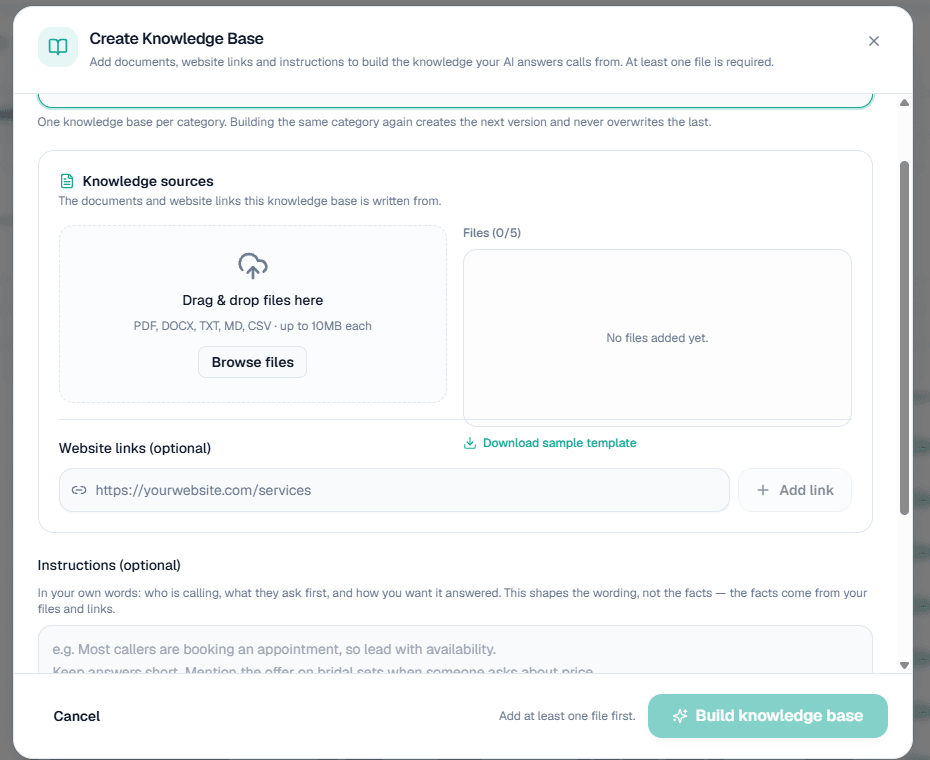
On this screen: Knowledge sources takes your files by drag and drop or Browse files, lists them under Files, and offers Download sample template. Add pages under Website links (optional) with Add link, and describe how callers should be answered under Instructions (optional), which shapes the wording, not the facts. Build knowledge base stays disabled until at least one file is added.
Nothing is uploaded while you are choosing. Files go up when you press the build button, so closing the window leaves nothing behind. At least one file is required; links and instructions are optional.
The page shows the build as running and tells you when it is ready. How long it takes depends on how many files and links you gave it.
Tip: Use Download sample template on the page to see the format that works best for each category.
Review and fill the gaps
What comes back is a draft with the gaps marked. Anything the AI could not find in your files is left as a blank for you to fill.
- Press Review & edit on the row. The document opens with every blank highlighted and a running count.
- Replace every blank.
- Press Save & confirm. It stays disabled until no blanks remain, because the AI would otherwise read them out to a customer.
Saving both saves your edits and sends the document on to be formatted.
Approve it to go live
Once the document has been processed, review the result and press Approve. Only approved categories are live and can be used on calls.
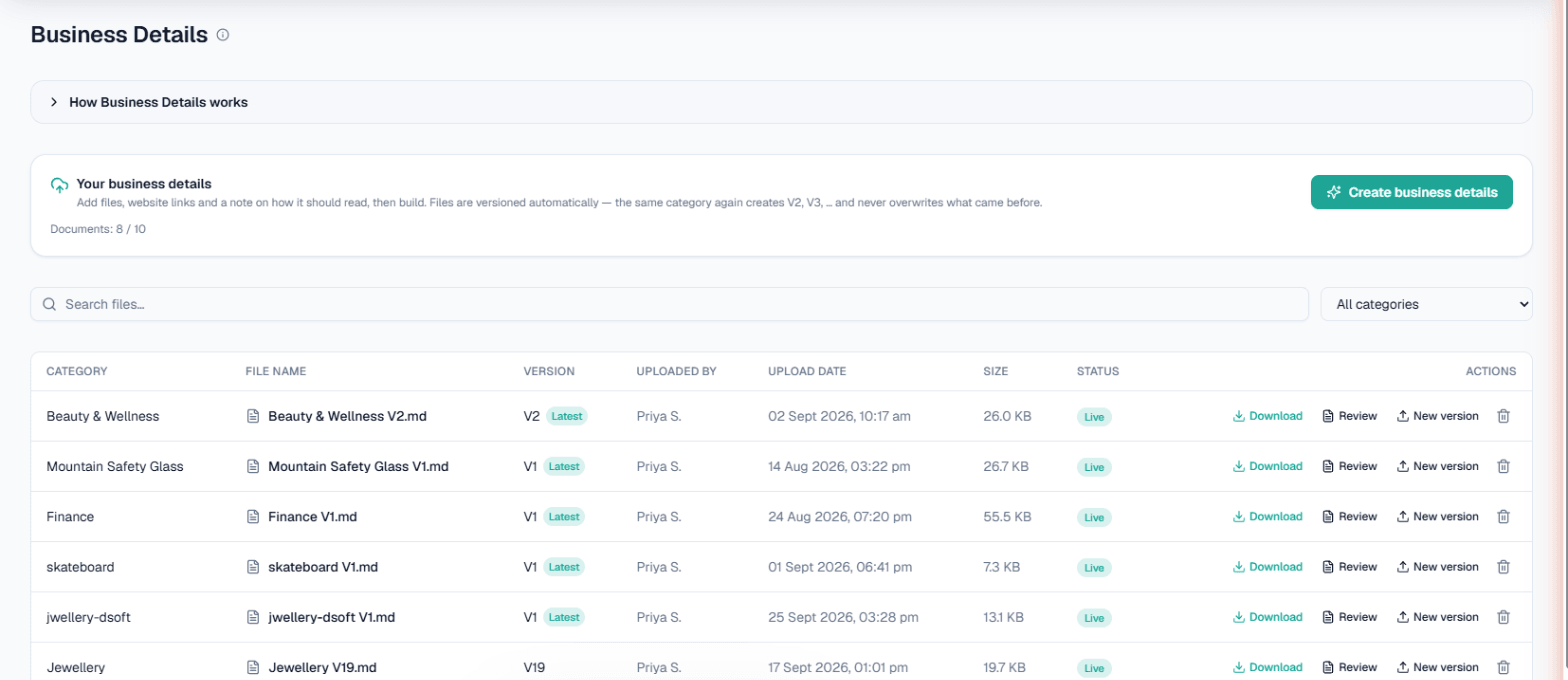
On this screen: Your business details shows how many documents you hold against your limit, with Create business details to build a new one. Each row gives the Category, File name, Version (the newest marked Latest), who uploaded it and when, its size and its Status, which reads Live once approved. Download, Review, New version and the bin icon act on that row, and the search box and category filter narrow the list.
Warning: The wording cannot be edited after approval. To change it, build a new version of the same category.
How the AI uses it
- Calls, WhatsApp smart reply, Instagram and Facebook all answer from the category attached to them.
- When you start a test call and your business has more than one live category, you pick which one the call should answer from.
- Inbound calling needs at least one live category before you can switch a number on.
Several businesses or branches
To keep separate shops, branches or brands apart, choose + Add your own… in the category picker and create your own named category. Build each one's details under it. Custom categories are private to your workspace.
Limits
Each workspace can keep up to 10 business documents by default. Building a new version of a category you already have does not count extra. To raise the limit, contact support or raise a ticket.