

Channels
Connect your WhatsApp number to MySA so the AI answers chats from your Business Details, texts back missed calls and can ring customers who message you.
The four tabs
| Tab | What it is for |
|---|---|
| Accounts | Connect and disconnect numbers, and see which category each answers from |
| Conversations | Read every chat and reply by hand |
| Settings | Turn the AI on per number: smart reply, custom auto-reply, missed calls and Auto-Call |
| Exceptions | Numbers the AI must leave alone |
Connect a number
Open WhatsApp under Channels. The Accounts tab shows how many numbers you have connected out of your workspace's limit.
- Click Connect WhatsApp.
- Pick the Business category this number answers from. Each category can have one number.
- Choose how to link:
- Pairing code — enter the number and press Generate code. On the phone, tap Settings → Linked Devices → Link a Device, then Link with phone number instead, and type the code.
- QR code — on the phone, go to Settings → Linked Devices → Link a Device and scan the code.
- Once linked, the number shows as connected and its chats appear in Conversations.
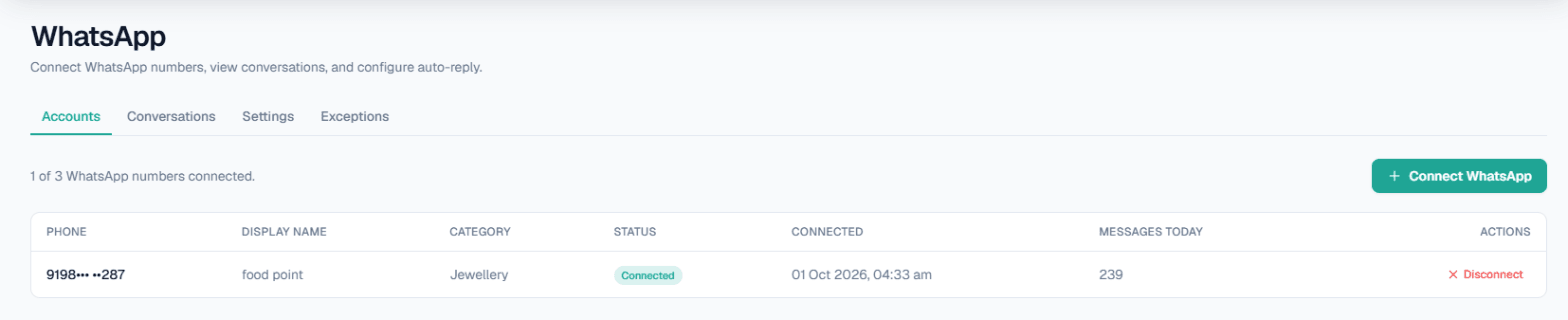
On this screen: each connected number with its display name, the Business Details Category it answers from, its Status, when it was connected and how many messages it handled today. Disconnect unlinks it; the count at the top shows how many of your allowed numbers are in use.
Note: If WhatsApp is not switched on for your workspace, the section is locked. Read-only members cannot connect or disconnect numbers.
Smart reply
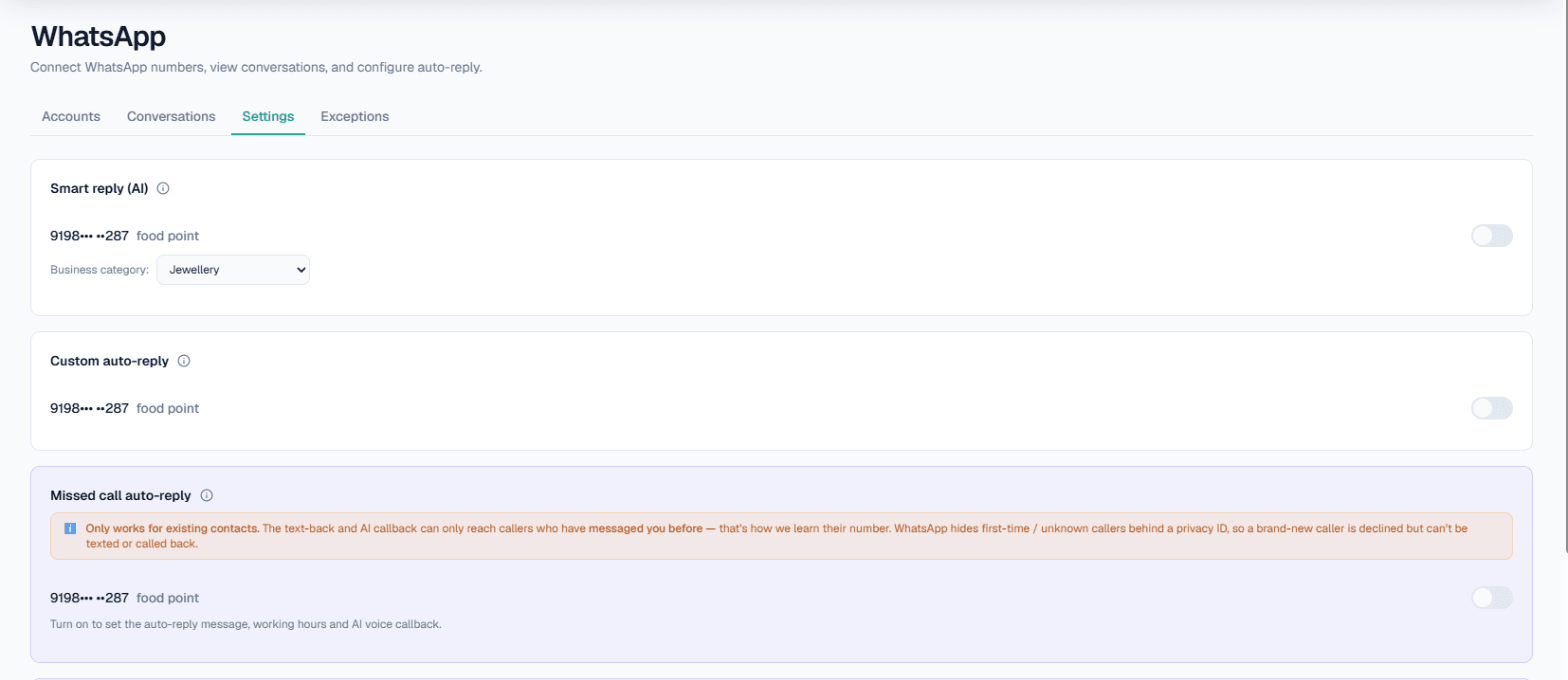
On this screen: one card per feature, each listing your connected numbers with a switch. From top: Smart reply (AI) with the Business category it answers from, Custom auto-reply, Missed call auto-reply (with the existing-contacts warning) and WhatsApp Auto-Call. Switching one on opens its options underneath.
In WhatsApp → Settings, turn on Smart reply (AI) for a number. The AI answers each message from that number's Business Details, in the customer's own language. For each number you can also set:
- Wait after last message — seconds to wait before answering everything the customer sent (0 uses the default of 3, maximum 30).
- Business hours only (9am–9pm).
- What this number should do — the goal for every chat, such as asking for a name or booking a visit.
- Today's update — anything specific for today, such as "Open 9 AM–5 PM today". The AI uses it on top of your Business Details.
- Reply to voice notes — the AI cannot listen to voice notes, so a customer who sends only one gets this message instead.
- Live data in replies — tick your own APIs from Integrations → My APIs so the AI can answer what changes daily, like today's rate. See Custom APIs.
Custom auto-reply sends a fixed message instead, used when the AI is off or as a fallback.
Missed calls: text-back and callback
The AI cannot answer WhatsApp calls. With Missed call auto-reply on, a call is politely declined and you choose what follows:
- Text the caller back with your Auto-reply message.
- AI voice callback — a real AI call back, billed at your call rate, with its own language, max duration, purpose, cooldown and daily limit per number.
- Only outside working hours — during your working hours (IST) calls ring through to your phone.
Warning: The text-back and callback only reach callers who have messaged you before. WhatsApp hides first-time callers behind a privacy ID, so they are declined but cannot be contacted.
Auto-Call on a message
WhatsApp Auto-Call places an AI voice call right after a customer messages your number. It is a premium feature your workspace must be enabled for, billed to your Live wallet like any outbound call.
Choose Instant or Delay (1–30 seconds, merging a burst of messages into one call), the minimum gap between calls to one customer (1–6 hours), a daily cap per customer (1–10, default 1), the language and a purpose. If your Live balance cannot cover a call, that message is skipped with no charge.
Exceptions
In WhatsApp → Exceptions, list numbers the AI should leave alone, such as your own or your family's. They get no automatic replies, no Auto-Call and no missed-call text or callback, and their calls ring through to you. Their messages still appear in Conversations.
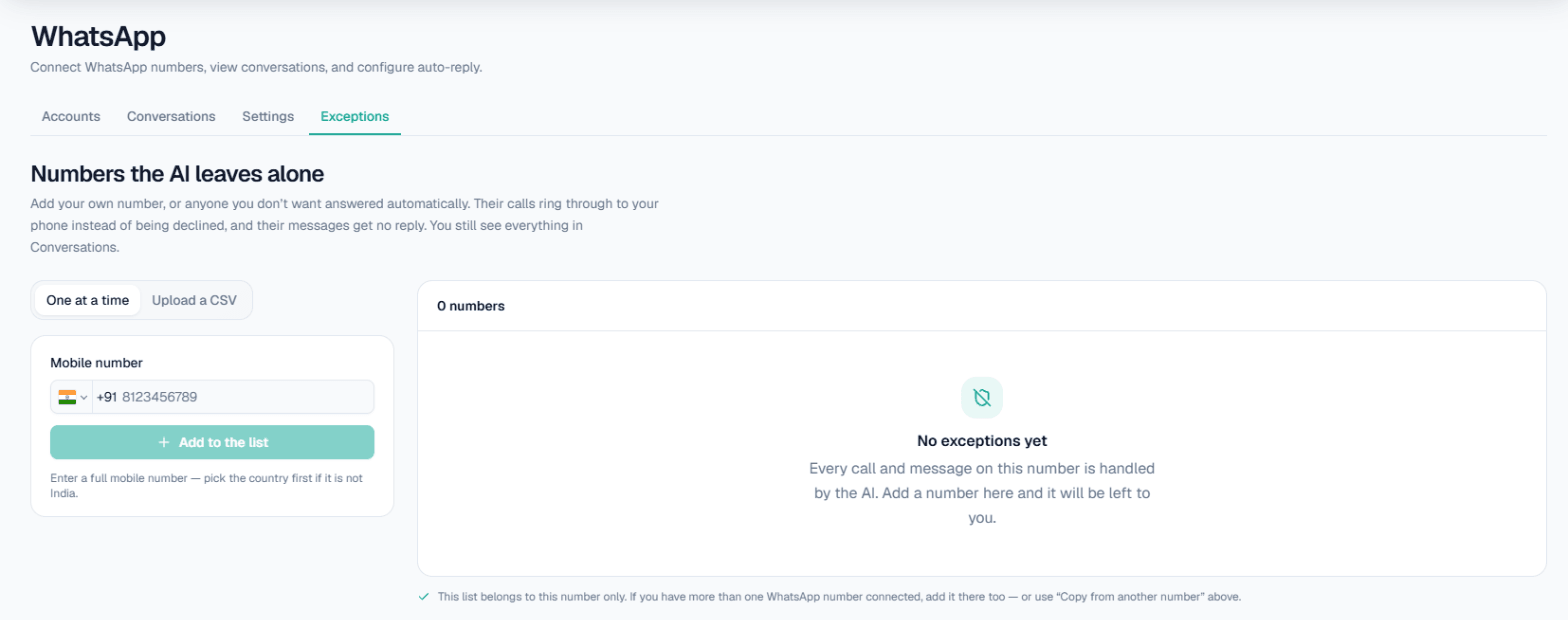
On this screen: on the left, add one number at a time (One at a time) or several at once (Upload a CSV); on the right, the list for the selected WhatsApp number, empty until you add someone.
Each connected number has its own list of up to twenty numbers. Use Copy from another number to reuse one, or upload a CSV with the header Country code,Mobile number.
On Call Messaging
To send approved WhatsApp templates automatically around your calls, use Integrations → On Call Messaging (Owner only). Messages go out through your AutomateChats account or your own Meta WhatsApp Business Account, and a template slot can take live data from your own API, like today's gold rate.
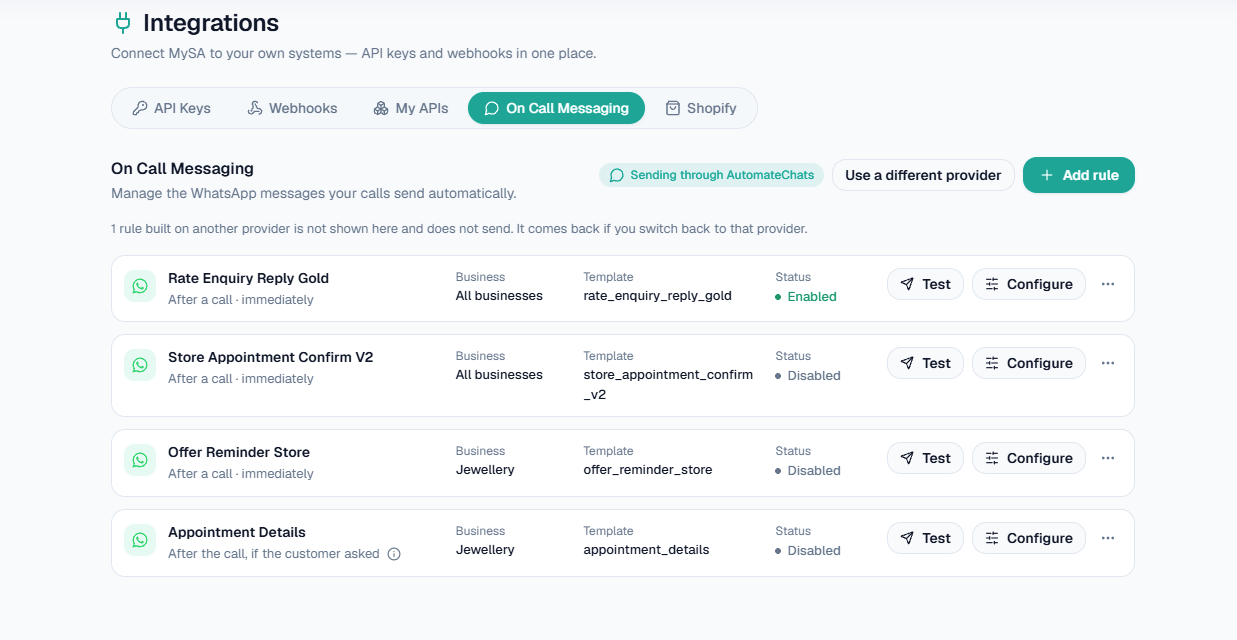
On this screen: each rule shows when it sends (for example After a call · immediately or After the call, if the customer asked), which Business Details it applies to, the approved template it uses and whether it is Enabled. Test sends it to your own number first; Configure edits it; Add rule creates a new one.
Set up a rule
Add rule (or Configure on an existing rule) opens five steps. You can move between them from the step bar at the top; the rule itself is not saved until the last step.
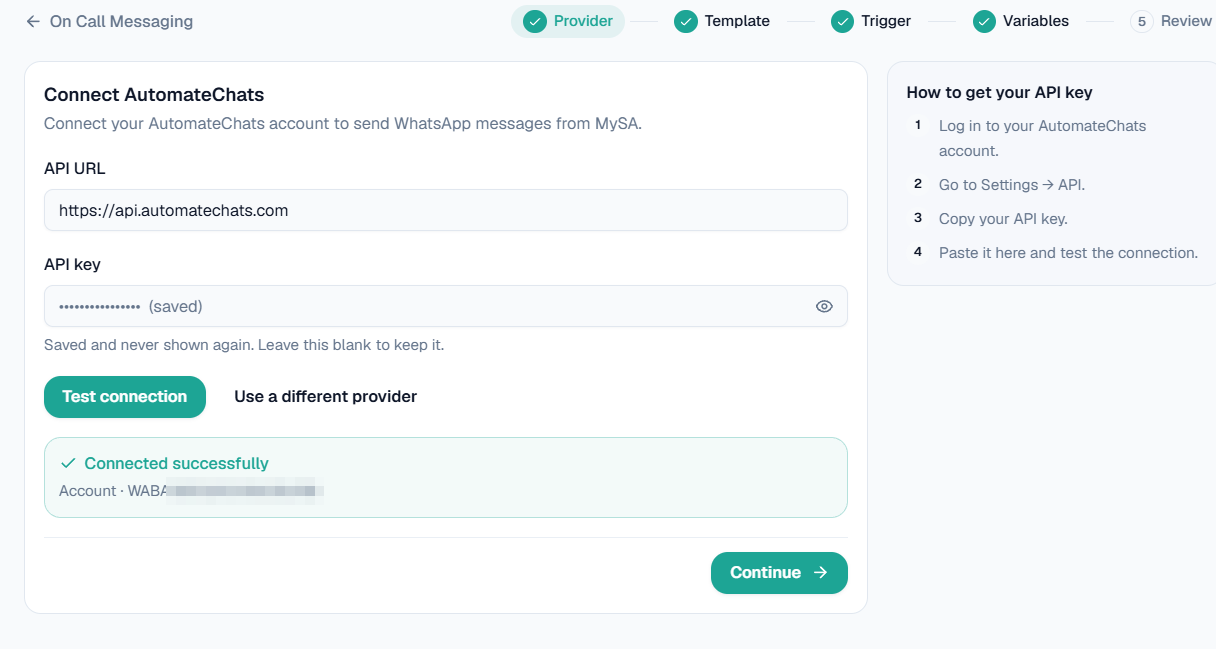
1. Provider. Choose how messages are sent: AutomateChats (paste your API key from AutomateChats → Settings → API) or Meta WhatsApp API (your own WhatsApp Business Account: the WhatsApp Business Account ID, the Phone number ID and a permanent access token; the screen shows where to find each). Test connection checks and saves the connection before you go on; a saved key is never shown again. Use a different provider switches; rules built on the other provider stay saved but do not send until you switch back.
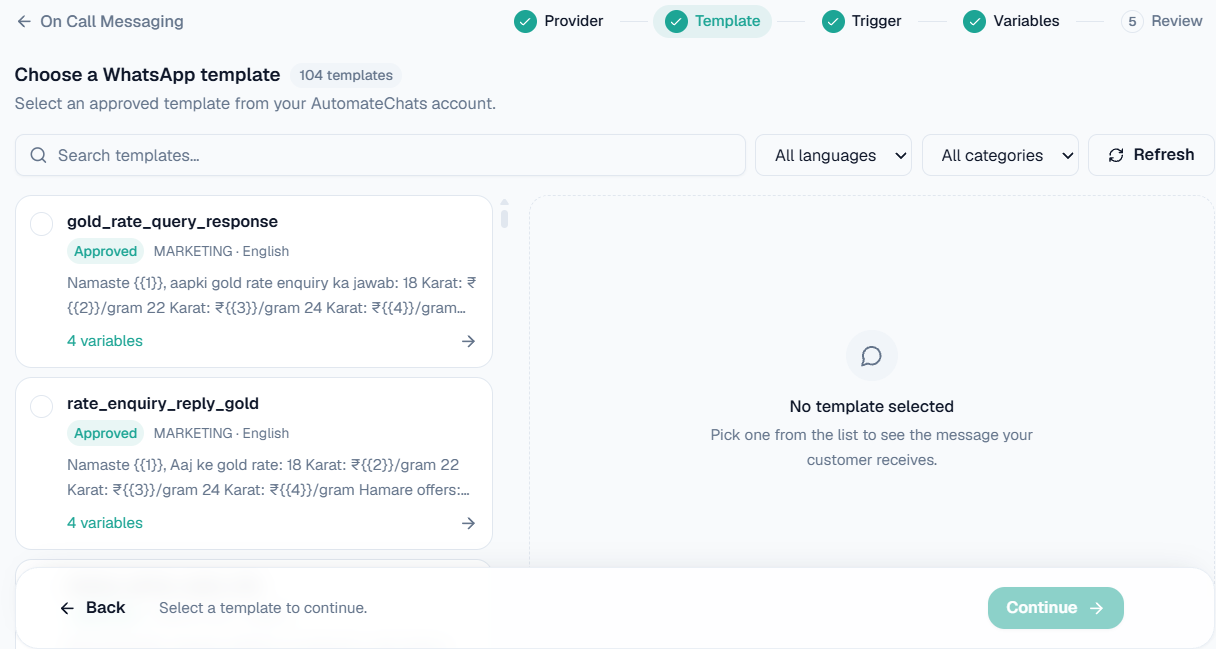
2. Template. Pick one of your approved WhatsApp templates. Search by name, or filter by language and category; Refresh reloads them from your provider. Each template shows its category, language and how many variables it has.
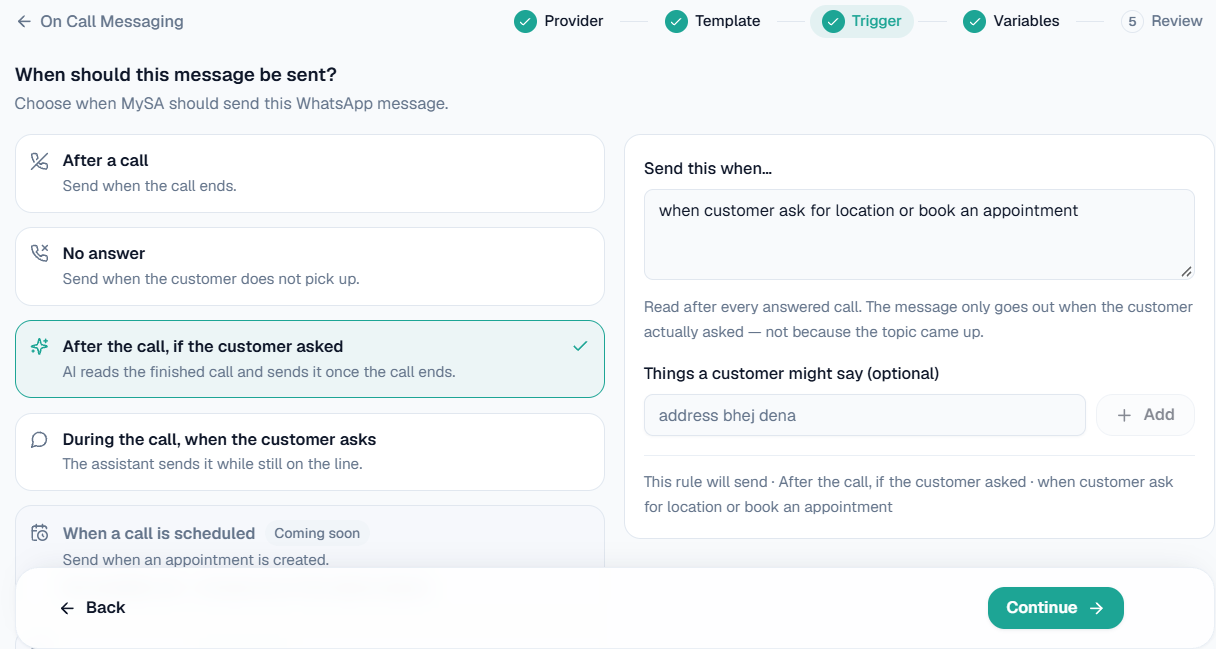
3. Trigger. Choose when the message goes out:
| Trigger | When it sends |
|---|---|
| After a call | When the call ends. |
| No answer | When the customer's phone rang and they did not pick up. At most once a day per number, so a campaign's redials do not send it again. Not sent when the call could not be placed at all, and not for inbound calls, test calls or the Test workspace. |
| After the call, if the customer asked | The AI reads the finished call and sends it only if the customer actually asked for it. Describe it in Send this when…, and optionally add Things a customer might say, such as address bhej dena. |
| During the call, when the customer asks | The assistant sends it while still on the line. |
| When a call is scheduled | Coming soon. |
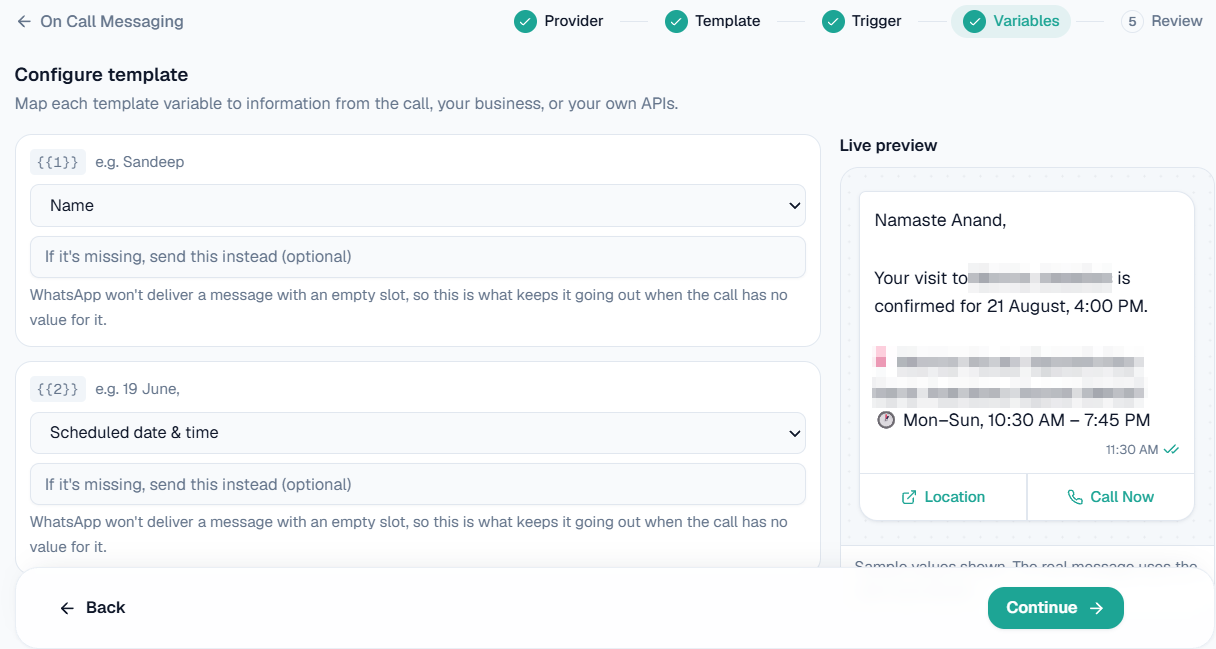
4. Variables. Map each {{1}}, {{2}} … in the template to where its value comes from: the contact (for example their name), the call (for example the scheduled date and time), your business, live data from My APIs, or a fixed text that every contact gets. If it's missing, send this instead fills a slot when the call has no value for it, because WhatsApp does not deliver a message with an empty slot. If the template has an image, video or document header, you give its link here (https only). The Live preview shows the message with sample values.
5. Review. Give the rule a Rule name (only you see it) and pick the Business: only calls answered from that Business Details category send this message, or choose All businesses. The cards summarise the provider, template, variables and trigger. Send Test sends the message to a phone number you enter and shows whether the template is approved, the variables are mapped and the number is valid. Save & Enable saves the rule and turns it on.
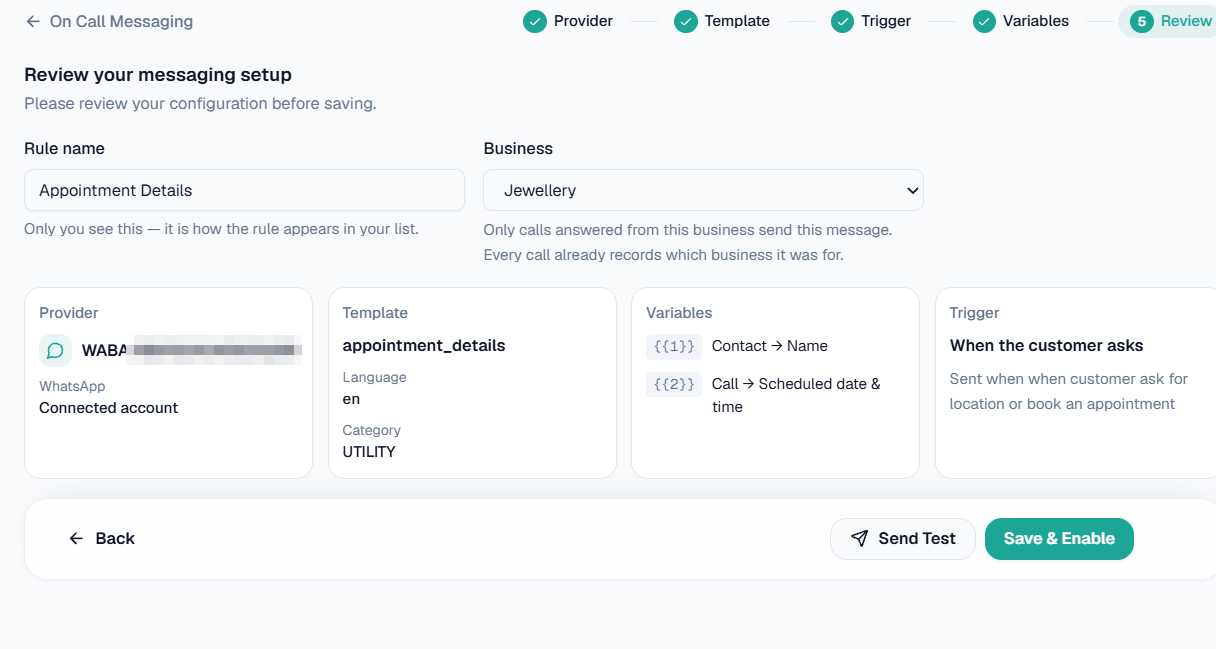
Note: A rule saved in order to send a test stays switched off until you enable it, so testing never starts messaging your customers.
Conversations
WhatsApp → Conversations lists every chat on your connected numbers.
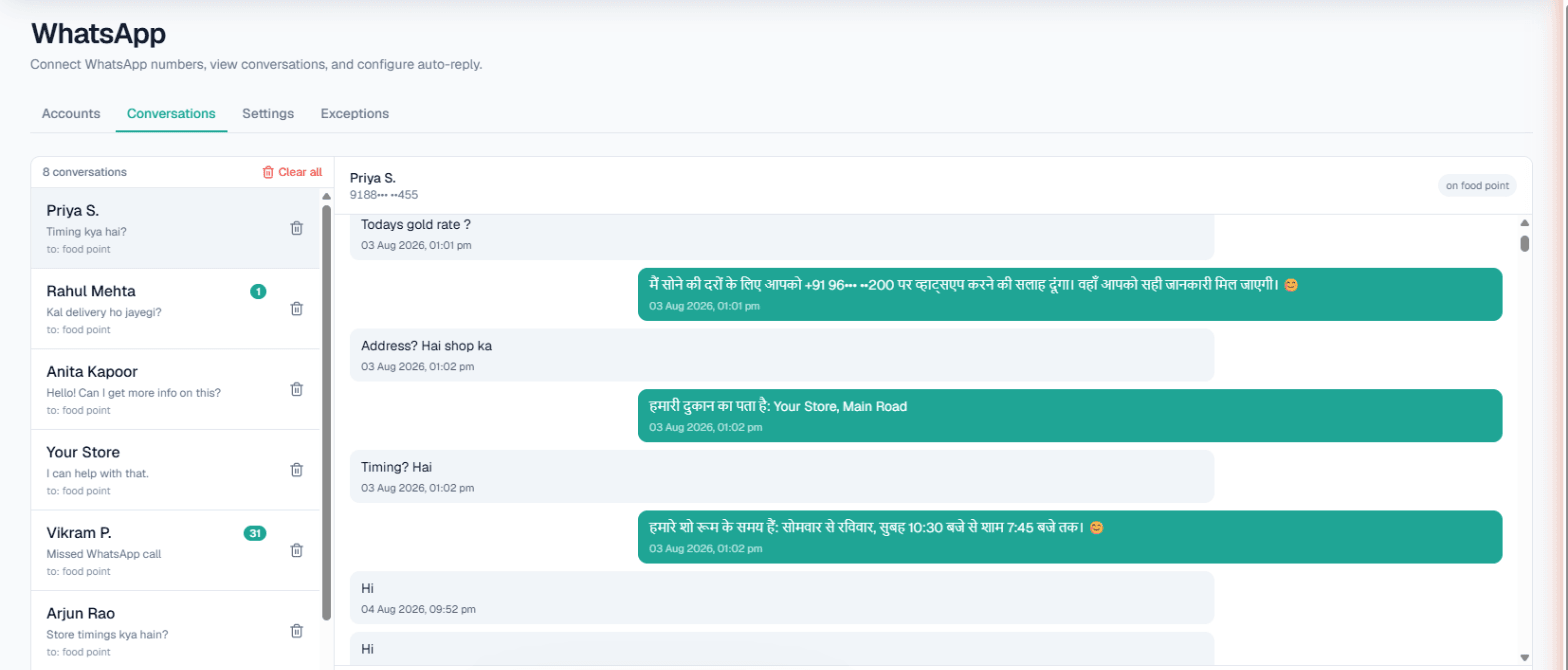
On this screen: the chat list on the left shows each customer, their last message, the number they wrote to and an unread count. Open one to see the whole thread — the customer's messages on the left, MySA's replies in green on the right. Here a customer asks in Hinglish for the gold rate, the address and the timings, and the AI answers each in Hindi from the Business Details. Type in the box at the bottom to reply yourself; Clear all and the bin icon remove chats from this list.
Empty wallet disconnects
A connected number is disconnected if your Live wallet stays at zero for 24 hours in a row. The clock resets when you top up. To restore it, add balance and reconnect from the Accounts tab. Your history is kept. See Wallet & pricing.
Related
- WhatsApp AI automation: the overview of smart replies, keyword Auto-Call, missed-call recovery and broadcasts.
- WhatsApp broadcasts for sending one approved template to a list.
- Instagram & Facebook for the same AI on DMs and comments.