
AI calling for mobile shops means an AI voice assistant answers and makes the routine calls of a mobile or electronics store: "naya model aaya kya?", "price kitna hai?", "EMI milegi?", and the call back when the phone a customer wanted is finally in stock. In MySA Business the AI answers from the prices and offers you approved, can check stock in your own system if you connect it, and notes exactly which model and colour each caller wants, so your counter staff can stay with the customers in the shop.
Why launch week floods the phone
Every time a popular phone is launched, the same calls arrive in a burst. Customers have seen the launch online and want to know three things before they come in: is it in the shop, what will it cost here, and can they pay in instalments. A busy counter cannot answer all of them, and the ones that ring out often go to the next shop on the street.
The calls are short and they repeat:
- "Aa gaya kya?" Is the new model, colour or storage variant in stock.
- "Kitne ka hai?" The shop's price, and whether there is an exchange or bank offer.
- "EMI milegi?" Which finance options you offer, and what documents to bring.
- "Mere liye rakh do." A customer who wants to reserve one, or be told when it comes.
- After the sale. Accessory, screen-guard, extended-warranty and service questions, and the burst of "update aaya hai, phone slow ho gaya" calls after every big software update.
Answering price, offer and EMI questions
The AI answers from your Business Details: the categories of information you write and approve once. For a mobile shop that usually means:
- Your prices for the models you stock, or the rule you follow ("MRP par, exchange alag").
- Exchange offers and how old phones are valued at the counter.
- The EMI and finance options you actually offer, the usual documents, and that approval is decided at the shop.
- Accessories, warranty, the service centre address, timings and the weekly off day.
It never invents a price or a discount. If a caller asks something you did not write down, the AI says your team will get back, and the question waits in Follow-ups as Action required. You type the answer once, and the AI calls the customer back with it.
Prices change fast after a launch, so keep that part of your Business Details short and update it when the price changes. If you need the price or stock to come straight from your billing software, read the next section.
Checking stock from your own system
If your billing or inventory software has an API, the workspace Owner can add it under Integrations → My APIs (Custom APIs are enabled per workspace). On your inbound number you tick it under Live data (your APIs). With the during-call mode, the AI can look up the model a caller just named and answer from what your system returns.
Without an API, the AI does not guess stock. It notes what the customer wants and tells them the shop will confirm. How the live lookup works, and what happens when your API is slow, is in AI calls with real-time data and the Custom APIs documentation.
Example: a launch-week call
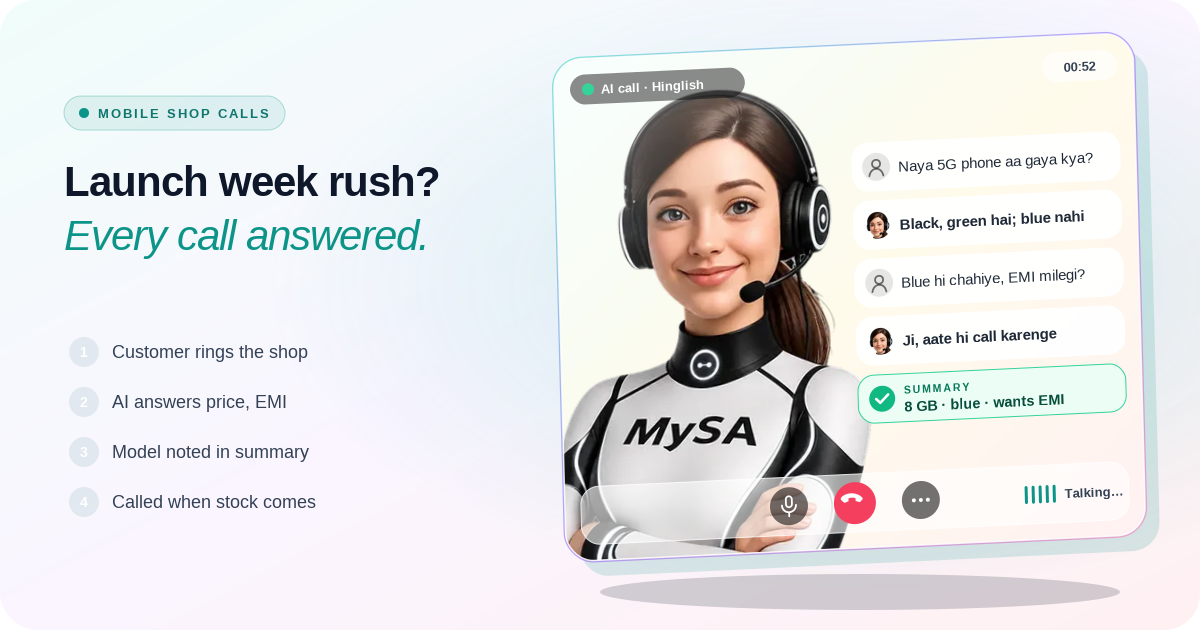
Caller: Bhaiya, naya wala 5G phone aa gaya kya? 8 GB wala chahiye, blue colour mein.
AI: Abhi blue colour stock mein nahi hai, black aur green available hain. Kya aap blue ka wait karna chahenge?
Caller: Haan, blue hi chahiye. EMI bhi milegi na?
AI: Ji, hamare yahan card aur finance dono pe EMI hoti hai, approval shop pe hota hai. Main note kar leti hoon, blue aate hi aapko call karenge.
The stock answer in this example comes from the shop's own API; without one, the AI would only note the request. Afterwards the call appears in Call Logs with the recording, an AI summary ("wants 8 GB, blue, EMI"), sentiment and tags such as Stock enquiry or EMI, chosen from your own tag list.
Calling everyone back when stock arrives
This is where most shops lose sales: the customer was promised a call and nobody remembered. MySA does not watch your stock on its own, so the call back is a short routine your team runs on the day the phones arrive:
- Find the waiting customers. On the Tags page, the download button on your Stock enquiry tag exports the customers who had it as a CSV. The Detailed Report filtered by that tag gives the same calls with each AI summary, so you can see which model and colour each one asked for.
- Upload them as a campaign. A CSV Upload campaign calls the list, and columns
var1tovar15let each call carry that customer's own model, so the AI says "aapka blue 8 GB wala phone aa gaya hai". - Ask them to come in. The purpose can invite them to the shop today, and a customer who says "kal shaam aata hoon" can be reminded on the day with Visit reminders.
If your own software can push contacts, an API campaign can do step 2 automatically when stock is entered. Campaigns are explained in Campaigns.
When a customer wants to speak to the owner
Some calls are better with a person: a bulk order for an office, a corporate deal, or a customer bargaining on the exchange price. With Call transfer, you name a number such as "Owner" with a one-line rule, for example "when they want to buy more than five phones or ask for a special price". The AI rings that number, briefs your colleague first, and then connects the caller. Transfer works in your Live workspace, and the minutes your colleague is on the line are billed separately.
What works today, and what it does not do
| Works today | Does not do |
|---|---|
| Answering your number with prices, offers and EMI options you approved | Approve a loan, check a customer's credit or take a booking amount |
| Stock from your own API, if you connect one | Know your stock without an API or your update |
| Noting model, colour and variant in the call summary and tags | Call customers back by itself when stock arrives; your team starts that campaign |
Personalised call-backs from a CSV with var1 to var15 | Quote a price or discount you did not write down |
| Handing a bulk or special-price buyer to a named person | Keep turn-by-turn transcripts (recording and summary only) |
Getting started
- Create a workspace and verify your mobile number to get ₹100 of Test credit in the separate Test environment.
- Write your Business Details: the models you stock, exchange and EMI rules, accessories, warranty and timings.
- Press Try now: the AI rings your own phone. Ask it what your customers ask on launch day.
- Add a Stock enquiry tag of your own on the Tags page so waiting customers are easy to find later.
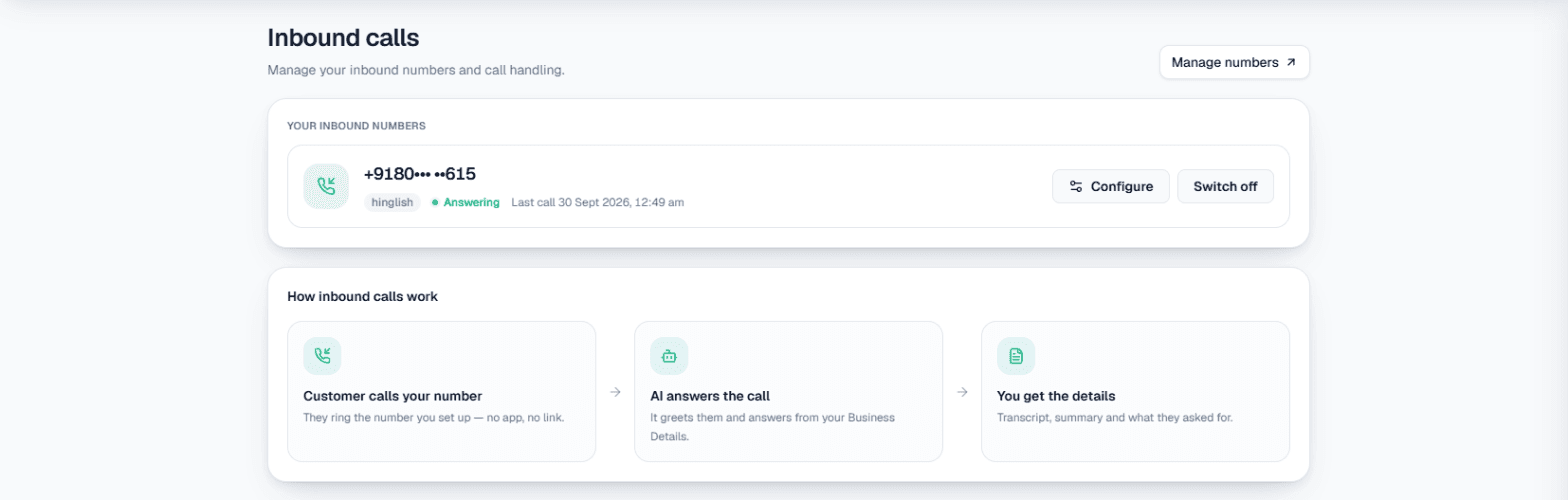
- Go Live, top up the prepaid wallet, and switch on inbound calls for your shop's number.
Calls of 10 seconds or less are free; longer calls are billed per started minute. The rate for your workspace is shown in the console. Talk to sales for volume pricing.