

Results
Call logs & recordings
Call Logs is where you find out what happened on any call: its status, cost, recording, AI summary, sentiment and tags.
Find a call
Open Call Logs from the Calling section of the menu. It opens on the last 7 days and lists each call with its status, duration, charge and recording.
Narrow the list with:
- Date range — Today, Last 7 days, Last 30 days, All time or a custom range.
- Campaign, direction (inbound or outbound) and source.
- Status — Completed, Placed, Failed, Queued or Not dialled.
- Sentiment — Positive, Neutral, Negative or No response.
- Search for a customer's number.
A call counts as "connected" when it had talk time.
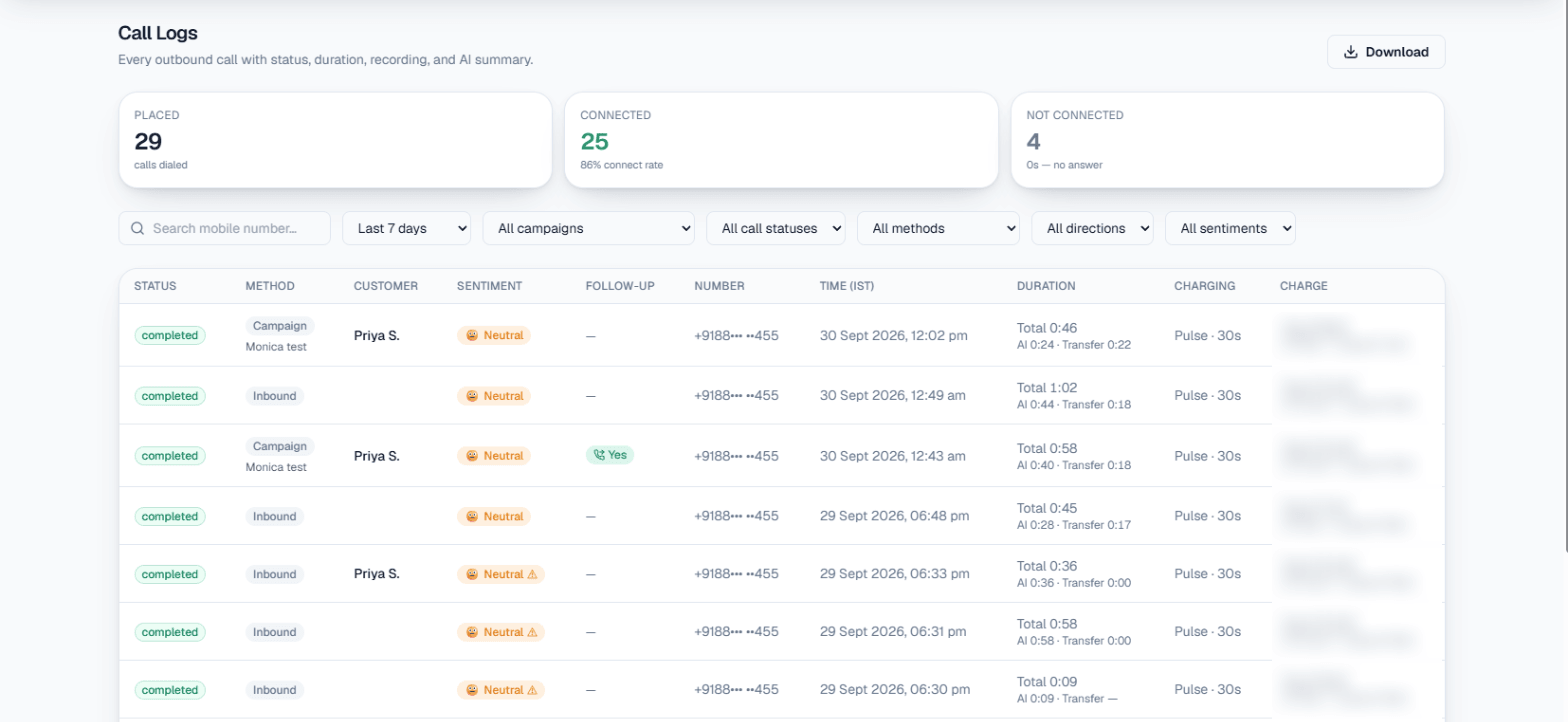
On this screen: the cards at the top count calls Placed, Connected (with the connect rate) and Not connected, and below them sit the search box and the filters for date range, campaigns, call statuses, methods, directions and sentiments. Each row shows the Status, Method (a campaign or Inbound), Customer, Sentiment, Follow-up, Number and Time (IST), with Duration and Charge given as a total plus the AI and transfer parts and Charging showing the charging method. Download at the top right saves the list as a CSV.
Open a call
Click a row to open the full call detail. It shows:
- The basics — customer, phone number, campaign or source, language, call duration, start and end time, cost and charging method.
- Recording — play it in the page or download it. Recordings stream from secure storage through a short-lived link.
- AI Summary — a summary of the call with chips for interest, outcome, sentiment and talk time. Calls that need a person are flagged Needs a human.
- What happened, Suggested next step and What the customer asked, when the AI had something to say for each.
- Tags and variables — the topic tags applied to the call, and any per-contact values (var1 to var15) from your uploaded file.
Use the menu at the top of the drawer to Copy call ID, which is handy when you contact support.
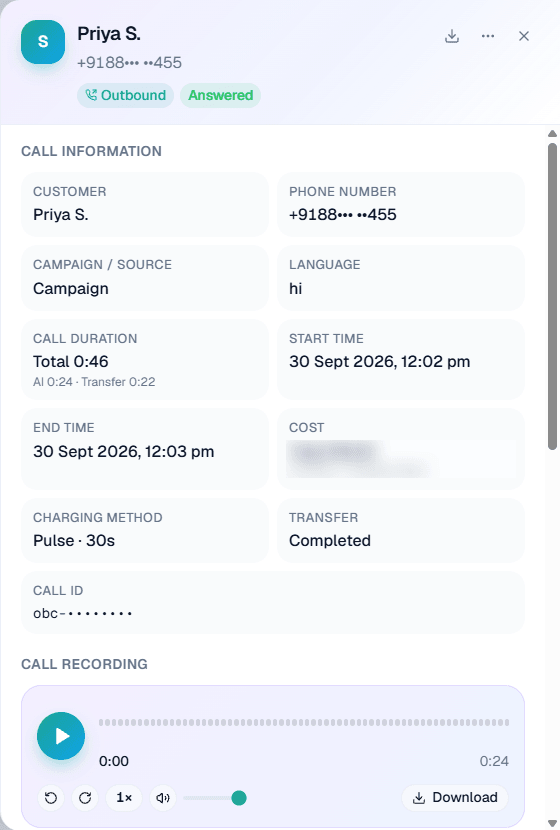
On this screen: the header shows the customer, the direction (Outbound) and the outcome (Answered), with download, menu and close icons at the top right. Call information lists the customer, phone number, Campaign / Source, language, start and end time, Charging method, Transfer status and Call ID, and Call duration and Cost each show the total with the AI and transfer parts underneath. Call recording plays the call with skip, speed and volume controls, and Download saves it.
Note: Turn-by-turn transcripts are not stored. The AI summary and the recording are the record of what was said.
Sentiment
After each connected call the AI marks how the customer sounded: positive, neutral or negative. Calls where the customer never spoke show as No response. Filter by sentiment here, or see the breakdown on Analytics.
Tags
Tags label each finished call by topic, such as Pricing or Repair. The AI applies only tags from your own list on the Tags page and never invents new ones. Each business category gets up to 10 tags prepared by MySA plus 5 of your own. See Analytics & reports for the tag breakdown and Google Sheet.
Report language
Settings → Workspace → Report language sets the language call summaries are written in. It does not change the language the AI speaks on the call. The original wording is kept, and call details show a Show original link next to the translation. If you do not see the card, ask support to switch it on.
Calls with a transfer
When a call was handed over to a person on your team, the detail and the download show the total duration and cost split into the AI's part and the transfer part. See Call transfer.
Why a call did not go out
If your wallet was short when a call came up, the call waits in the queue for a top-up. If it is still unfunded after 10 minutes it is cancelled, and the row says: "Not enough wallet balance. The call waited 10 minutes for a top-up and was cancelled." That call will not dial later, so create it again. See Wallet & pricing.
Download
Click Download to save a CSV of the calls in your date range, narrowed by the campaign and status you picked. It includes total, AI and transfer duration and charges, and the AI summary.
Tip: To review a whole day of calls in one table, play recordings from the row and export everything in your filtered range, use the Detailed Report.