

Developers
Custom APIs
Custom APIs let your assistant use live data from your own systems, such as today's rate or an order's status, while it talks to a customer.
Two ways the assistant uses your API
| Mode | When your API is called | Good for |
|---|---|---|
| Pre-fetch (default) | Just before each outbound call. The answers are handed to the assistant as facts | Data known before dialling: today's gold rate, this customer's open order |
| During the call | When the assistant decides it needs it, mid-conversation, using a detail the customer just gave | Lookups you cannot predict: "and what about order 8842?" |
A pre-fetch can only answer what was known before dialling. Calling during the call can answer a question about something the customer only just mentioned.
Your workspace runs one mode at a time. To change it, raise a support ticket.
Before you start
- My APIs is a tab under Integrations. It appears once Custom APIs are enabled for your workspace — if you do not see it, raise a support ticket.
- It is for the workspace Owner only.
- Your API must be reachable from MySA's servers. If it sits behind a firewall, IP-whitelist MySA.
- Private, loopback and cloud-metadata addresses are always refused.
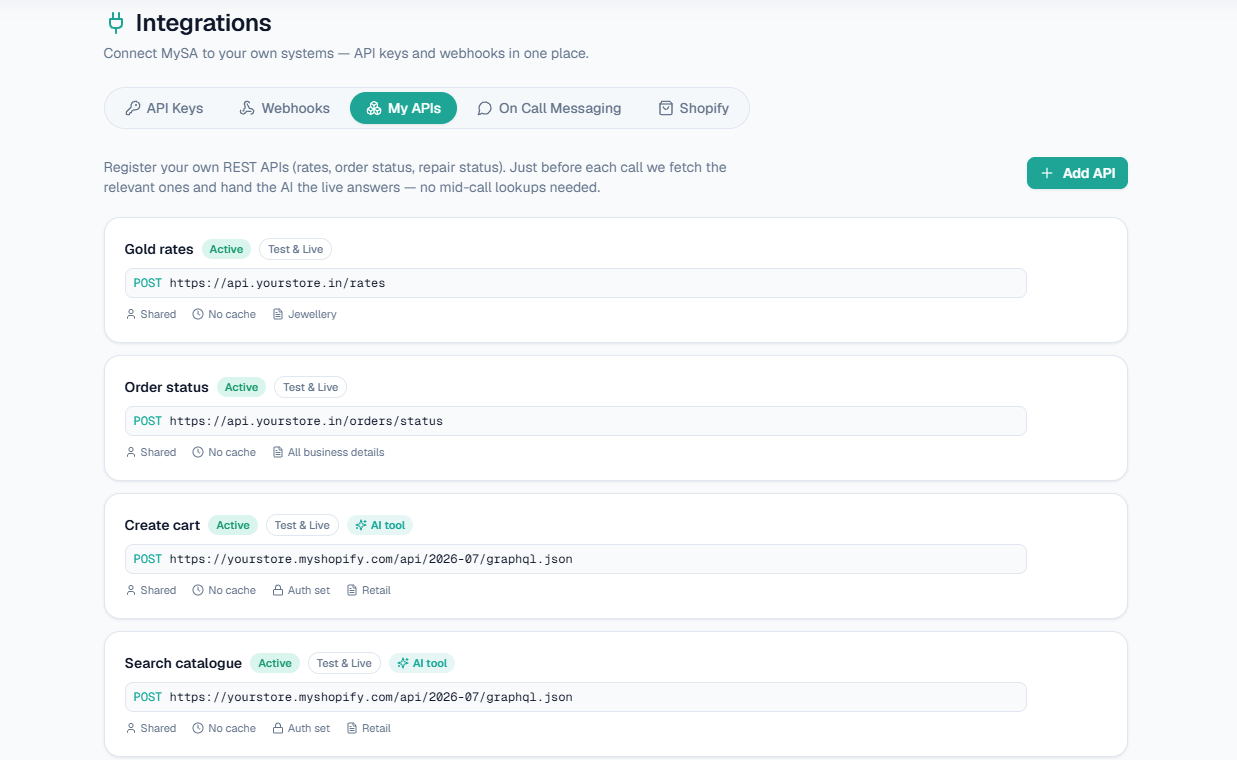
On this screen: the My APIs tab under Integrations, with Add API at the top right. Each card shows the API's name, its status (Active), the environment it runs in (Test & Live) and its method and URL; the line underneath says whether its data is shared, its cache setting, whether authentication is set and which Business Details it applies to. An AI tool badge marks an API the AI can call during a call.
Add an API
-
Open Integrations, choose the My APIs tab and click Add API.
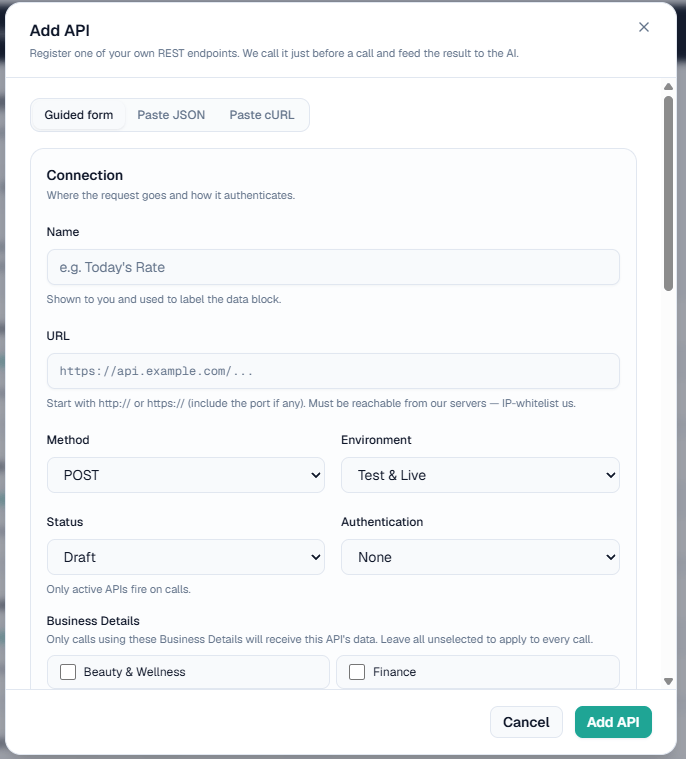
On this screen: Guided form is open; Paste JSON and Paste cURL are the other ways to fill it in. Under Connection you set the Name, URL, Method, Environment, Status and Authentication. Business Details limits the API to calls that use the categories you tick; leave them all unticked to apply it to every call. Add API saves it.
-
Fill in the basics:
| Field | Values |
|---|---|
| Name | Up to 120 characters. Labels the data block the assistant sees |
| URL | Up to 500 characters, starting with http:// or https://. Include the port if there is one |
| Method | GET or POST |
| Environment | Test & Live, Test only or Live only |
| Status | Draft or Active. Only active APIs fire on calls |
- Choose Authentication: None, Custom header (a Header name plus a Secret) or Bearer token. Add up to 5 more headers under More headers if your API also wants, for example, a client ID.
- Write the Payload template (JSON). Type constants directly and use these tokens for values MySA fills in:
| Token | Replaced with |
|---|---|
{{mobile10}} | The customer's 10-digit mobile number |
{{today_ddmmyyyy}} | Today's date |
{
  "mobile": "{{mobile10}}",
  "date": "{{today_ddmmyyyy}}",
  "branch": "MAIN"
}- Tick Customer-specific (uses their mobile) if the answer depends on the customer. Enter a Sample mobile to test with.
- Click Fetch sample. MySA calls your API from its servers and shows the live response.
- Set Response array path to the list that holds your items, then tick the fields you want under Fields to include.
- Adjust the Message template. It is filled from your ticks; edit it freely. Reference fields with
{FieldName}:
{GroupName}: ₹{SalesRate}/gram- Optionally set Skip a row when this field is empty and Cache (seconds).
- Set Status to Active and save.
Warning: Fields you do not reference in the template are dropped. The assistant only ever sees the lines your template produces.
Secrets and extra header values are stored encrypted and are never shown again after you save.
Example
Your API returns:
{
  "rates": [
    { "GroupName": "22K Gold", "SalesRate": "6450", "Unit": "gram" },
    { "GroupName": "Silver", "SalesRate": "82", "Unit": "gram" }
  ]
}
With Response array path rates and Message template {GroupName}: ₹{SalesRate}/gram, the assistant receives:
22K Gold: ₹6450/gram
Silver: ₹82/gram
AI-format this data
Tick AI-format this data to have AI rewrite the fetched lines into clean, natural facts, with numbers kept exact. It adds a small delay, and it suits structured data such as rates.
Let the AI call it during a call
When your workspace is in during-the-call mode:
- Open the API and tick Let the AI call this during a call.
- Fill When should the AI call this API? (up to 500 characters).
- Save.
The same URL, authentication and ticked fields are used. The placeholders in your URL and payload template become the values the assistant fills in from the conversation.
The description is the only thing the assistant reads to decide whether your API is relevant. Say what it returns and when to use it:
Look up the live status of a customer's order. Use it when the customer asks where their order is and gives an order number.A vague description, such as "order details", means the assistant either never calls your API or calls it on every call. An API ticked for this mode with no description is skipped.
Press Improve with AI to see a cleaner version beside your own. Nothing is saved until you press Use this; Keep mine leaves your text as it is. What is saved is exactly what the assistant is given, and it is never rewritten later.
Note: In this mode your API's credential is sent to the calling gateway, because the gateway makes the request. That is one reason the mode is enabled per business and off by default.
Timeouts, caching and failures
| Setting | Value |
|---|---|
| Pre-fetch timeout | 2.5 seconds per request |
| During-the-call timeout | 8 seconds by default; 1 to 30 seconds per API |
| Largest response read | 256 KB |
| Cache (seconds) | 0 to 86400. 0 means always fresh |
All active APIs are fetched in parallel before a call. A failure never stops the call: an API that times out, errors or is blocked is simply left out, and the call goes ahead without it.
When caching is on and your API does not answer, MySA falls back to the last good answer it saved. When there is no saved answer, a timeout or a 5xx is retried once. A 401, 404 or malformed body is not retried.
Shared data, such as a rate, is cached per API per day and served to every caller. Customer-specific data is cached per mobile number, and only for as long as you set; it is never force-cached by MySA. Editing an API clears today's shared cache, so a changed template takes effect at once.
Tip: Turn caching on for data that is the same for everyone, such as rates or a menu. Leave it at 0 for data that must reflect the caller's live record, such as order status.
For partners
A CRM partner's business, which has no console login, manages the same APIs through /v1/api/custom-apis with its business key. Bodies use the same camelCase fields as the screen, and a test route returns the response fields and a preview. See Partner API.
Related
- Business Details for static knowledge the assistant reads
- Assistants & purposes
- API keys