
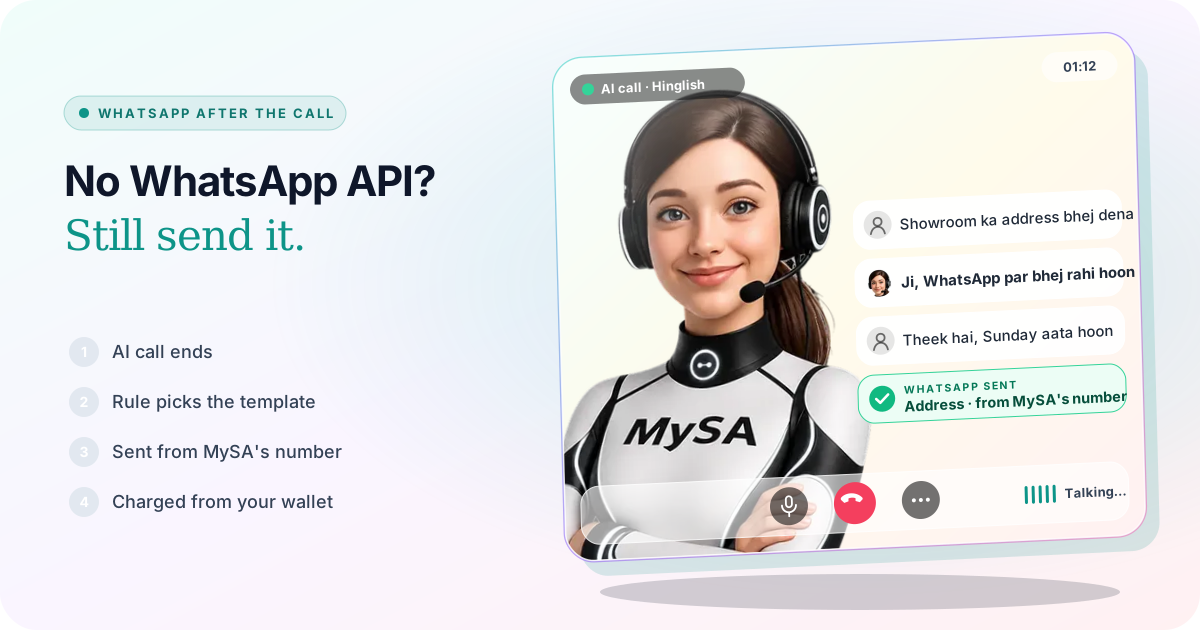
Sending a WhatsApp after a call without the WhatsApp API means the address, the booking details or the price list reach the customer on WhatsApp the moment your AI call ends, even though your business has no WhatsApp Business account, Meta setup or API key. In MySA Business this is MySA WhatsApp: the message goes out from MySA's own WhatsApp business number, using templates WhatsApp has already approved, and each message is paid from your prepaid wallet.
Why most small businesses never send that message
A call often ends with "WhatsApp kar dena": the address, the timings, the documents to bring. Sending it automatically normally needs the WhatsApp Business API, and that is where many owners stop:
- A Meta Business account and a verified business, with documents and waiting.
- A phone number that is not already on the WhatsApp app, or moving your existing one.
- An approved template for every message, written in WhatsApp's format and reviewed by Meta.
- A provider or developer to hold the API key and keep the connection working.
So the message is typed by hand when someone remembers, or not at all. The customer who asked for the address calls another shop that sent it.
How MySA WhatsApp sends it for you
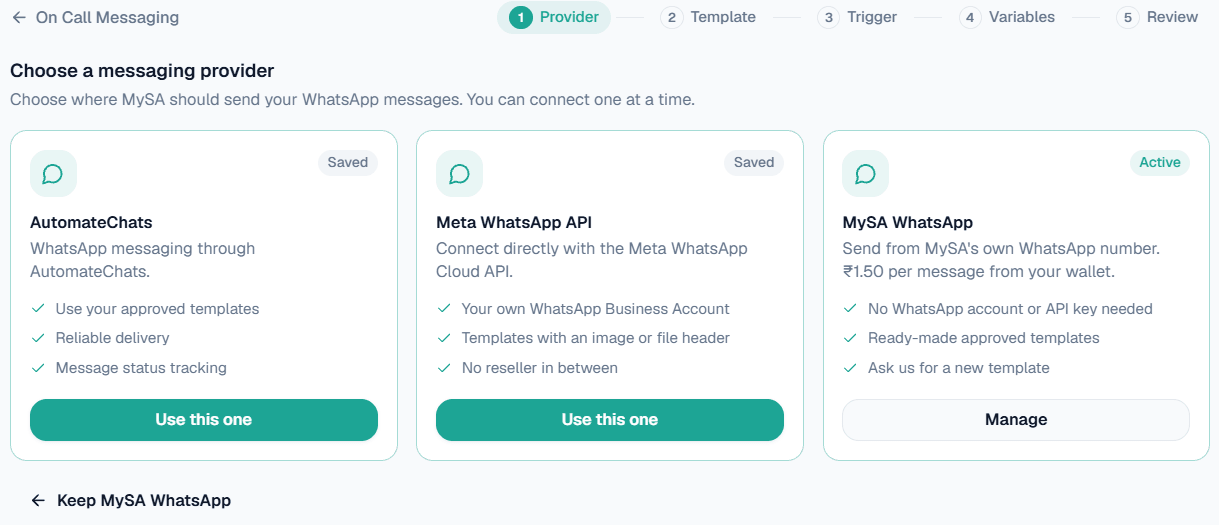
MySA WhatsApp is one of three providers in Integrations → On Call Messaging. The other two use your own account: AutomateChats, or your own Meta WhatsApp API. MySA WhatsApp needs neither:
| You need | Your own WhatsApp API | MySA WhatsApp |
|---|---|---|
| WhatsApp Business account on Meta | Yes | No |
| API key or access token | Yes | No |
| Templates approved by Meta | You write and submit them | Ready-made, already approved |
| A new message | Write it, wait for Meta | Request a new template; MySA gets it approved |
| Number customers see | Yours | MySA's |
| Cost | Your provider's or Meta's | Per message, from your MySA wallet |
You press Turn on MySA WhatsApp on its card, pick a template and set when it goes out. The MySA WhatsApp docs walk through every screen.
When the message goes out
Each rule sends one template at the moment you choose:
- After a call, as soon as it ends.
- No answer, when the phone rang and nobody picked up, at most once a day per number.
- After the call, if the customer asked: the AI reads the finished call and sends it only if the customer actually asked, for example address bhej dena.
- During the call, when the customer asks, while the assistant is still on the line.
Each {{1}}, {{2}} in the template is filled from the contact, the call, your business, or live data from My APIs, such as today's gold rate. If a value is missing you set a fallback, because WhatsApp does not deliver a message with an empty slot. The full list of steps is in On Call Messaging.
A call that ends with a WhatsApp
Example
(The AI calls a customer who enquired about a necklace set.)
AI: Namaste, ABC Jewellers se bol rahi hoon. Aapne necklace set ke baare mein poocha tha.
Customer: Haan, showroom dekhna hai. Address bhej dena WhatsApp par.
AI: Ji, abhi WhatsApp par bhej rahi hoon. Showroom 10 se 8 baje tak khula hai.
Customer: Theek hai, Sunday aata hoon.
The jeweller is made up. With a During the call, when the customer asks rule, the address template goes out from MySA's number while the call is still on; with After the call, if the customer asked, it goes once the AI has read the finished call. The call itself appears in Call Logs with its recording and summary, and the charge for the message in your wallet history.
Templates: ready-made, or on request
You choose from MySA's templates, which WhatsApp has already approved, so there is no waiting for Meta's review before your first message. When none fits, press Request a new template, say what the message is for and write its text, with anything that changes per customer in curly brackets, such as {name}. It becomes a support ticket: MySA creates the template, gets it approved and adds it to your account. WhatsApp decides what it approves, so the final wording can differ a little from yours.
What it costs, and when you get it back
Each message is paid from your prepaid wallet, with no subscription. The price per message for your workspace is shown when you turn MySA WhatsApp on, and you can talk to sales for the best price on your volume.
- Not enough balance: the message is not sent and nothing is charged.
- WhatsApp refuses it, or reports later that it could not deliver it: the charge comes back to your wallet.
- Delivered: the charge stays.
What works today, and what it does not do
| Works today | Does not do |
|---|---|
| Approved templates after a call, during it, or when nobody answers | Free-text messages outside a template |
| Slots filled from the contact, the call, your business or My APIs | Send from your own number |
| New templates on request | Broadcasts to a list |
| Refund when WhatsApp cannot deliver | Show customers' replies in your inbox |
If you want to chat with customers on your own number, answer their messages with AI or send broadcasts, connect your own WhatsApp and use WhatsApp Smart Reply instead; WhatsApp auto reply for business explains that side.
Getting started
- Sign up and verify your mobile number for ₹100 of Test credit.
- Set up your assistant in Test and press Try now: it rings your own phone so you hear the call first.
- In Integrations → On Call Messaging, turn on MySA WhatsApp, pick a template, choose the trigger and fill the slots.
- Send Test to your own number, then Save & Enable.
- Go Live and top up the prepaid wallet. Calls of 10 seconds or less are free; longer calls are billed per started minute, and your workspace's rates are shown in the console.