

Results
Analytics & reports
See how your calls are going at a glance, find out what customers ask about most, and where to find every call in one table.
Analytics
Open Analytics under Workspace in the menu. Pick a range (Today, Last 7 days, Last 30 days, All time or a custom range) to see:
- Call volume — calls placed and calls connected per day.
- Customer sentiment — how many calls sounded positive, neutral or negative, plus calls with no response. You can download the calls behind any mood, or the calls flagged for a person to review.
- Spend per day — what your calls cost.
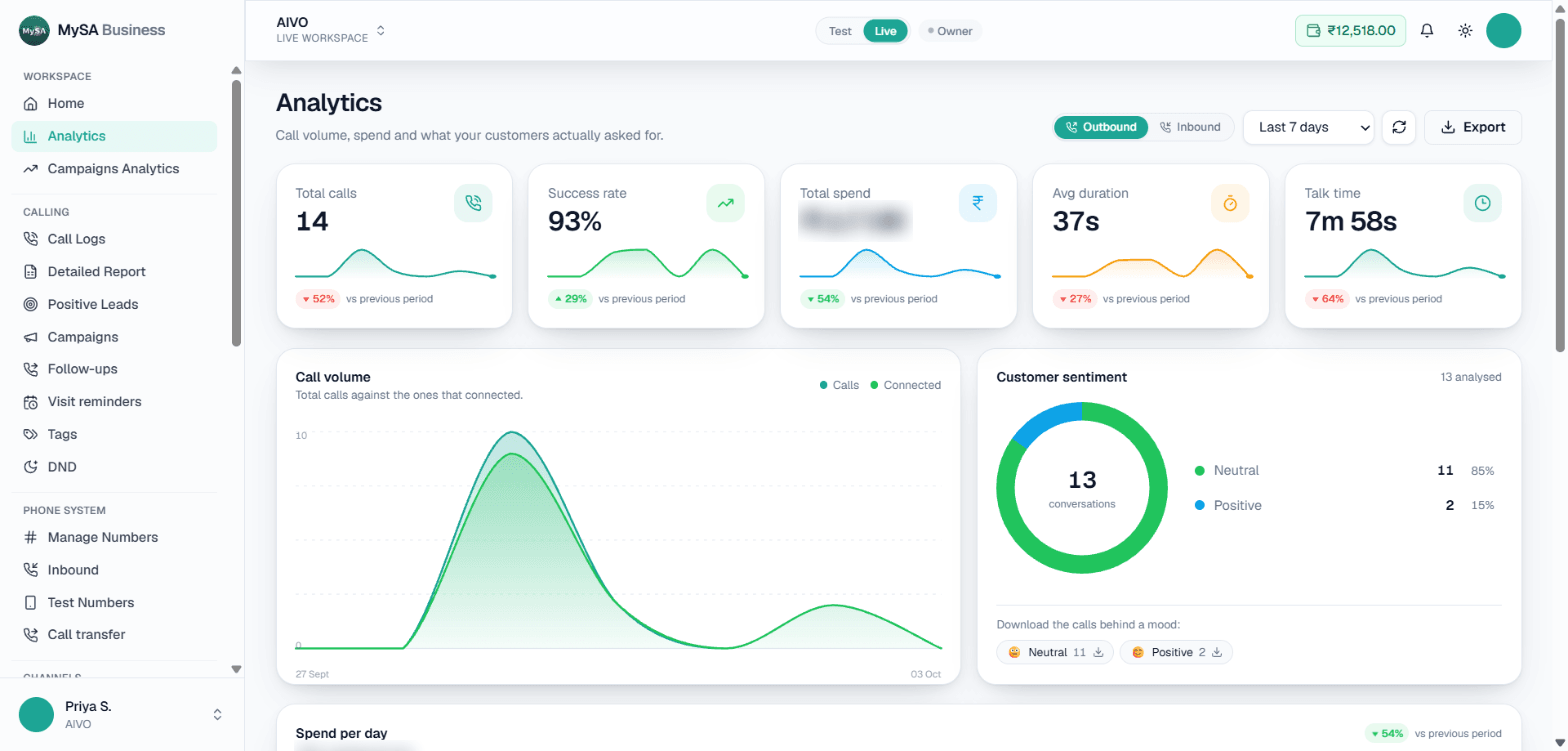
On this screen: the cards across the top show Total calls, Success rate, Total spend, Avg duration and Talk time for the chosen range, each with a small trend line and its change vs previous period. Call volume plots total calls against the ones that connected, and Customer sentiment splits the analysed conversations by mood, counts No response calls (connected but nobody spoke) when there are any, and lets you download the calls behind a mood. At the top right, Outbound / Inbound switches direction, the dropdown sets the range and Export downloads the data.
Campaigns Analytics, right below it in the menu, zooms in on campaigns — see Campaign analytics.
Call tags
Tags label each finished call by topic so you can see what customers ask about most.
- Open Tags under Calling and pick a business category.
- Add the tags that matter. Start from the AI suggestions or type your own. MySA prepares up to 10 tags per category and you can add 5 of your own on top.
- After each call the AI reads the summary and applies only tags from your list.
The breakdown shows Today, the last 7, 30 or 90 days, or a custom range. Click a tag to see the exact calls, or use its download button to export the unique customers who had that tag as a CSV.
Tags in a Google Sheet
The Google Sheet card at the bottom of the Tags page mirrors your tag board into a sheet you own, refreshed every hour. It has a Tag summary tab and one tab per category, with customers down the side, tags across the top and a tick where they meet. It covers the last 30 days, rolling.
Warning: We rebuild our tabs on every refresh, so anything you type into them is replaced. Keep your own notes in a tab of your own.
Setup is the same three steps as the Lead Feed sheet. See Lead Feed.
Detailed Report
Detailed Report under Calling lists every call your workspace placed or answered, with filters, recordings, a CSV download and a webhook that sends every call to your own server. See Detailed Report.
Which screen to use
| Question | Go to |
|---|---|
| What happened on this one call? | Call Logs |
| How did today go, and can I take it away as a spreadsheet? | Detailed Report |
| Can every call and its recording reach my own system? | Detailed Report → Webhook |
| How did one campaign perform? | Campaigns Analytics |
| What do customers ask about? | Tags |