Channels
Instagram & Facebook
Connect an Instagram Business account or a Facebook Page so the AI replies to direct messages and comments from your Business Details, with a live inbox for when you want to step in.
Before you start
Instagram and Facebook sit under Channels in the menu. Each is enabled per workspace, with a limit on how many accounts or Pages you can connect. If a channel shows as locked, or you need a higher limit, raise a support ticket.
The AI answers from the Business Details category you choose for each account or Page. It is the same knowledge your WhatsApp replies and calls use, and it replies in the customer's own language. See Business Details.
Connect an account
- Open Instagram or Facebook from the menu.
- Click Connect Instagram or Connect Facebook.
- Sign in with Facebook. There are no tokens or setup screens to fill in.
- On Facebook, pick which Page to connect.
- Choose the Business Details category the AI should answer from.
The account then appears under Connected accounts.
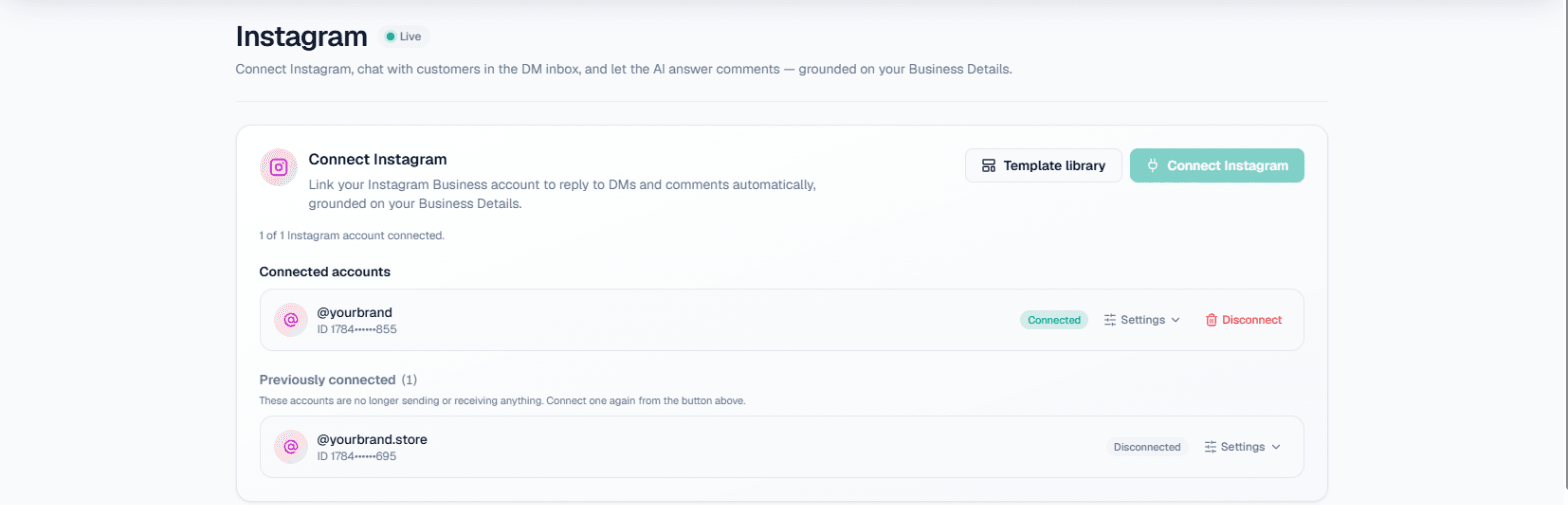
On this screen: Connect Instagram links an account and Template library opens your ready-made messages; the line underneath shows how many accounts are connected out of your allowance. Each account under Connected accounts shows its handle and ID, a Connected badge, Settings and Disconnect. Previously connected lists accounts that no longer send or receive anything, which you can connect again from the button above.
Direct message replies
Once connected, incoming Instagram DMs and Facebook Messenger messages get an AI reply grounded in that account's category.
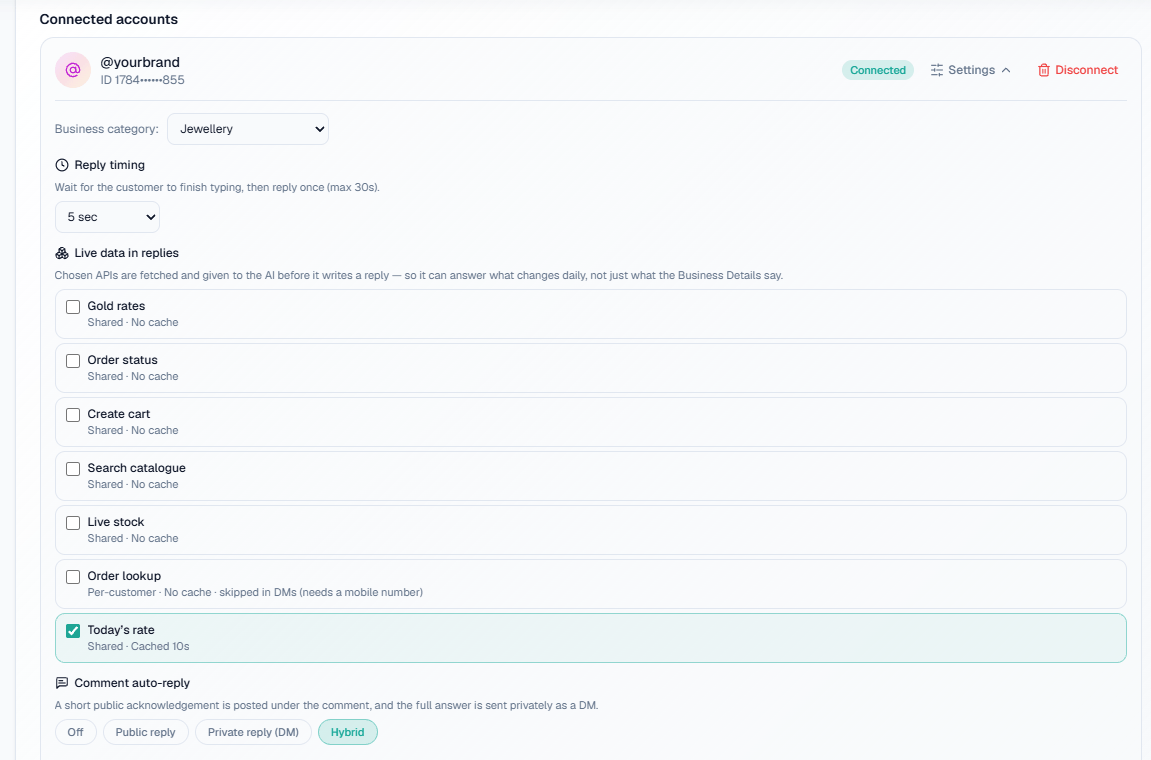
On this screen: Settings opened on a connected account. Business category picks the Business Details it answers from, Reply timing sets how long to wait for the customer to finish typing, and Live data in replies lists your APIs to tick so replies can include data that changes daily (an API that needs a mobile number is marked as skipped in DMs). Comment auto-reply at the bottom chooses Off, Public reply, Private reply (DM) or Hybrid, described under Comment replies below.
Reply timing
Customers often send several short messages in a row. Set the reply timing to control how the AI handles that:
- Immediately replies to each message straight away.
- 5 sec, 10 sec, 15 sec or Custom waits that long so a burst of messages is merged into one clear reply.
The wait is capped at 30 seconds either way.
Comment replies
Comments on your posts can be answered automatically, set per account or Page. Choose one mode:
| Mode | What happens |
|---|---|
| Off | Comments are not answered. |
| Public reply | The AI replies under the comment. |
| Private reply (DM) | The AI sends the commenter a direct message. |
| Hybrid | Both: a short public acknowledgement under the comment and a private DM. |
In Hybrid you can write your own Public acknowledgement text (optional).
Note: Only real questions get a reply. Comments that are not asking anything are left alone.
Leads from DMs
When a customer sounds genuinely interested, the AI asks for their name and mobile number so your team can follow up. You do not need to set anything up for this.
- Never on the first message. The AI answers the customer's first message normally. It asks only from the second message on, and only when they ask about price, booking, availability or a visit. It never asks on a plain greeting.
- Once per chat. If the customer ignores the question or says no, the AI does not ask again. Once a number is on file, it stops asking in that chat.
- Every number is saved. Whenever a customer writes an Indian mobile number in a DM, it is saved as a lead with the name they gave, or their profile name if they gave none. If they send a corrected number, the same lead is updated.
Chat leads appear on Positive Leads in the menu, under From Instagram & Facebook, and on the Channel Report described below.
Call when the customer agrees
Turn this on and the AI offers a call as soon as a customer shares their number. If they say yes, an AI call goes out with a short summary of the chat, so the call starts from what they asked instead of from nothing.
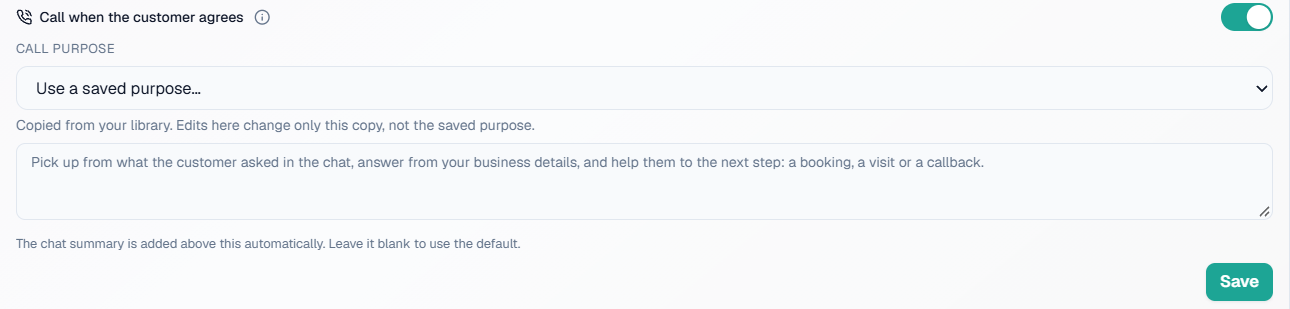
On this screen: under Settings on a connected account, the Call when the customer agrees switch is off until you turn it on. Call purpose picks a purpose from your library (Use a saved purpose…) or takes your own text. Leave it blank to use the default, which picks up from the chat, answers from your Business Details and moves the customer to a booking, a visit or a callback. The chat summary is always added above the purpose for you. Click Save to apply.
How it works:
- The customer shares their mobile number in the DM.
- The AI thanks them and asks, in their language, whether your team may call them now.
- On a yes, the AI writes a short summary of the chat and an AI call goes out in the language the customer was writing in.
- On a no, the AI does not offer a call again and keeps helping in the chat.
Note: At most one call a day goes to the same number, Instagram and Facebook together, even if the customer says yes in both chats. A call that is not answered is not retried the same day.
- Your DND hours apply. A call agreed during DND waits and goes out when the window ends. See DND.
- Calls are charged from your wallet like any other call. If the balance is too low, no call is placed.
- If a call could not be placed, the lead shows Agreed · call not placed, so your team knows to ring the customer themselves.
Channel Report
Channel Report in the menu shows the leads from your chat channels and the calls they led to, for the date range you pick.
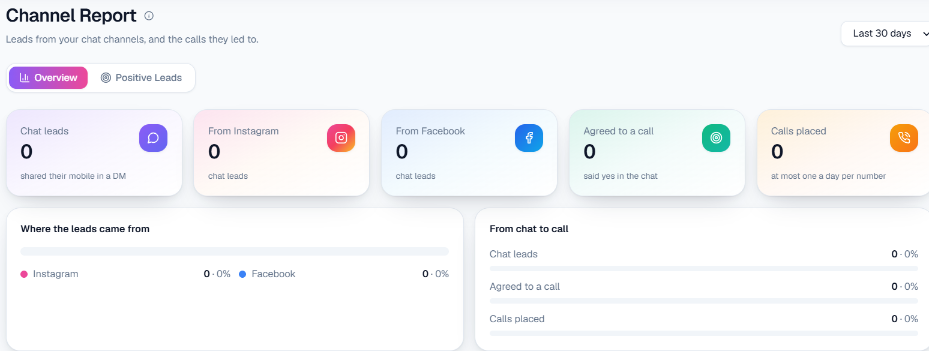
On this screen: the Overview tab shows five tiles: Chat leads (customers who shared their mobile in a DM), From Instagram, From Facebook, Agreed to a call and Calls placed. Below them, Where the leads came from splits the leads between Instagram and Facebook, and From chat to call shows how many leads went on to agree and to get a call. The Positive Leads tab lists every chat lead with the name, number, message and where the call got to: Asked to call, Agreed · call queued, Agreed · call not placed or Declined a call.
Live inbox
Every DM conversation shows up in the inbox on the Instagram or Facebook page. You can read along and jump in to reply manually at any time.
Templates
You can send ready-made messages, such as an image, a card or a swipeable carousel with Link, Call and WhatsApp buttons. They can go out when a customer uses a keyword, comments on a post, or when the AI decides one fits. See Social templates.
Tip: Messages can only be sent inside Meta's 24-hour window after the customer last wrote to you. This applies to replies and templates alike.
Related
- WhatsApp for the same AI on WhatsApp chats.
- Custom APIs for adding live data, such as today's rate, to replies.
- Instagram DM automation and Facebook Messenger automation: the overview of what each channel does.
- Instagram comment to DM automation: the comment-to-DM workflow end to end.
- AI lead qualification: where chat leads join call leads.