

Account
Invoices & GST
Every recharge comes with a GST tax invoice, and this page explains how to set up your billing details and what each GSTIN status means.
Add your billing details
Your company details go on every invoice, so they must be complete before you can add money to your wallet.
- Open Settings from the avatar menu or the left menu.
- Go to the Billing tab.
- Fill in your company billing details, including the billing address, billing email and, if you are GST-registered, your GSTIN and PAN.
- Save.
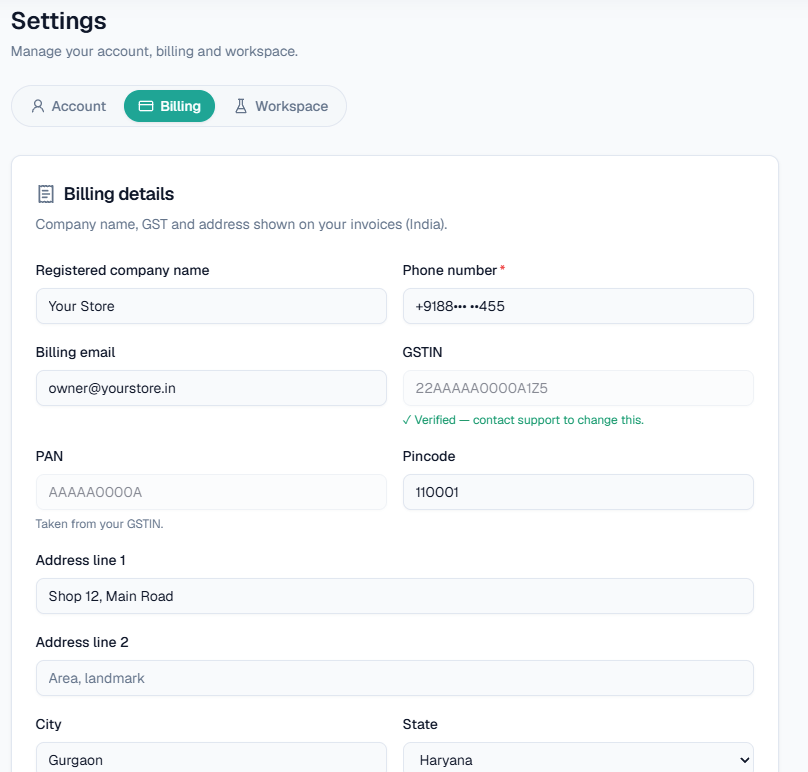
On this screen: the Billing tab of Settings, with the Billing details card that is printed on your invoices: Registered company name, Phone number, Billing email, GSTIN, PAN, Pincode, the address lines, City and State. Here the GSTIN has been verified, so it is greyed out with Verified — contact support to change this, and the PAN is Taken from your GSTIN.
Where to find your invoices
Open Billing and go to the Invoices tab. You can download any past invoice from there.
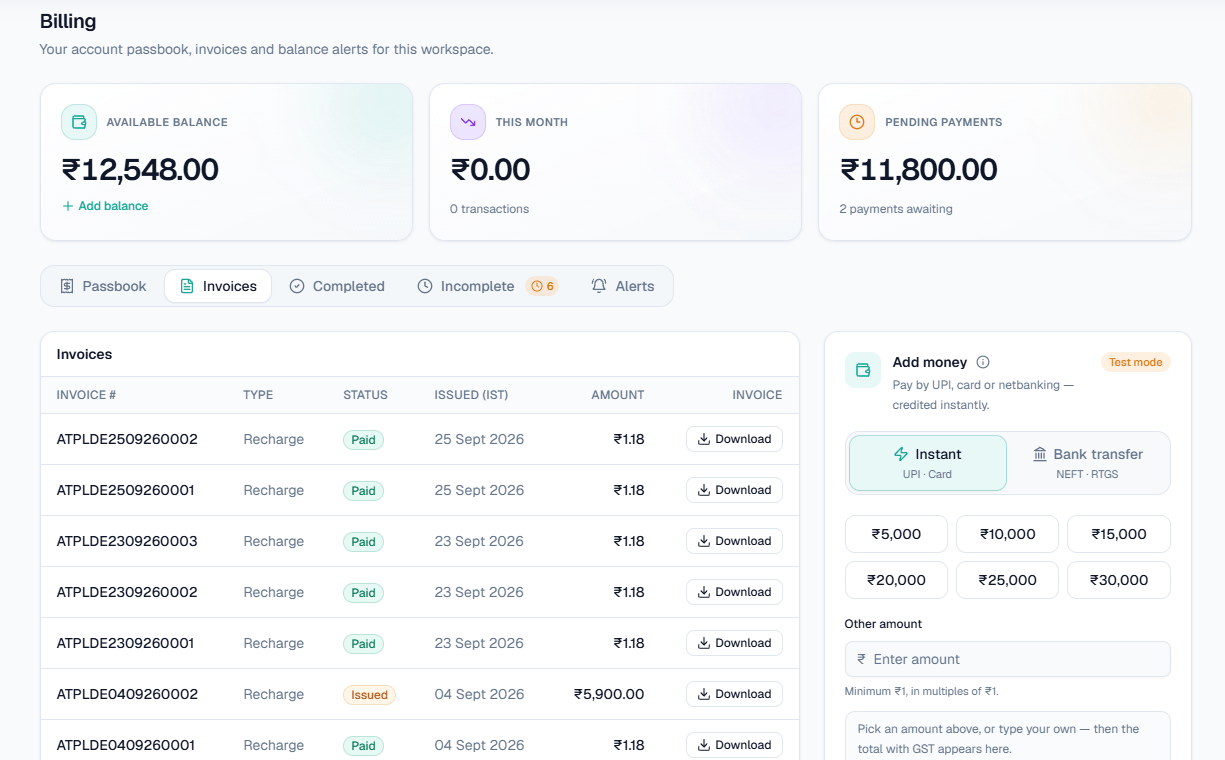
On this screen: the Invoices tab lists each invoice with its Invoice #, Type, Status (such as Paid or Issued), the date it was issued in IST and its Amount, with a Download button on every row. The balance cards above and the Add money card on the right stay the same on every Billing tab.
- Add Balance (online) — a GST tax invoice is emailed to you as soon as the payment is confirmed, and it appears in the Invoices tab.
- Request payment (bank transfer) — the GST tax invoice with our bank details is emailed when you submit the request. Once our team verifies your payment and credits your wallet, you also get a receipt by email.
GST at 18% is added on top of the amount you recharge. For a ₹5,000 recharge the invoice total is ₹5,900 (₹5,000 plus ₹900 GST), and ₹5,000 is credited to your wallet. See Wallet & pricing.
GSTIN statuses
Rejected as you type
A GSTIN is checked as you type, before it is ever saved. It is rejected if:
- it is not exactly 15 characters;
- it does not follow the standard GSTIN format (a 2-digit state code, a 10-character PAN, then 3 more characters);
- the 2-digit state code is not a real GST state or union territory code;
- the last character, the check digit, does not match the rest of the number, which catches almost any typo;
- the PAN inside the GSTIN does not match the PAN field on the same form;
- the GSTIN's state does not match the state in your billing address.
Fix the mismatch the error names and enter the number again.
Pending verification
A GSTIN that passes the format checks shows Pending verification until our team confirms it by hand. This is a manual step, separate from the automatic checks.
Warning: Invoices cannot be issued until your GSTIN is verified. If it has been pending for a while, raise a support ticket.
Verified and locked
Once verified, the GSTIN is locked and shows Verified — contact support to change this. It decides the place of supply and whether invoices show CGST and SGST or IGST. Changing it silently would make invoices already issued to you inconsistent with your registration.
Note: If your GSTIN needs to change, raise a support ticket. Support can unlock it for you.
Who can see billing
Billing is a sensitive section. A teammate given Full or Read only access does not get it automatically. The Owner has to grant Billing on its own. See Team & roles.
Need help?
For a missing invoice or a GSTIN question, raise a ticket from Support → Help. See Getting help.