

Get started
Quickstart
Go from a new account to your first AI call on your own phone, and then to your first campaign, in a few short steps.
Before you start
Do all of this in your Test workspace first. Check the Test/Live switch in the top bar. Test calls reach only numbers you have added yourself, and they are paid from a separate Test wallet, so nothing here can reach a real customer by accident. The ₹100 welcome credit lands in that wallet once you verify your mobile number from Profile (a code by SMS); do that first.

Step 1: Add your phone as a test number
- In the left menu, open Phone system → Test Numbers.
- Add your own mobile number.
- If the page asks you to verify, press Send code and type the 4-digit code that arrives by SMS.
You can keep up to 10 test numbers, shared across Test and Live. See Test calls for details on verification.
Step 2: Add your Business Details
The AI answers from what you give it here.
- Open Business → Business Details and click Create business details.
- Pick a category and choose one or more files (PDF, DOCX, TXT, MD or CSV). You can add website links and a line of instructions too.
- Press Build knowledge base and wait for the build to finish.
- Press Review & edit, fill in every highlighted blank, then press Save & confirm.
- When the document has been processed, review it and press Approve so it goes live.
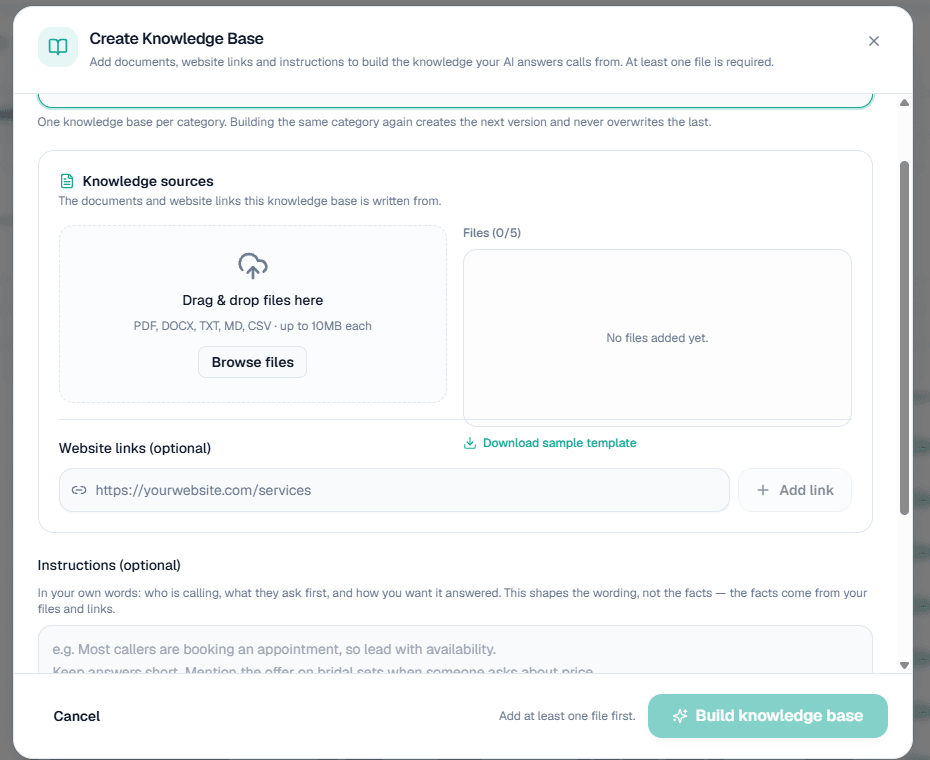
See Business Details for the full walkthrough.
Step 3: Save a purpose
A purpose is what the AI should achieve on the call.
- Open Business → Purposes.
- If you are not sure what to write, use the AI writer: describe the call in your own words and it drafts one in about half a minute.
- Read the draft, change anything you like, give it a name and press Save.
Step 4: Call your own phone
-
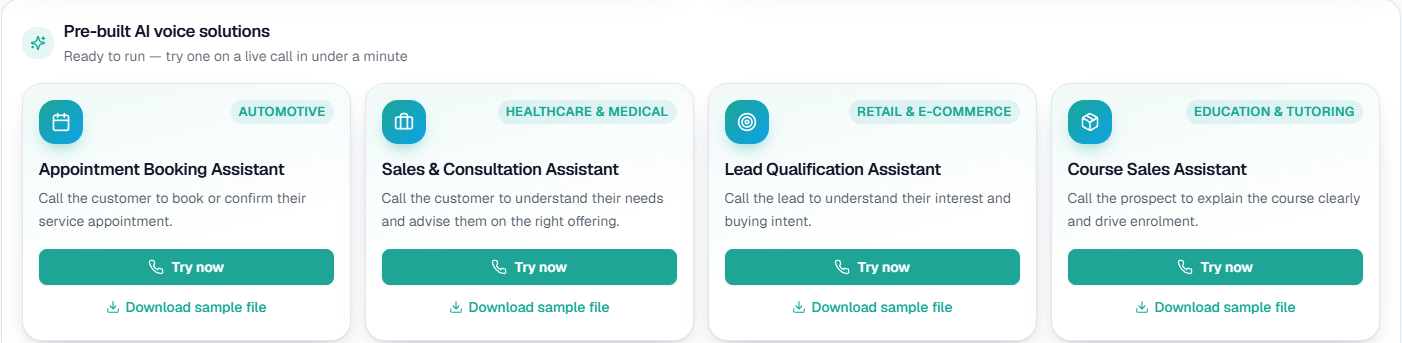
Go to Home and pick one of the ready-made assistants.
-
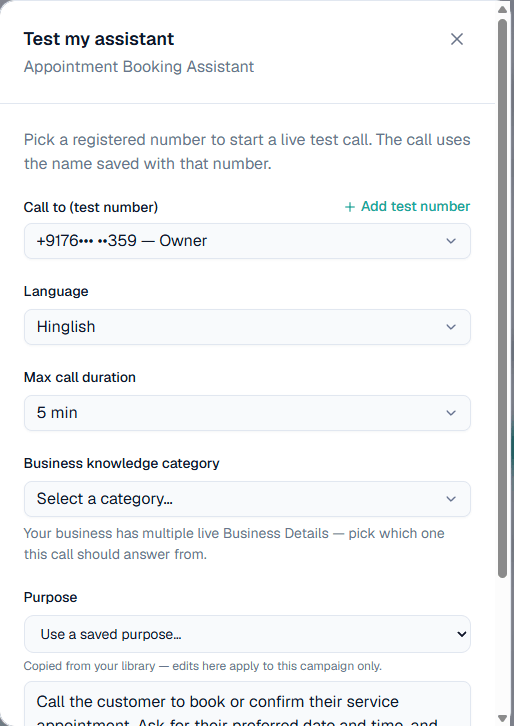
Click Try now. The Test my assistant window opens.
-
Choose your number under Call to (test number), pick a Language and a Max call duration.
-
Under Purpose, choose your saved purpose or keep the assistant's default.
-
Press Start Phone Call. You should get the call within about two minutes.
After the call, open Call Logs to play the recording and read the AI summary.
Step 5: Create your first campaign
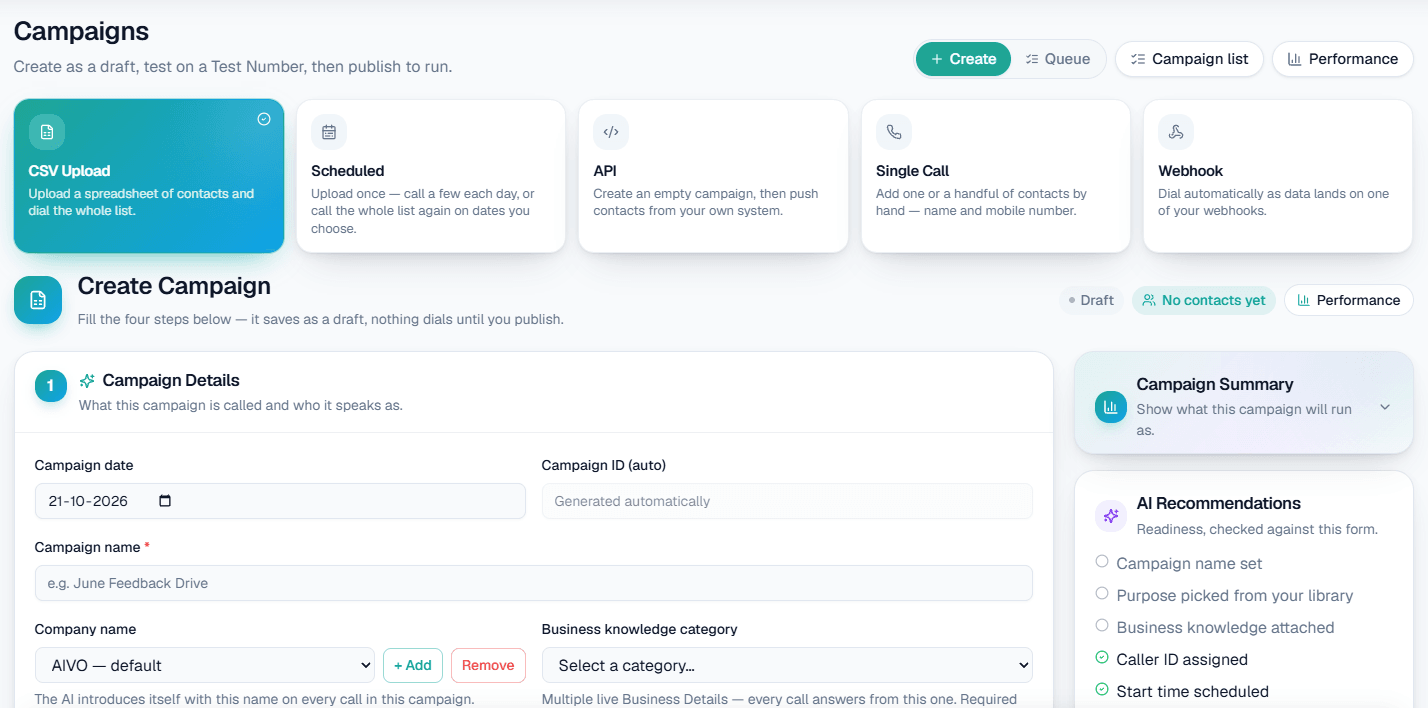
- Open Calling → Campaigns and make sure the Create tab is selected.
- Pick Single Call to start small, then add your own name and mobile number.
- Fill in the campaign name, Company name, Business knowledge category, Caller ID (assigned number), Language and Start date & time, and pick your saved purpose.
- Press Create campaign. It is saved as a draft and nothing dials yet.
- In the Queue tab, open the campaign and press Send a test call to hear exactly what your contacts will hear.
- When you are happy, press Publish & Run.
Note: If your workspace requires approval, a published campaign waits for an Owner or Admin to approve it before any contact is dialled.
Step 6: Go live
When everything works in Test, add money to your Live wallet from Billing, switch to Live in the top bar, and repeat the same steps. Purposes are shared between Test and Live, so you only write them once.
Next steps
- Upload a contact list: Campaigns
- Answer incoming calls: Inbound calls
- Understand billing: Wallet and pricing