Assistants
Assistants and purposes
Ready-made AI voice assistants make your calls, and saved purposes tell them what each call should achieve.
Assistants
An assistant is the AI voice that speaks to your customer. MySA Business comes with ready-made assistants for common jobs such as booking, sales and lead qualification. You will find them on Home, each with a Try now button that places a real test call to your own phone. See Test calls.
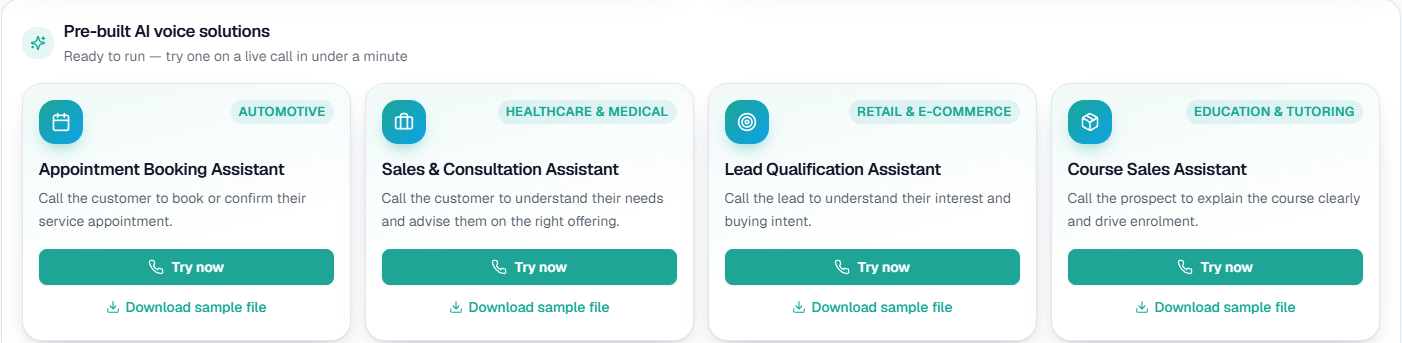
On this screen: each ready-made assistant shows the industry it was built for and what the call does. Try now opens the Test my assistant window to ring your own phone, and Download sample file gives you a contacts file in the right format for a campaign with that assistant.
You do not write an assistant from scratch. Instead, you shape what it does on each call with three things:
- A purpose: what the call should achieve.
- A Business Details category: what the AI knows about your business. See Business Details.
- A language: what the AI speaks.
Purposes
A purpose is what the AI is trying to do on the call, not a script it reads out. For example: "Confirm the customer's order, tell them the delivery date, and ask if they have any questions."
You keep your purposes in Business → Purposes. The name you give each one is what you pick later from the Use a saved purpose dropdown, which appears on campaigns, test calls, inbound settings and the WhatsApp call briefs.
Purposes are shared across your Test and Live workspaces, so you save each one once.
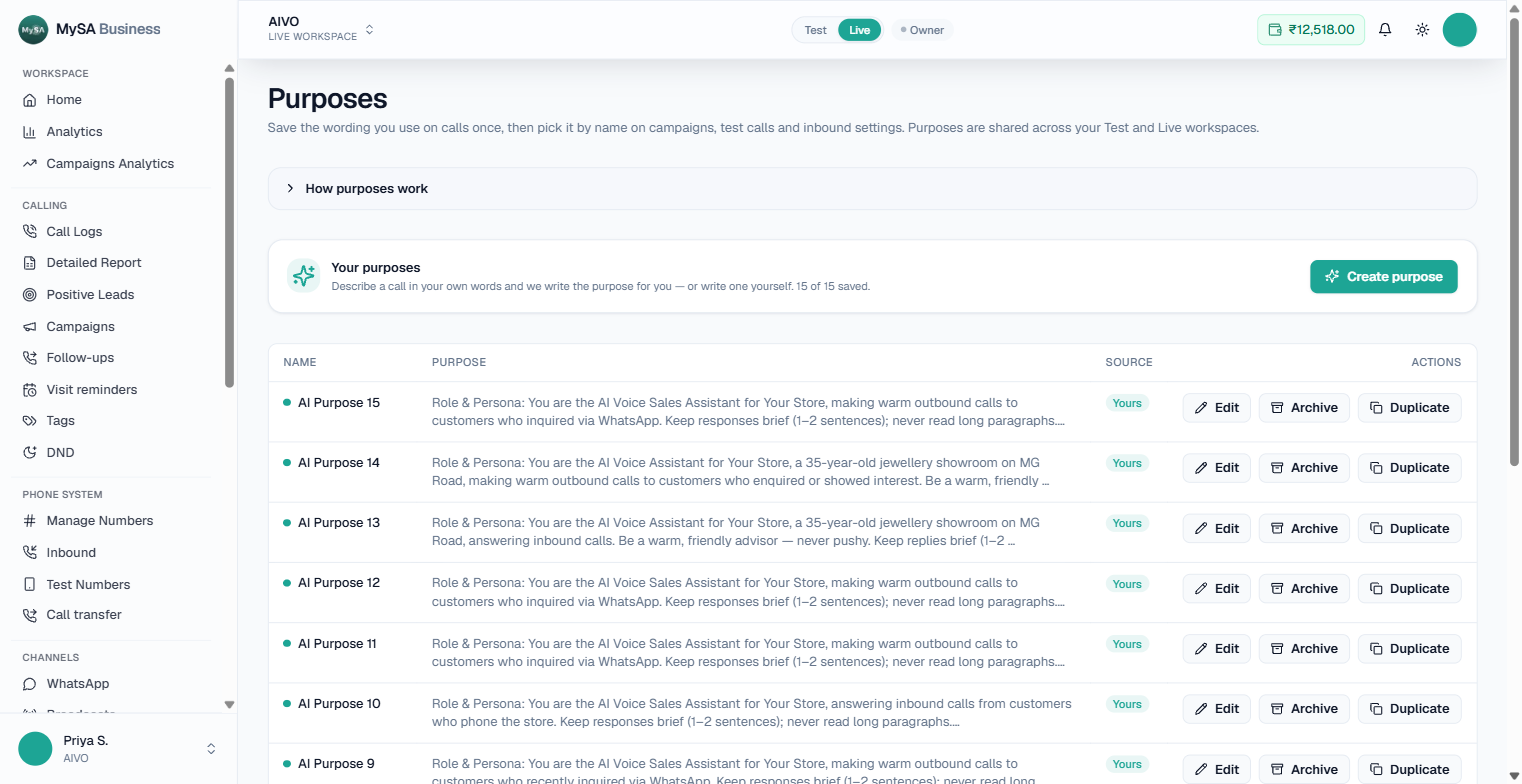
On this screen: Your purposes shows how many of your allowed purposes are saved, and Create purpose opens the writer. The table lists each purpose's Name, the start of its Purpose text and its Source (Yours for ones you wrote), with Edit, Archive and Duplicate under Actions. How purposes work at the top expands a short explanation.
Let the AI write a purpose
If you are not sure what to write:
-
On Purposes, open the writer ("Not sure what to write?").
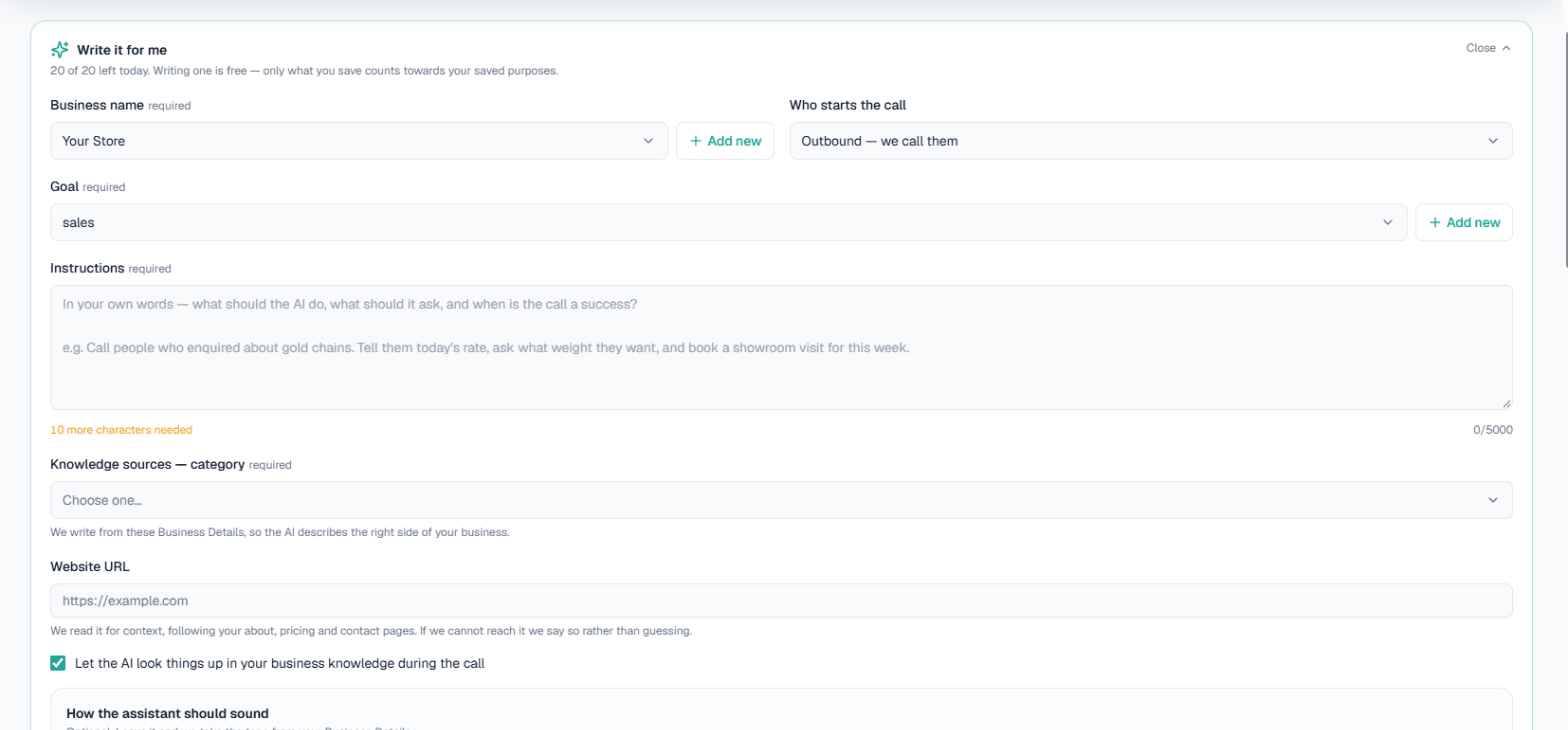
On this screen: Write it for me shows how many drafts you have left today. Pick the Business name (or Add new), Who starts the call and the Goal, then describe the call in your own words under Instructions. Knowledge sources — category chooses the Business Details the purpose is written from, Website URL is read for context, and the box Let the AI look things up in your business knowledge during the call sits below them.
-
Fill in your business name as the customer should hear it, who starts the call, what kind of call it is, and a description in your own words: who you are calling, what the AI should ask, and when the call counts as a success.
Who starts the call has two options, and the purpose is written for whichever you pick:
Option Use it for Outbound — we call them Campaigns, follow-ups and test calls, where MySA dials the customer Inbound — they call us Your inbound number, where the customer calls you and the AI answers 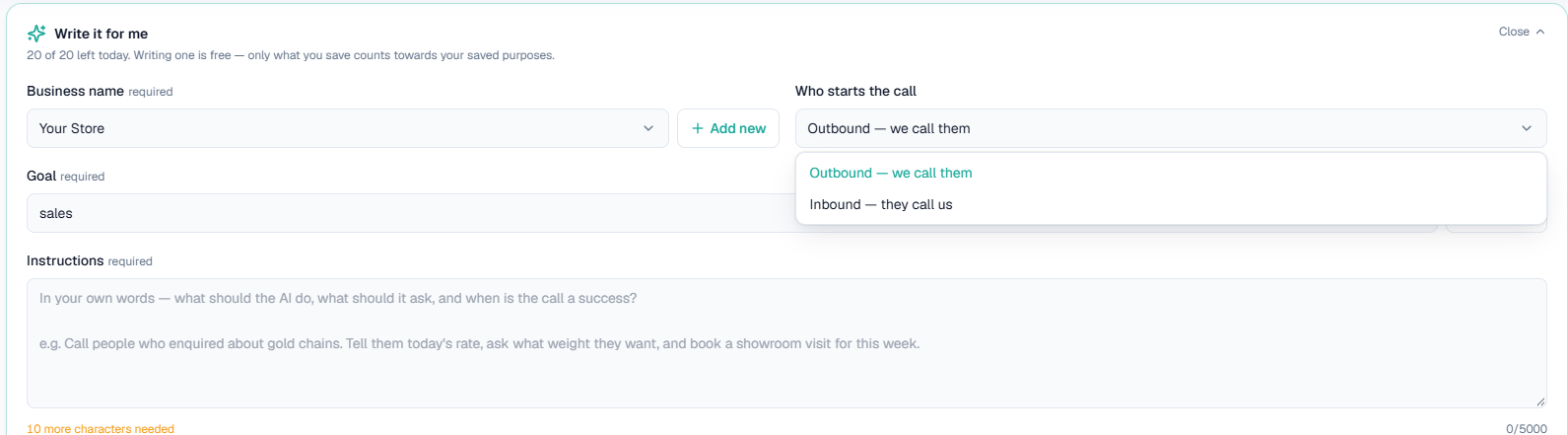
On this screen: the Who starts the call dropdown is open, offering Outbound — we call them and Inbound — they call us. Beside it is Business name, and below are Goal and Instructions, where a note under the box tells you how many more characters are needed.
-
Optionally add your website. It is read for context, and you are told if it cannot be read.
-
Wait about half a minute. The draft appears in the editor, unsaved.
-
Read it, change anything you like, give it a name and press Save.
Nothing is stored until you save, so you can rewrite as many times as you like. The writer is free, with a limit of 20 drafts a day (it resets at midnight). Sometimes a note appears above the text, for example about a missing closing line. The text is still yours to use, but check that part before saving.
Edit a purpose for one campaign
On a campaign you can press Edit to reword the purpose for that campaign only. That wording is saved with the campaign. Your library entry stays exactly as it was and no slot is used up.
Note: Changing a saved purpose never changes calls that were already created or are running.
Assigned purposes
A purpose with an Assigned badge was written for your business by the MySA team. You can use it anywhere, but you cannot edit or archive it. To change one, click Duplicate to get your own copy, marked "Yours", and edit that.
Limits
- You can keep 5 saved purposes by default. Assigned purposes do not count towards this.
- When you reach the limit, archive one you no longer use, or raise a ticket to have it increased.
- Archiving removes a purpose from the dropdown. Anything that already used it keeps its own copy of the text.
- Inbound instructions accept up to 5,000 characters and the WhatsApp missed-call brief up to 2,000, so a longer purpose is shortened when you pick it there. The page tells you when this happens.
Personalise a purpose per contact
A campaign uses one purpose for everyone, but you can make parts of it differ per contact with variables {var1} to {var15}, filled from your contacts file. See Campaigns.
Languages
You choose the call language on each campaign, test call and inbound number from the Language dropdown. The default is Hinglish. On inbound numbers you can also choose whether the AI should Stick to the chosen language or follow the caller.