

Calling
Campaigns
A campaign dials a list of customers with one purpose, language and caller ID, and gives you a report of every call it made.
How a campaign works
- Create it on the Create tab. It is saved as a draft — nothing dials yet.
- Test it from the Queue tab with Send a test call to one of your own numbers.
- Publish & Run. Calls start at the start time you set.
- Watch the queue fill in live, and download the report when it is done.
The five campaign types
Open Calling → Campaigns and, on the Create tab, pick how contacts get into the campaign. Steps 1–3 of the form are the same for every type; only step 4 changes.
| Type | How contacts arrive | Best for |
|---|---|---|
| CSV Upload | You upload a .csv or Excel .xlsx file and the whole list is dialled | A list you already have: leads, orders, renewals |
| Scheduled | You upload a file once, and it is called over several days: a few each day, or the whole list again on later dates | A long list spread out, or repeat calls and reminders |
| API | You create an empty campaign, then push contacts from your own system | Your CRM or app calling customers automatically |
| Single Call | You type in one or a handful of contacts by hand | A quick call to a few people |
| Webhook | Leads arriving on one of your webhooks are dialled automatically | Website forms and ad leads, called within a minute |
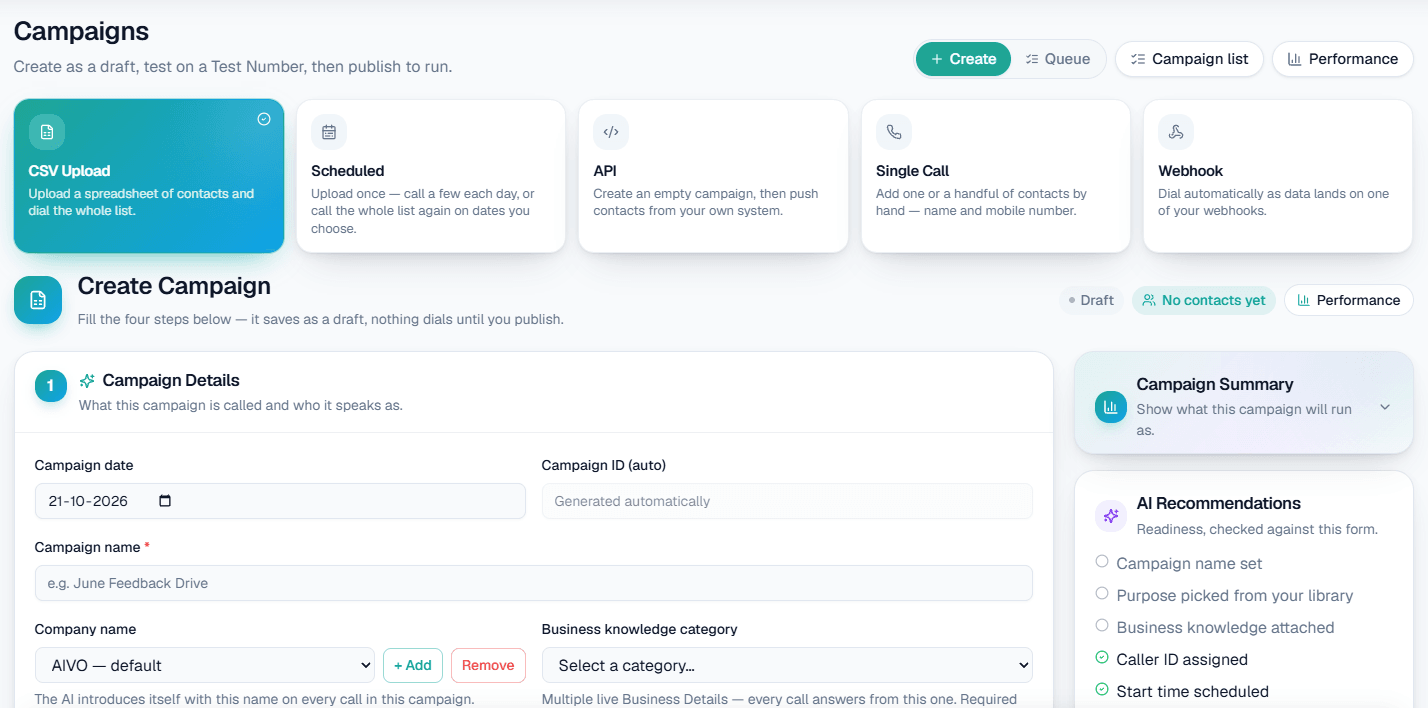
On this screen: the campaign type cards across the top, step 1 Campaign Details below them, and AI Recommendations on the right — a checklist that ticks off as the form becomes ready to run.
Fill in the form
1. Campaign Details
Give the campaign a name, the Company name the AI introduces itself with, the Business knowledge category it answers from, and the Caller ID (assigned number) customers will see.
2. Campaign Schedule & Settings
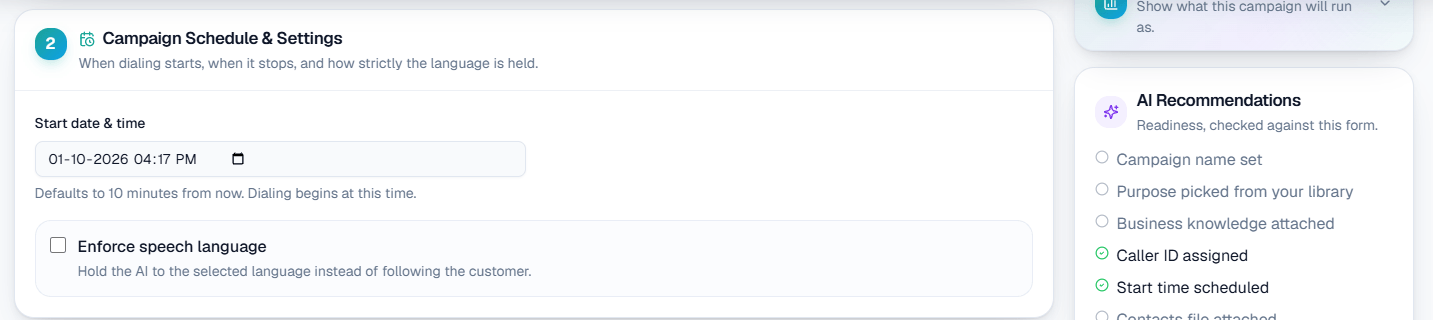
On this screen: Start date & time (it defaults to ten minutes from now) and Enforce speech language — tick it to hold the AI to the campaign language instead of following the customer if they switch.
3. Campaign Configuration
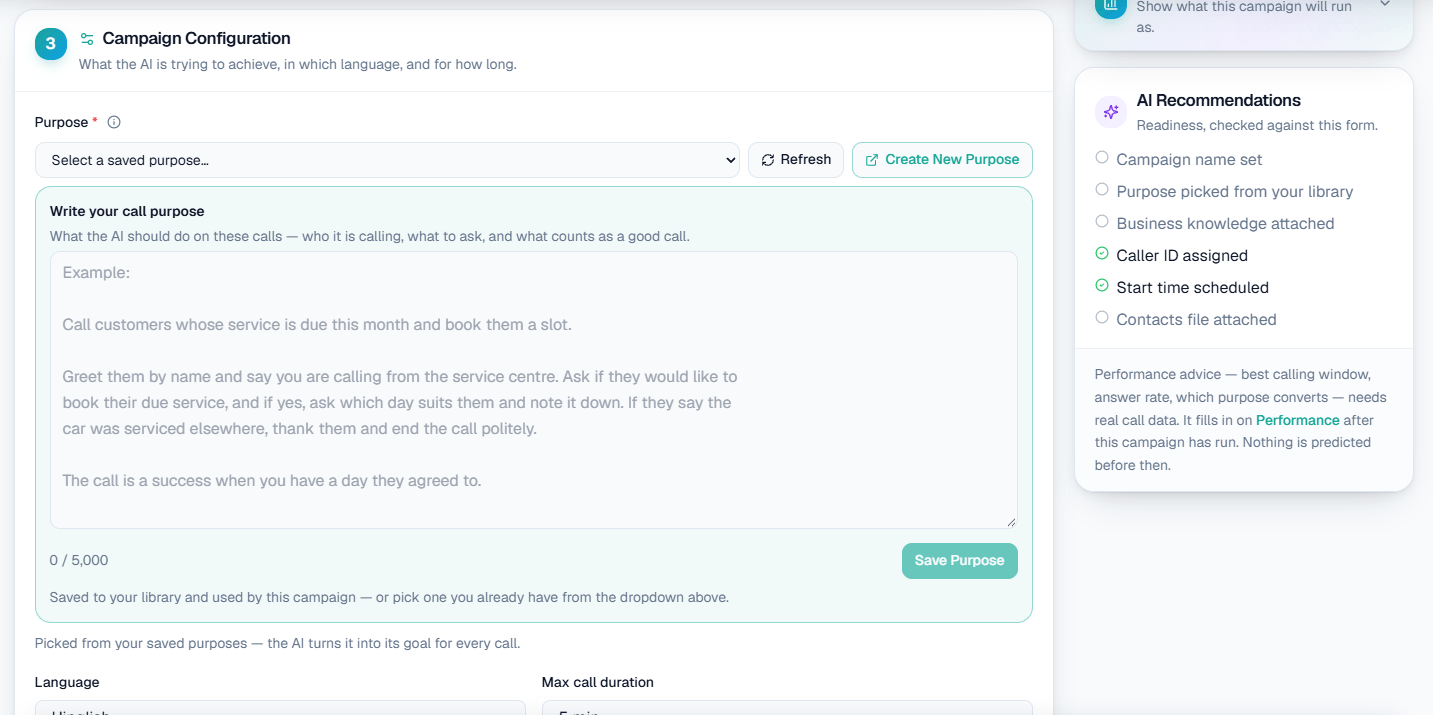
On this screen: pick a Purpose from your library (Refresh reloads it, Create New Purpose opens the purpose page), or write one in Write your call purpose and press Save Purpose — it is saved to your library and used by this campaign. Below it, the Language every call speaks and the Max call duration after which a call ends. See Assistants & purposes.
4. Contacts — depends on the type
Each type has its own step 4, described in the sections below. When the checklist on the right is complete, press Create campaign.
CSV Upload
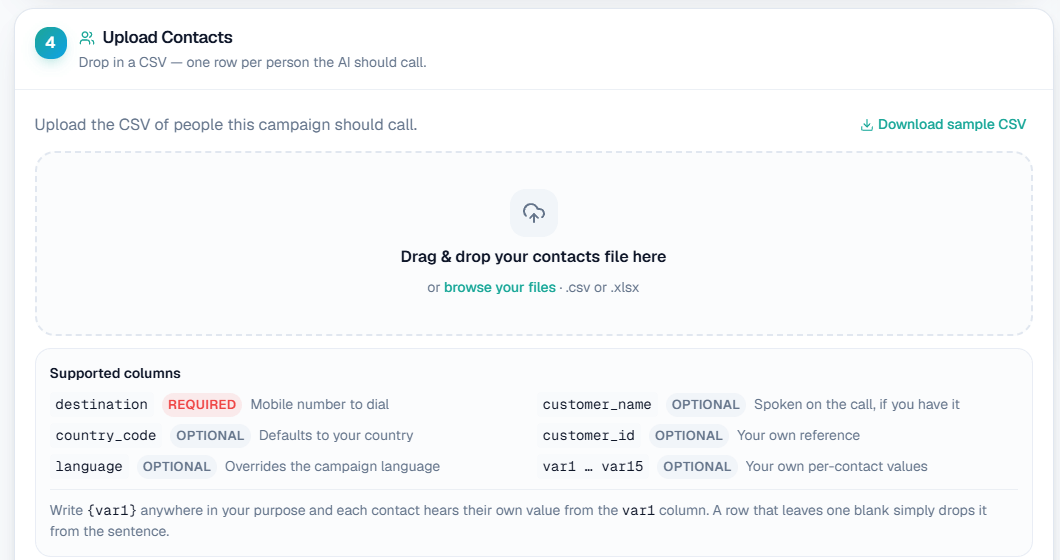
On this screen: drop a file or browse your files (.csv or .xlsx), Download sample CSV for the exact format, and Supported columns — only destination is required.
A CSV Upload campaign accepts a .csv or .xlsx file up to 10 MB. Use Download sample CSV on the form for the exact format.
country_code,destination,customer_name,customer_id,language,var1,var2
91,9876543210,Rahul Kumar,10234,hinglish,SO-4412,18-Aug
91,9876543211,Priya Sharma,10567,hindi,SO-4413,- Only
destinationis required. A row with no name is fine; the call greets the person generally. - One contact per row. Column order does not matter, and extra columns are ignored.
- For .xlsx files, only the first sheet is read.
- If names are in Hindi, Marathi or another non-English script, prefer .xlsx. Excel can save a .csv in an encoding that garbles them.
- In Test, rows whose number is not on your Test Numbers list are skipped.
A large file is imported in the background, and the campaign's queue shows progress and any skipped rows.
Warning: Do not upload the same file again while it is importing. Every row would be added twice.
Scheduled campaigns
A Scheduled campaign takes one contacts file and calls it over several days instead of all at once. Use it to call a few people each day, or to call the same list again on later dates.
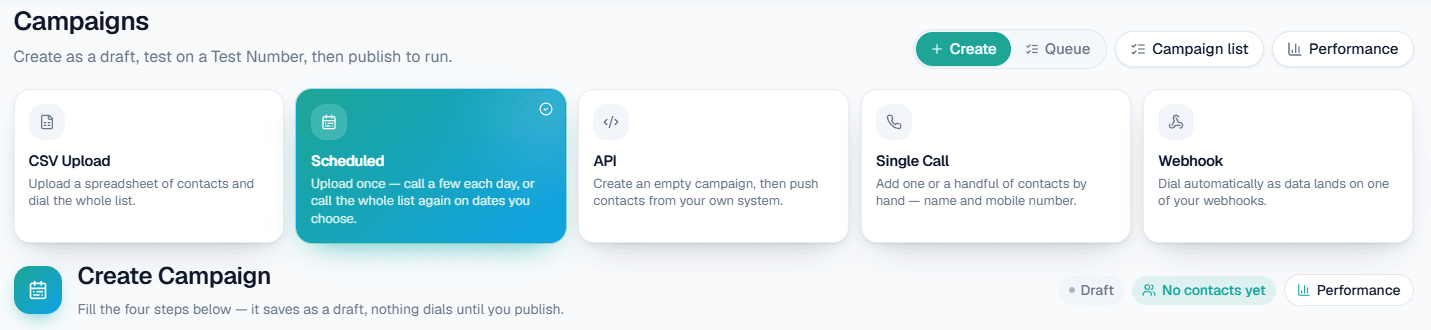
On this screen: pick Scheduled among the type cards. Steps 1 and 3 of the form are the same as for a CSV Upload; step 2 gets a schedule box, and step 4 takes the contacts file.
Contacts come only from a file: the same .csv or .xlsx format, sample and columns as a CSV Upload. There is no API or by-hand entry for a Scheduled campaign.
Choose how the list is called
Under How should this list be called? in step 2, pick one of three ways:
| Option | What it does | Good for |
|---|---|---|
| Split over days | Each person is called once. The list is shared out, a fixed number each day | A long list you do not want to call in one day |
| On dates I pick | The whole list is called again on each date you choose | Reminders before an event or the last days of an offer |
| Every few days | The whole list is called again every N days, a set number of times | Regular follow-ups |
Each day or round becomes its own campaign, named like Diwali Offer · Day 1/4 or Diwali Offer · Round 2/3. It works like a normal CSV campaign: test call, pause, stop and its own report.
Split over days
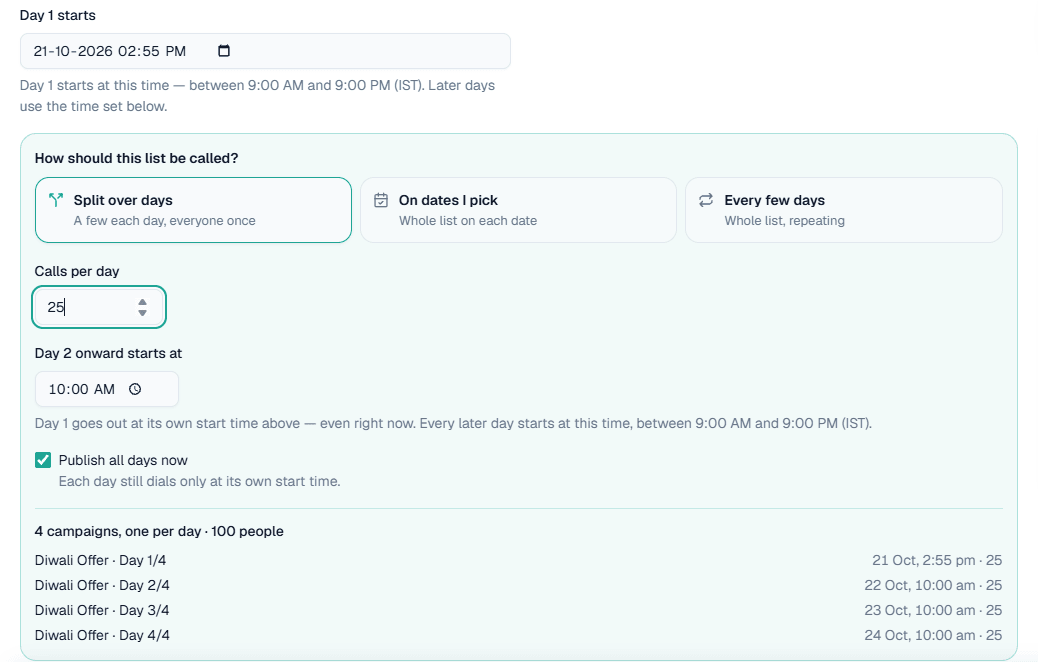
On this screen: Calls per day is set to 25, so a file of 100 people becomes 4 campaigns, one per day. The plan at the bottom lists each day with its start time and how many people it calls. Only rows that can actually be called are counted. Skipped rows are listed with their reason, as for a CSV Upload.
- Day 1 starts at the start time you set. Every later day starts at the time in Day 2 onward starts at.
- A split keeps the file exactly as it is: a number that appears twice in the file is called twice.
- A split runs for at most 60 days.
On dates I pick
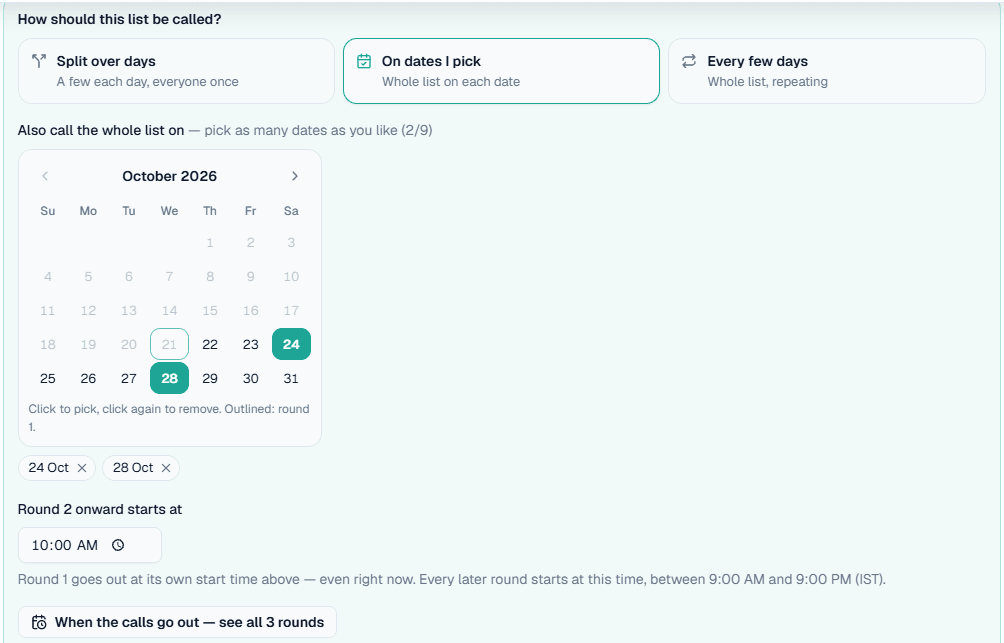
On this screen: Round 1 is the start date (outlined in the calendar). Click more dates to call the whole list again on them, here 24 and 28 October. Click a date again, or the × on its chip, to remove it. You can pick up to 9 more dates, so 10 rounds in all.
Every few days
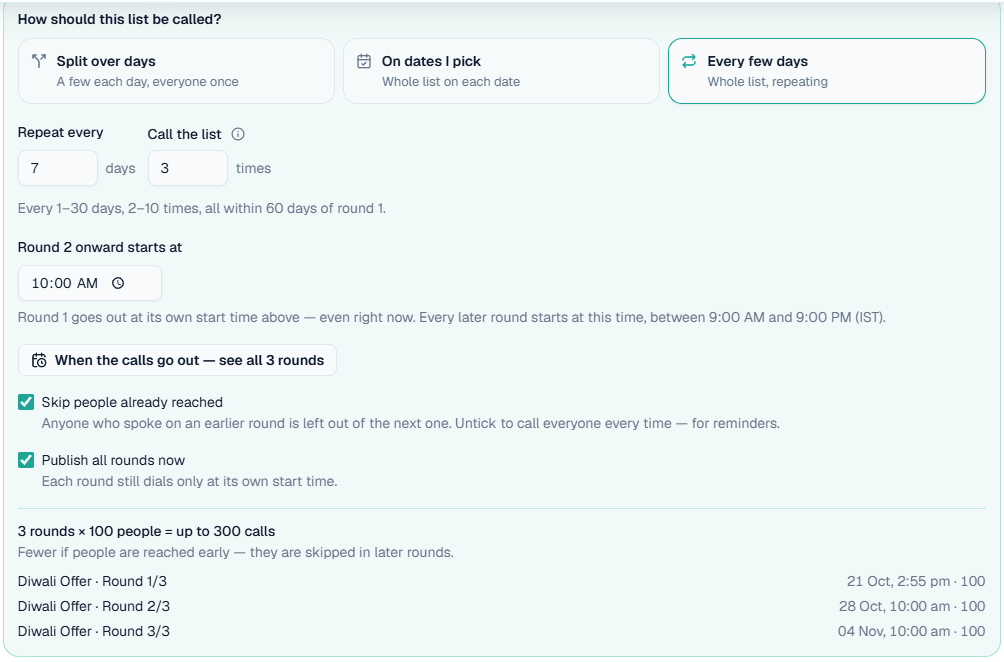
On this screen: Repeat every 7 days, Call the list 3 times. Three times means three rounds in all, Round 1 included: everyone is called on 21 October, again on 28 October and again on 4 November, and then it stops. The limits are 1–30 days apart and 2–10 rounds, all within 60 days of Round 1.
For On dates I pick and Every few days:
- A number repeated in the file is removed, so each person gets one call per round. The form says how many were removed.
- Skip people already reached (on by default) leaves anyone who spoke on an earlier round out of the next one. Untick it to call everyone every round, for example for reminders.
- Anyone an earlier round is still calling when the next round starts is left out of that round, so nobody gets two calls at once.
- The total is shown before you create anything, for example 3 rounds × 100 people = up to 300 calls. With Skip people already reached on, it is usually fewer.
See when the calls go out
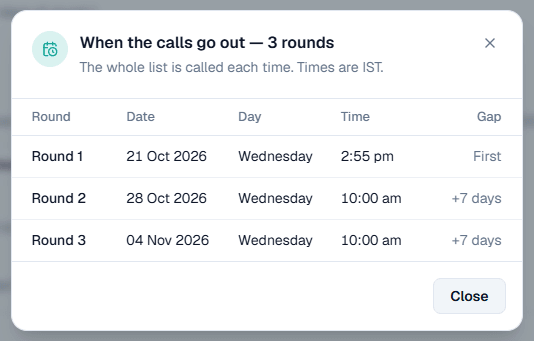
On this screen: When the calls go out — see all 3 rounds opens the full calendar: the date of each round, the day of the week, the time (IST) and the gap from the round before.
Start times and limits
- Day 1 / Round 1 starts at the start time you set, which can be right now.
- Day 2 onward starts at (or Round 2 onward starts at) sets one time for every later run. It is 10:00 AM by default. Set it to the Round 1 time if you want every run at the same time.
- Every start time must be between 9:00 AM and 9:00 PM IST. A Scheduled run only calls in those hours: approved or resumed at night, it waits until the morning.
- A repeating list can have at most 5,000 people. One Scheduled campaign makes at most 20,000 calls in all. For more, split the file or use a CSV Upload campaign.
Publish all days now
Publish all days now (or Publish all rounds now) is ticked by default. Every day or round is published as it is created, and each one still dials only at its own start time, so a day never calls more than its share. Untick it to keep them as drafts and publish each one yourself from the Queue.
The button at the bottom says how many campaigns will be made, for example Create 4 campaigns.
Follow a Scheduled campaign on the Queue
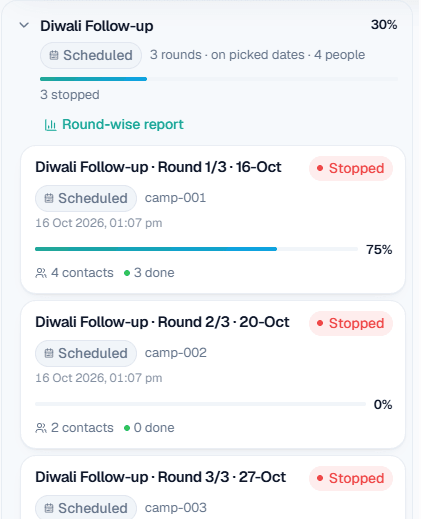
On this screen: the whole schedule shows as one card: its name, the plan (here 3 rounds on picked dates for 4 people), overall progress and how many runs are in each state. Click the card to open its days or rounds; each one has its own status, contacts and progress, and opens like any campaign.
If your workspace requires approval, Approve all on the card approves every day or round waiting for it. Each still dials only at its own start time. A split day that is still waiting for approval when its day ends is moved to the day after the last day once approved, so nobody on it is lost.
Stop a Scheduled campaign
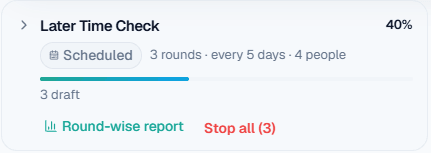
Press Stop all on the card. The number in brackets is how many days or rounds it will stop. To stop just one day or round, open the card and use Stop on that one.
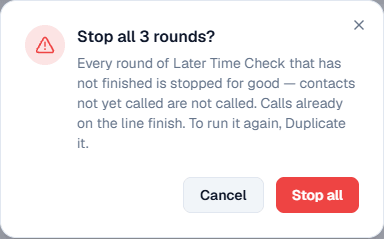
When you confirm:
- Every day or round that has not finished is stopped for good, including ones that are still drafts or waiting for their start time.
- Contacts not yet called are not called, and you are not charged for them.
- Calls already on the line finish normally.
- Days or rounds that already finished stay as they are, with their reports.
- A stopped schedule cannot be restarted. To run it again, Duplicate a day or round, which makes an ordinary CSV campaign.
Day-wise and round-wise report
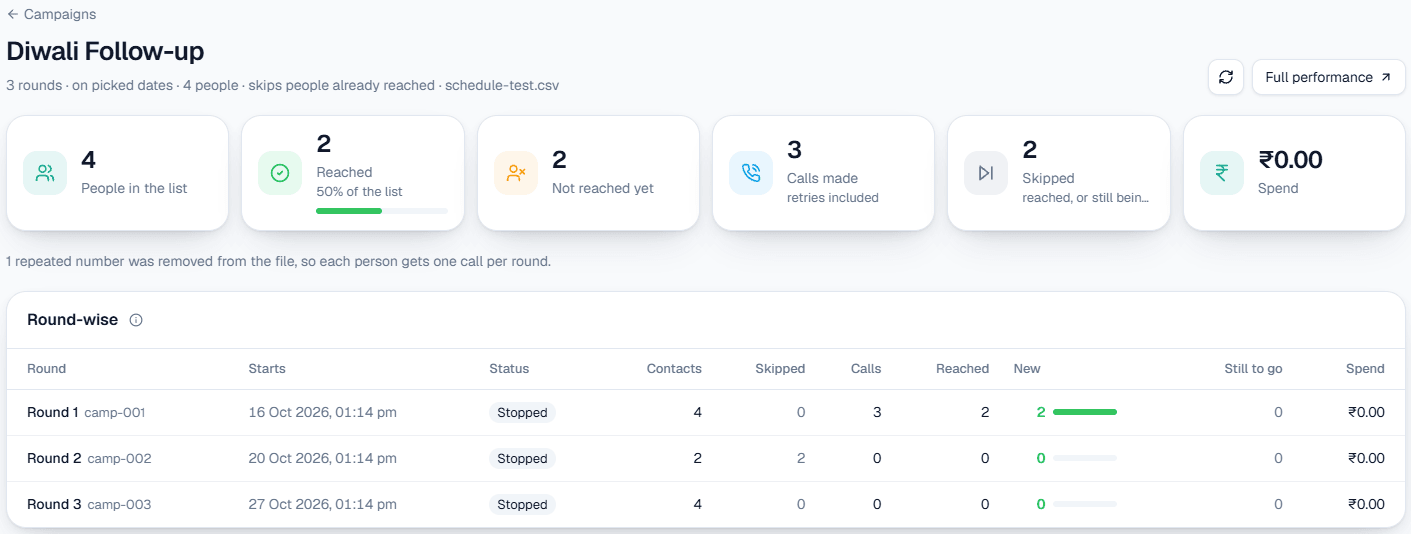
On this screen: Day-wise report (for a split) or Round-wise report on the card opens this page. The totals at the top are people in the list, reached, not reached yet, calls made, skipped and spend. Below, one row per day or round: start time, status, contacts, skipped, calls, reached, New (people reached for the first time in that round), still to go and spend.
If the last rounds reach only a few New people, another round is not worth it. Full performance opens Campaign analytics for all the runs together; you can also pick Scheduled (all runs) in the campaign filter there.
Personalise each call with var1 to var15
Add columns named var1 to var15 to your file, and write {var1} wherever the value belongs in your purpose. For example, the purpose "Aapka order {var1} taiyaar hai" with var1 = SO-4412 is spoken as "Aapka order SO-4412 taiyaar hai".
You do not have to use all fifteen. If a row leaves a variable blank, it is simply removed from that call's sentence, so write your purpose so it still reads well without it.
API
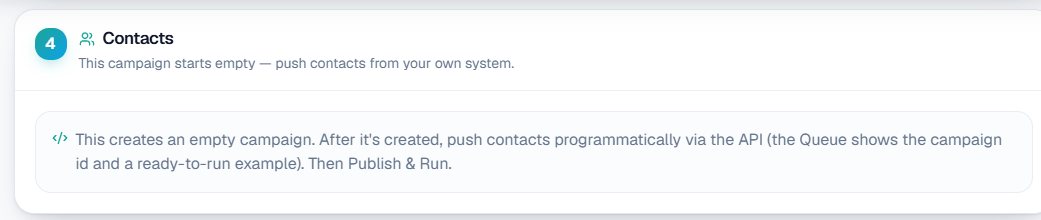
On this screen: an API campaign is created empty. Once it exists, the Queue shows its campaign ID and a ready-to-run example request; your system pushes contacts to it, and you Publish & Run as usual.
Push contacts with your Org ID and an API key from Integrations → API Keys, to the campaign's ID shown on the Queue:
curl https://business.mysmartassistant.ai/v1/api/campaigns/CAMPAIGN_ID/calls -H "X-Org-Id: YOUR_ORG_ID" -H "X-Api-Key: YOUR_API_KEY" -H "Content-Type: application/json" -d '{"contacts":[{"countryCode":"91","destination":"9876543210","customerName":"Rahul","language":"hindi","userQuery":"Aaj ka gold rate kya hai?"}]}'| Field | What it is |
|---|---|
destination | Mobile number without the country code (required) |
customerName | Name the AI greets the customer with (required) |
countryCode | Country code without +; defaults to 91 |
language | Overrides the campaign language for this contact |
userQuery | What the customer asked about, so the AI opens with it |
The API is served from the same host as the console, https://business.mysmartassistant.ai. You can send several contacts in one request. Field limits, errors and the other endpoints are in API keys.
Note: A Shopify store campaign uses its own endpoint and a Shopify key instead — see Shopify campaigns below.
Single Call
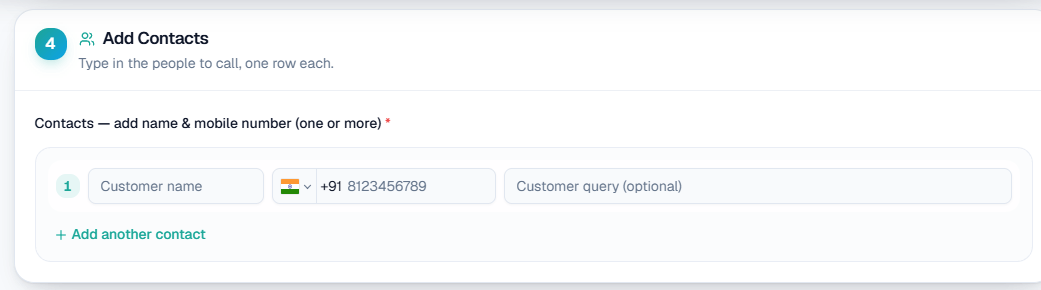
On this screen: one row per person — Customer name, the mobile number with its country, and an optional Customer query (what the customer asked about, so the AI can open with it). Add another contact adds a row.
Shopify campaigns
A store connected in Integrations → Shopify gets one campaign and one Shopify key. Your store app pushes contacts to that campaign with the key alone — no campaign ID and no Org ID, because the key already identifies the store and its campaign:
curl https://business.mysmartassistant.ai/v1/shopify/calls -H "X-Shopify-Key: YOUR_SHOPIFY_KEY" -H "Content-Type: application/json" -d '{"contacts":[{"countryCode":"91","destination":"9876543210","customerName":"Rahul","userQuery":"You left 2 item(s) in your cart"}]}'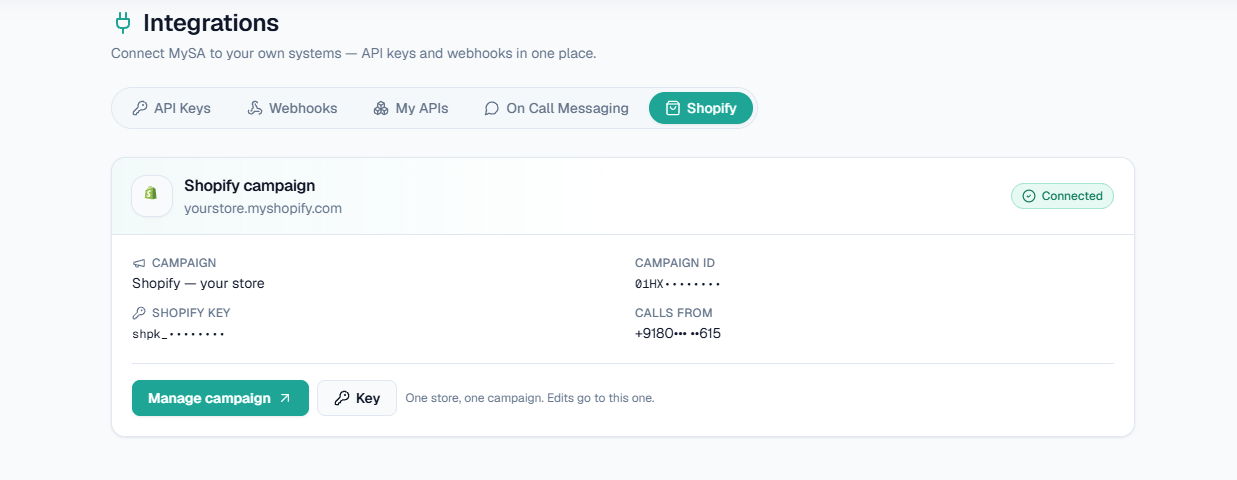
On this screen: the connected store, its Campaign and Campaign ID, the Shopify key (shown masked; Key reveals or rotates it) and the Calls from number. Manage campaign opens the campaign on the Queue.
Webhook
A webhook campaign takes two steps, in this order:
- Create the webhook first. In Integrations → Webhooks, press New webhook and copy its URL into your website form or ad platform. Its light is 🔴 red until the first lead arrives, then turns 🟢 green; open Mapping and press Save & activate to make it Active. See Webhooks.
- Attach it to a campaign. Create a campaign of type Webhook and pick that webhook under Source webhook — only Active webhooks are listed. Every lead that arrives on it is now dialled by this campaign.
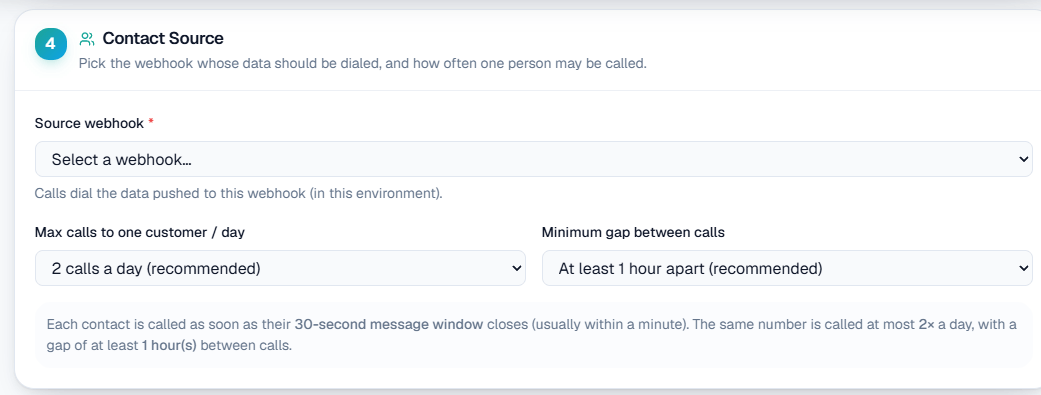
On this screen: Source webhook lists the webhooks in this environment. Max calls to one customer / day (2 recommended) and Minimum gap between calls (at least 1 hour recommended) stop the same person being called too often. A new lead is called as soon as its 30-second message window closes, usually within a minute.
Test, publish and run
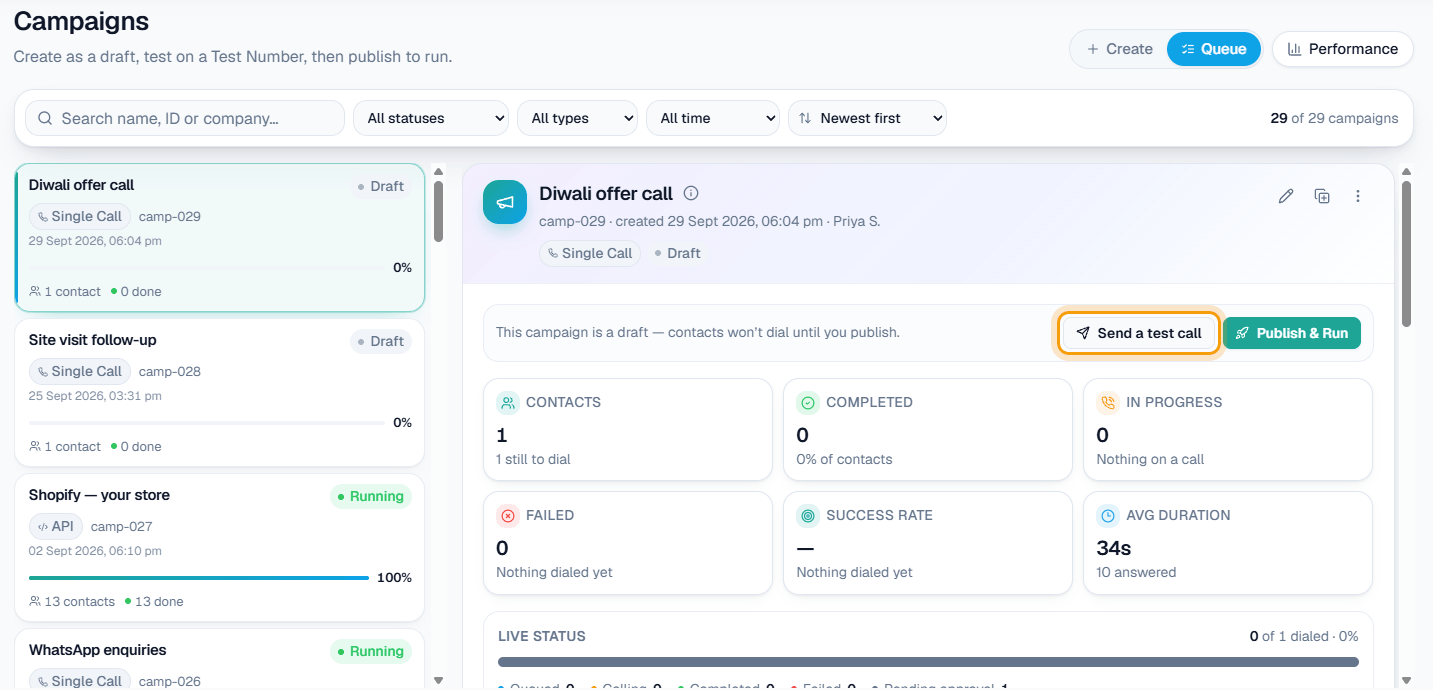
On this screen: the campaign list on the left with each one's type, ID and status (Draft, Running). The open draft shows Send a test call and Publish & Run, then its contacts, completed, in-progress and failed counts, success rate, average duration and Live status. The pencil edits it and the copy icon duplicates it.
-
Open the draft on the Queue tab and press Send a test call.
-
Enter a name and mobile number, or Choose a Test Number. Add an optional Customer query to hear how the AI handles a specific question, then press Send test call.
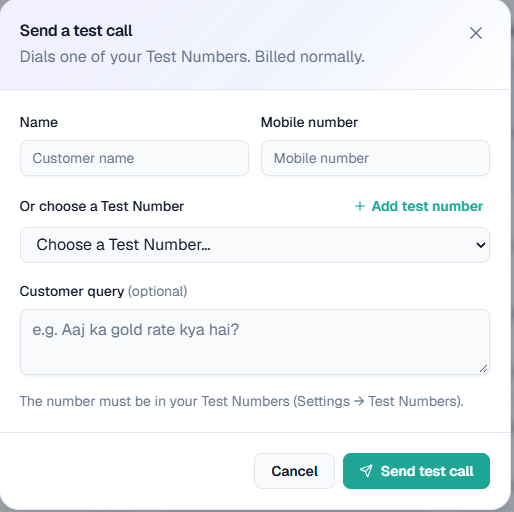
On this screen: the test call uses this campaign's exact settings — purpose, language, knowledge and caller ID — and is billed normally. The number must be one of your Test Numbers.
-
When it sounds right, press Publish & Run. Dialling starts at the start time.
-
While it runs you can Pause (remaining contacts are held), Resume, or Stop (end it for good). Calls already in progress always finish.
If your workspace requires approval, a published campaign waits for an Owner or Admin to Approve it before any contact dials.
Note: Calls that come due inside your DND hours are held, not lost. See DND.
Clone a campaign
On the Queue tab, press the Duplicate button on a campaign. Its settings and contacts are copied into a new draft, which you review and publish separately.
Language and webhook limits
The Language dropdown defaults to Hinglish; a language value in a row overrides it. A Webhook campaign also asks for Max calls to one customer / day (default 2) and Minimum gap between calls (at least 1 hour).
Reports and downloads
Calling → Campaigns Analytics shows how every campaign is doing and has a Report download per campaign. See Campaign analytics.
For every call across all campaigns, use the Detailed Report.
Related
- AI outbound calling campaigns: the overview of the campaign types side by side.
- Webhook campaigns for website-form and ad leads.
- AI voice agents for what the assistant does on the call.