

Assistants
Test calls
Hear exactly what your customers will hear by sending a real AI call to your own phone before you go live.
Why test first
A test call is a real call, placed by the same engine as your campaigns, but it can only reach phones on your own Test Numbers list. It is the quickest way to check your purpose, your Business Details and the language before any customer is dialled.
Note: Test calls are billed normally from the wallet of the workspace you are in.
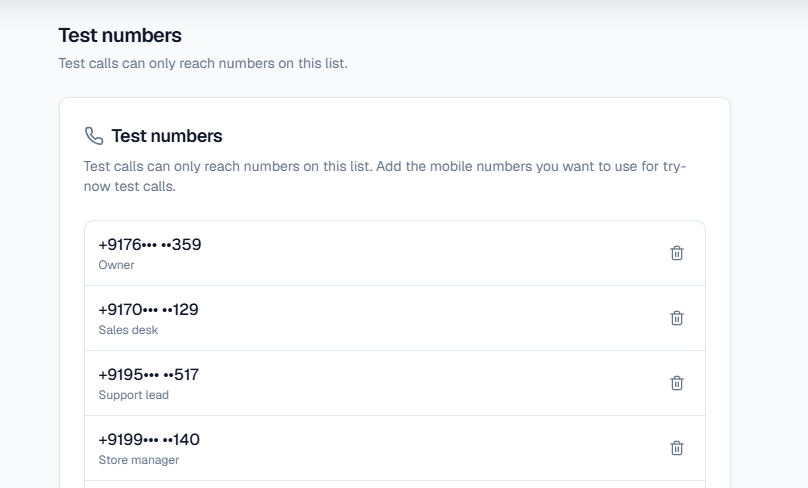
Add your test numbers
- Open Phone system → Test Numbers.
- Add the mobile numbers you want to test with.
- If the page asks you to verify, press Send code and type the 4-digit code that arrives by SMS. Nothing is added until the code is right.
A few rules apply to verification:
- The code expires in 10 minutes.
- Resend becomes available after 60 seconds.
- After 5 wrong tries the code is cancelled and you request a new one.
- There is a daily limit on how many codes one number can receive.
If no SMS arrives, check the number, wait for the Resend timer, and make sure the phone is not blocking unknown senders.
You can keep 10 test numbers, shared across your Test and Live workspaces. Numbers already on the list stay there; verification applies only to new ones.
Way 1: Try a ready-made assistant
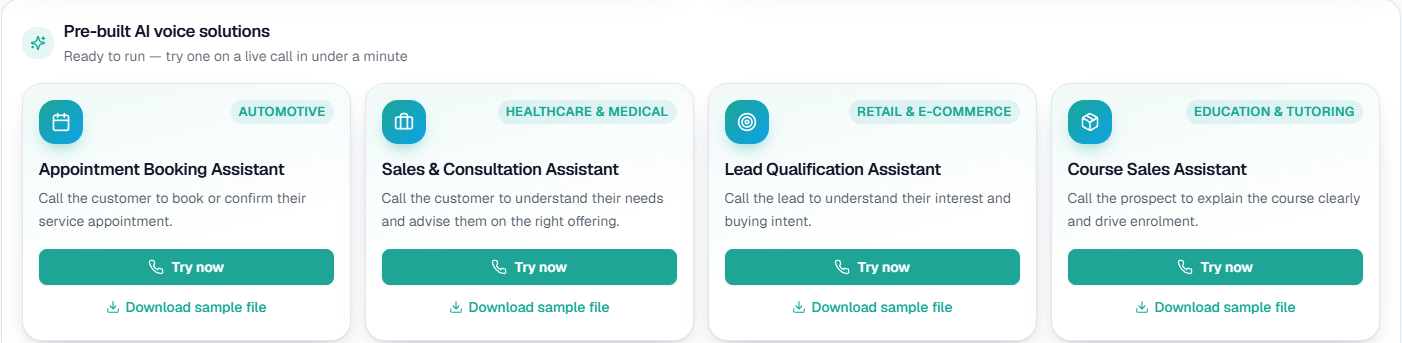
On this screen: the ready-made assistants on Home, each with the industry it was built for, what the call does, a Try now button that rings your own phone, and Download sample file — a contacts file in the right format for that assistant's campaign.
- Go to Home and click Try now on an assistant.
- In the Test my assistant window, choose a number under Call to (test number). You can add one from here too.
- Pick a Language and a Max call duration.
- If your business has more than one live Business Details category, pick the one this call should answer from.
- Adjust the Purpose if you like. You can pick a saved purpose, or press Tailor to your category to fit the assistant's purpose to your business. Tick Add an opening script (optional) if you want a fixed opening line.
- If you edited the text, press Save. Your edits apply to this call only and are never saved to the assistant.
- Press Start Phone Call.
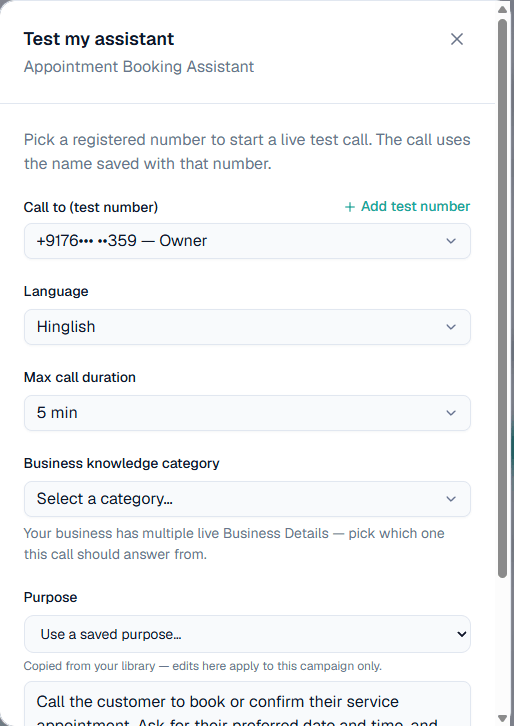
On this screen: Call to (test number) lists only numbers you have added as test numbers (Add test number adds one). Below it you choose the Language, the Max call duration, which Business knowledge category to answer from, and the Purpose — a saved one, or the assistant's own text, which you can edit for this call.
You should receive the call within about two minutes. If your balance is too low, the window tells you so and offers Add balance.
Way 2: Test a campaign
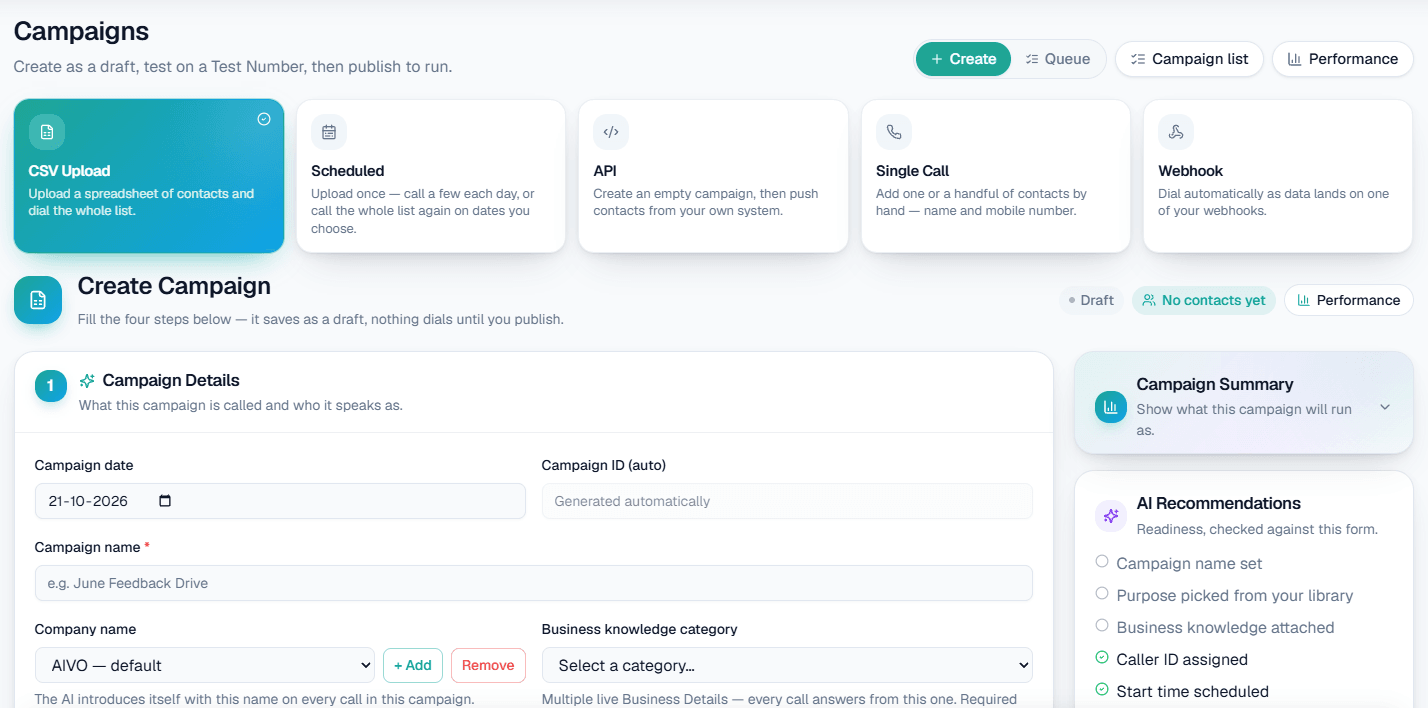
- Open Calling → Campaigns, switch to the Queue tab and open your campaign.
- Click Send a test call.
- Enter a Name and Mobile number, or choose one from your Test Numbers. The number must be on your Test Numbers list.
- Optionally add a Customer query, such as "Aaj ka gold rate kya hai?". The AI addresses it first, above the campaign's purpose.
- Send.
What you get back
After the call ends, open Calling → Call Logs and click the call to see:
- the recording, which you can play in the browser
- the AI summary of what was said
- the customer's sentiment
- the call's status, duration and charge
Test calls and other features
- Test calls in the Test workspace never count as leads in Lead Feed, which runs from Live only.
- A Try now call from the dashboard is treated as you ringing yourself, so it is not filed as a lead either.
- Visit reminders and call transfer do not run on Test calls.