Calling
OBD Calls
Play a recorded message to a list of customers, with an optional keypress and a WhatsApp after the call. Charged only for answered calls.
OBD Calls (outbound dialling) rings each number on your list and plays one recording, the same for everyone: an order update, a booking reminder, a payment due date. There is no AI on these calls. You write the message, pick a voice, listen to it, and MySA turns it into a call-ready recording.
Before you start
- Live workspace only. OBD Calls does not run in the Test workspace; switch to Live at the top of the console.
- Switched on per business. If OBD Calls is not in your menu, raise a support ticket to get it enabled.
- Transactional calls only. Use it for messages about an order, booking, payment or service a customer already has with you, and only to people who agreed to be called. Never for promotion.
- Indian mobile numbers. Landlines and numbers outside India are skipped.
OBD Calls has three tabs: Text to Audio, Campaign and Report.
Make a recording (Text to Audio)
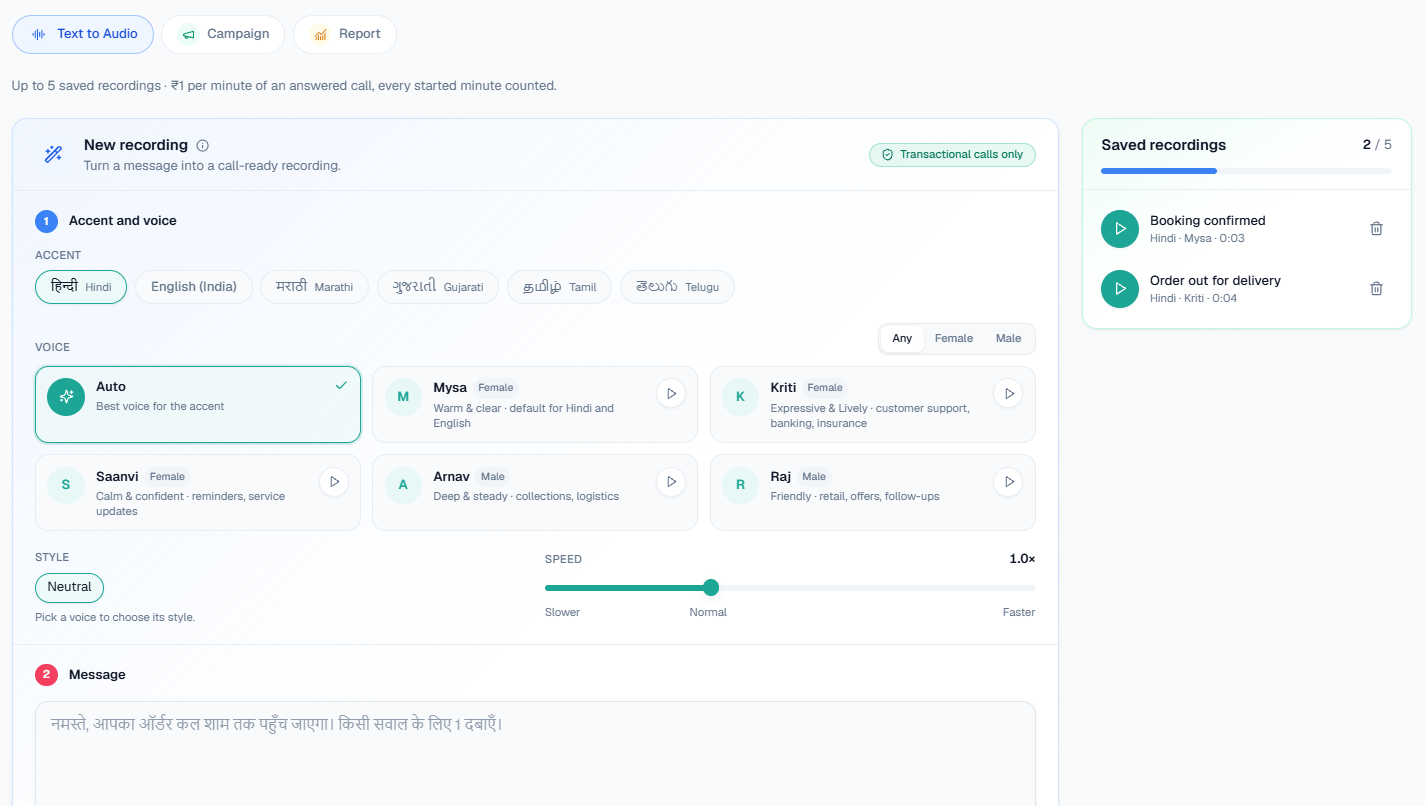
- Accent and voice. Pick the accent the message is spoken in, such as Hindi, English (India), Marathi, Gujarati, Tamil or Telugu, then a voice. Auto picks the best voice for the accent; press ▶ on any voice card to hear that voice introduce itself in about a minute: its name, what it suits, and a sample message. Choose a Style (Neutral, Warm, Calm…) and a Speed if you like.
- Message. Write what customers will hear, up to 3,000 characters, in the accent's own script: Hindi in Devanagari, Tamil in Tamil script, and so on. Numbers and dates are read out the local way. Press Listen to hear it before you create it.
- Name and create. Give the recording a name, for example Booking reminder, and press Create recording.
- Review and save. Play the take. If it is not right, change the voice, style, speed or message and press Try again. When it sounds right, press Save recording.
Nothing is stored until you press Save recording. An unsaved take waits for you for a while, so a page refresh does not lose it; once it expires, create it again.
Saved recordings are listed on the right, where you can play or delete them. A business can keep up to five saved recordings. Need more? Delete one you no longer use, or raise a support ticket.
If your message asks the customer to press a key, say so in the recording: "Agar aap aa rahe hain to 1 dabaayein."
Pronunciation: how the voice says your names
If the voice says your brand, product or branch name wrong, teach it once. The Pronunciation card is on the right, under Saved recordings.
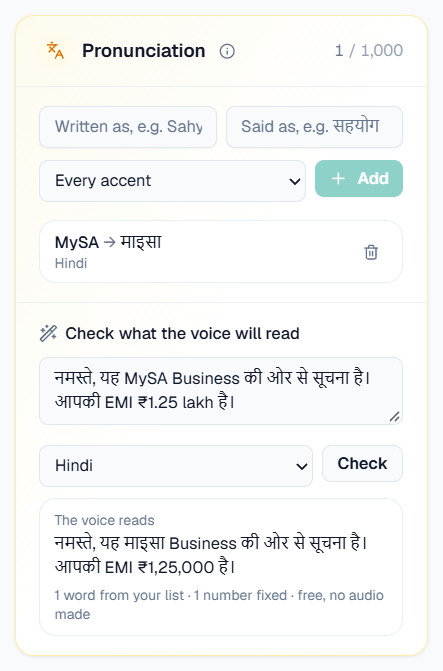
- In Written as, type the word the way it appears in your message, for example MySA.
- In Said as, type how it should be spoken, for example माइसा. Writing it in the accent's own script works best.
- Pick the accent it applies to, or leave Every accent, and press Add.
Every new recording and every Listen uses your list from then on. Recordings you already saved do not change; make them again to pick up a new word.
- Whole words only, in any letter case: MySA also matches mysa, but not MySAPro.
- Up to 1,000 words per business. Remove one with its bin icon.
- Check what the voice will read shows your text the way the voice will read it, with your words swapped in and numbers written out. It is free: no audio is made.
Numbers are already read the Indian way without adding anything: ₹1.25 lakh becomes ₹1,25,000, and a masked number like XXXX1234 is read as the last four digits.
Create a campaign
Open the Campaign tab and press New campaign. The form has five steps, and the cost estimate on the right updates as you fill it in.
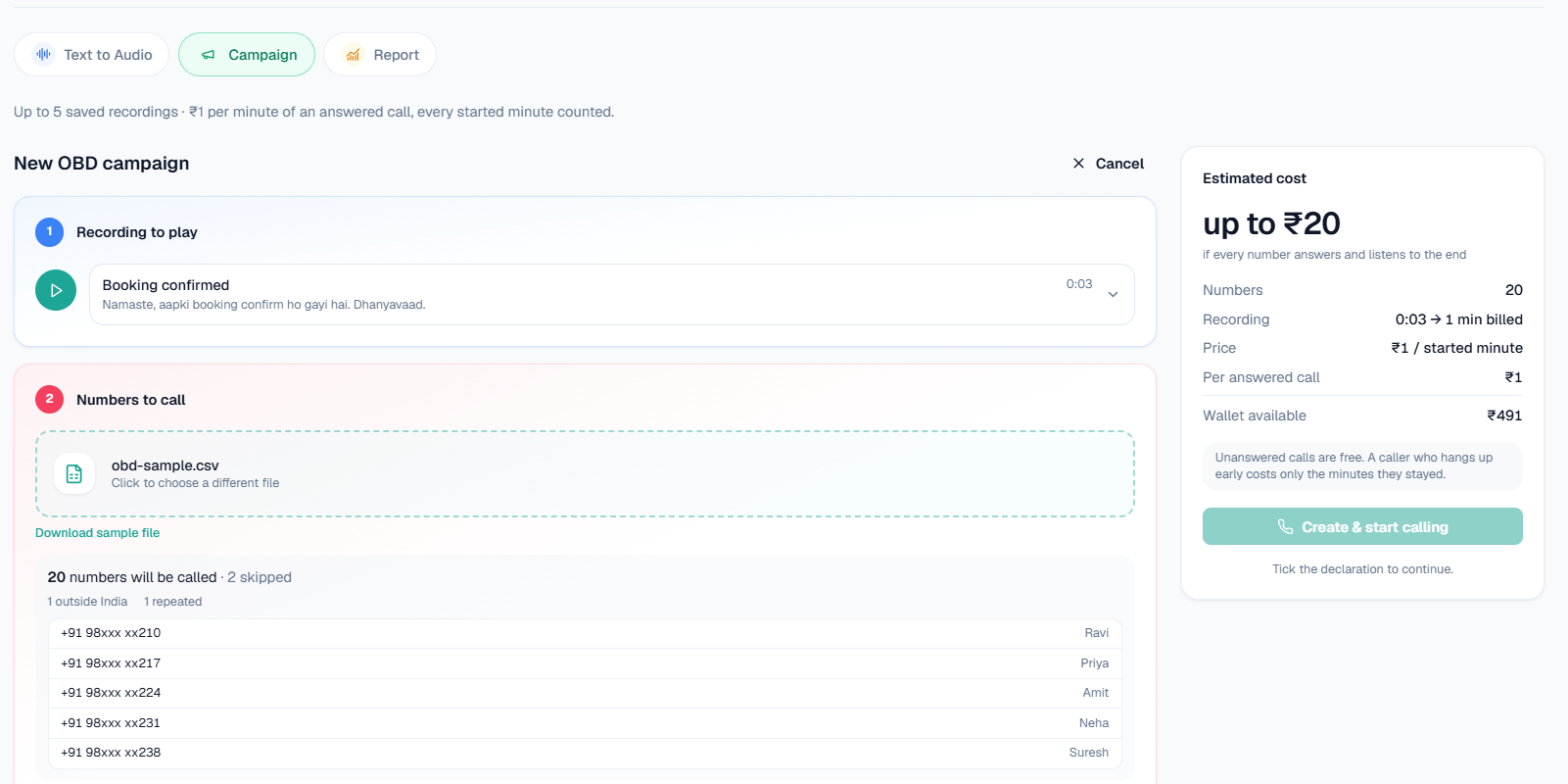
1. Recording to play
Pick a saved recording from the dropdown and press ▶ to hear it. The last row, Create new, opens Text to Audio in a popup: make and save a recording there, and it is picked for this campaign without losing what you have filled in.
2. Numbers to call
Upload a CSV file with two columns, number,name:
number,name
9876543210,Ravi
9123456780,Priya
Press Download sample file for a ready template. A header row is optional, and commas, semicolons or tabs all work. Before you create anything, the form shows how many numbers will be called and how many were skipped, and why:
- not a valid mobile number;
- outside India;
- repeated in the file;
- opted out earlier (see Opt-out key).
A file can hold up to 50,000 numbers.
3. Campaign settings
- Campaign name, for your own reference.
- Call from: the number the calls come from.
- When to call: Start now, or Schedule for a date and time. Calls follow your business's Do Not Disturb hours.
- Ask for a keypress: see below.
4. WhatsApp after the call (optional)
Send an approved WhatsApp template once the call ends. Press Choose template and pick one; only templates with no variables, or one variable for the customer's name, can be used. Then choose who gets it:
- Answered: customers who picked up;
- Not answered: customers who did not;
- Both.
If the template has a name slot, the name column fills it. Name to use when a row has no name fills it for rows without one; for an English template use something like there or Customer.
The template comes from your On Call Messaging provider. With MySA WhatsApp, a template you need can be requested from MySA. WhatsApp messages are charged separately, per message, as for any other On Call Message.
5. Declaration
Tick the box to confirm the calls are transactional and go to people who agreed to be called, then press Create & start calling.
Keypress and opt-out key
Turn on Ask for a keypress and, after the recording, the call waits a few seconds for the customer to press a key. The report shows who pressed what, for example 1 = coming, 2 = change the time. The wait is added to each call's length, so it can add to the cost.
The Opt-out key (9 by default) is the "do not call again" key. Whoever presses it is skipped by all your future OBD campaigns. Say so in the recording. You can also choose no opt-out key.
What it costs
Calls are paid from your wallet, with no subscription:
- Answered calls only. A call nobody answers costs nothing.
- Per started minute. A 40-second answered call is one minute, a 70-second one is two.
- The price per minute is shown at the top of the OBD Calls page.
The estimate on the form works out the most a campaign can cost: every number answering and listening to the whole recording, plus the keypress wait. A customer who hangs up early costs only the minutes they stayed. WhatsApp messages after the call are charged per message on top.
If your wallet runs out while a campaign is calling, the campaign pauses instead of failing its calls. Recharge, then press Resume.
Follow a campaign
The Campaign tab shows your campaigns newest first, four at a time. Scroll inside the list for older ones. To find a campaign by when it was made, use the filter above the list: All, Today, 7 days, 30 days, or Dates to pick a from–to range. Days are counted in India time.
Each campaign card shows its state (Running, Scheduled, Paused, Finished, Stopped), how much it has spent, and a bar of where its numbers are: answered, not answered, failed, or still waiting.
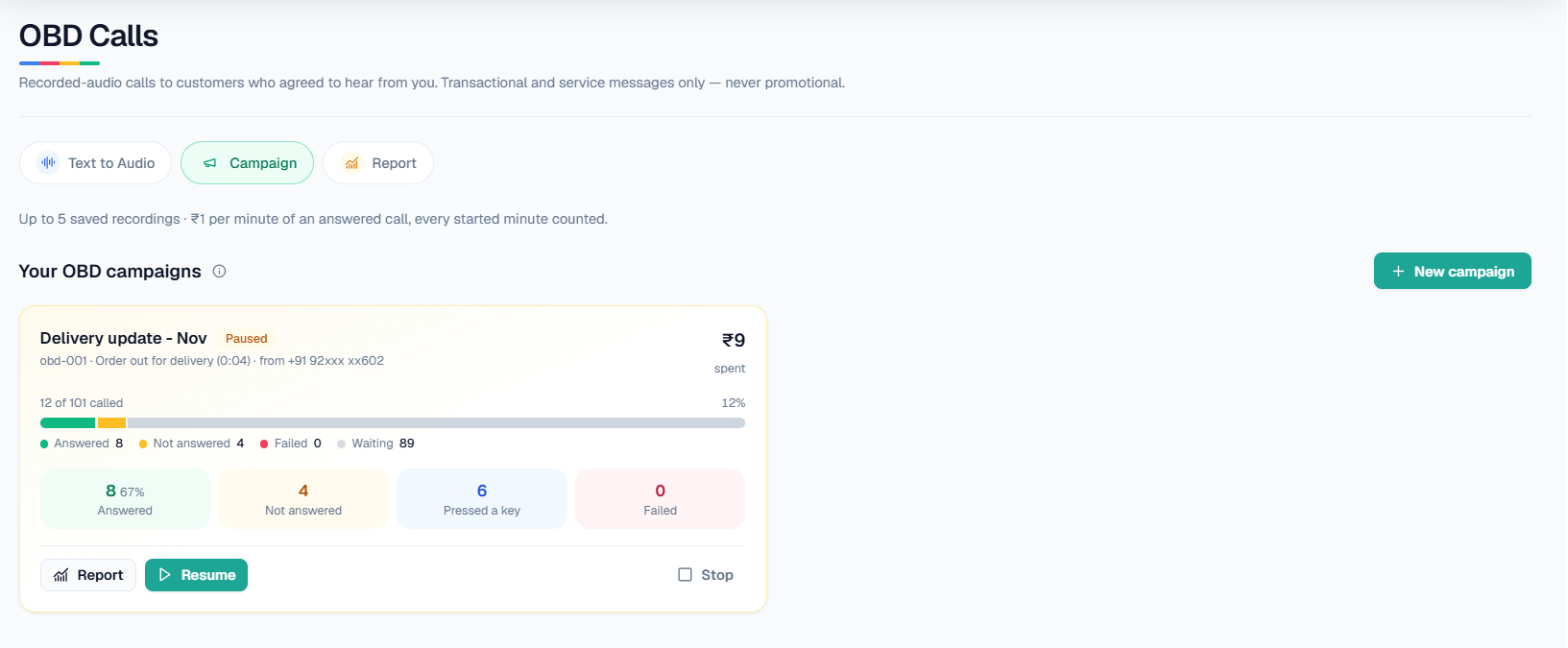
- Pause stops dialling; Resume carries on from where it stopped.
- Stop ends the campaign for good. Numbers not yet called are not called.
- Report opens that campaign's report.
If the recording a campaign uses is deleted, its remaining calls cannot be made; the card says so. Stop it and create a new campaign.
Report
The Report tab shows one campaign at a time; pick it from the list at the top.
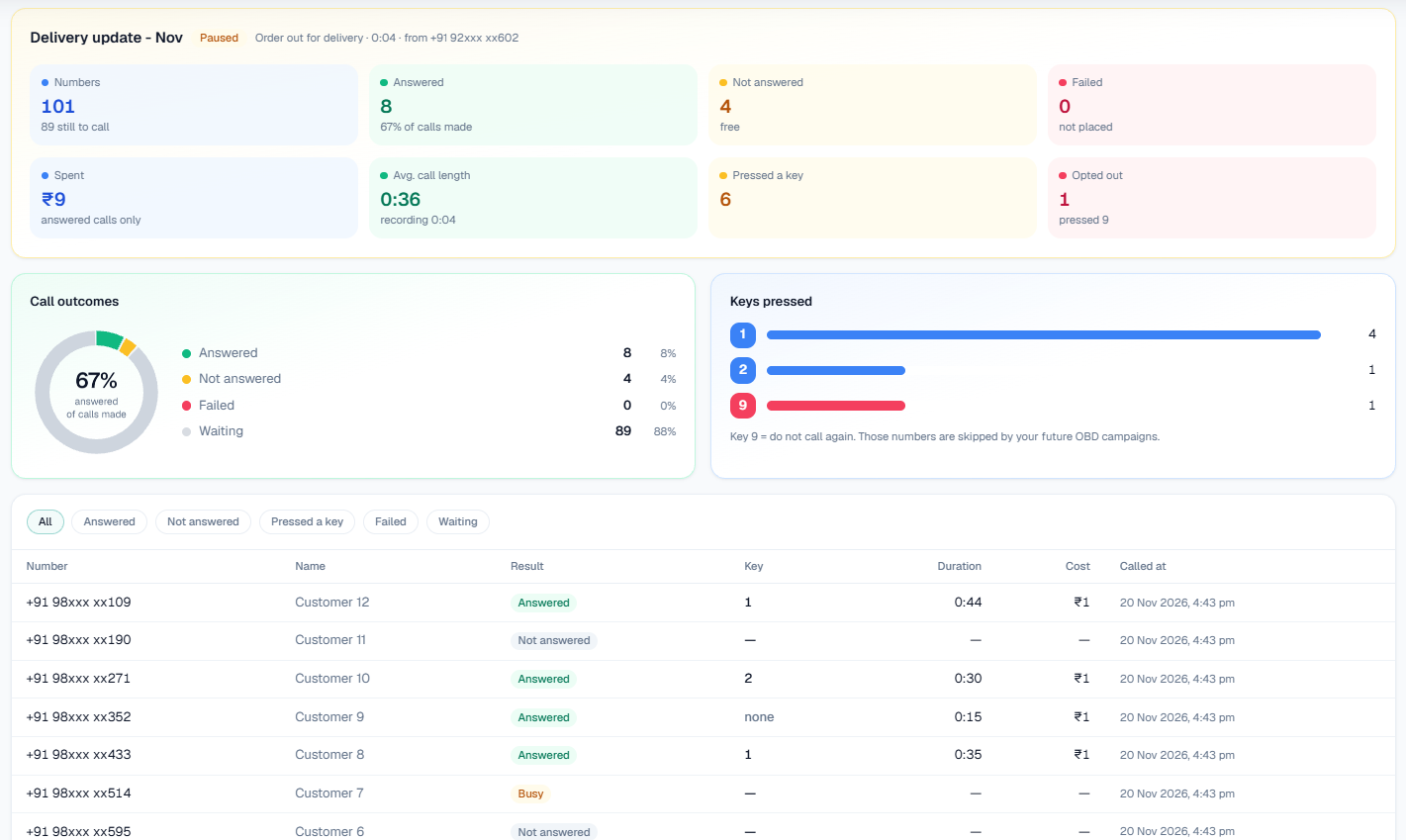
- Numbers, Answered, Not answered, Failed, with the answer rate of the calls made.
- Spent (answered calls only), Avg. call length, Pressed a key and Opted out.
- Call outcomes: where every number on the list ended up.
- Keys pressed: how many customers pressed each key. The opt-out key is shown in red.
- The calls table: ten calls a page, the latest first, each with its result, key pressed, duration, cost and time. Use the page numbers below it for the rest. Filter it by Answered, Not answered, Pressed a key, Failed or Waiting.
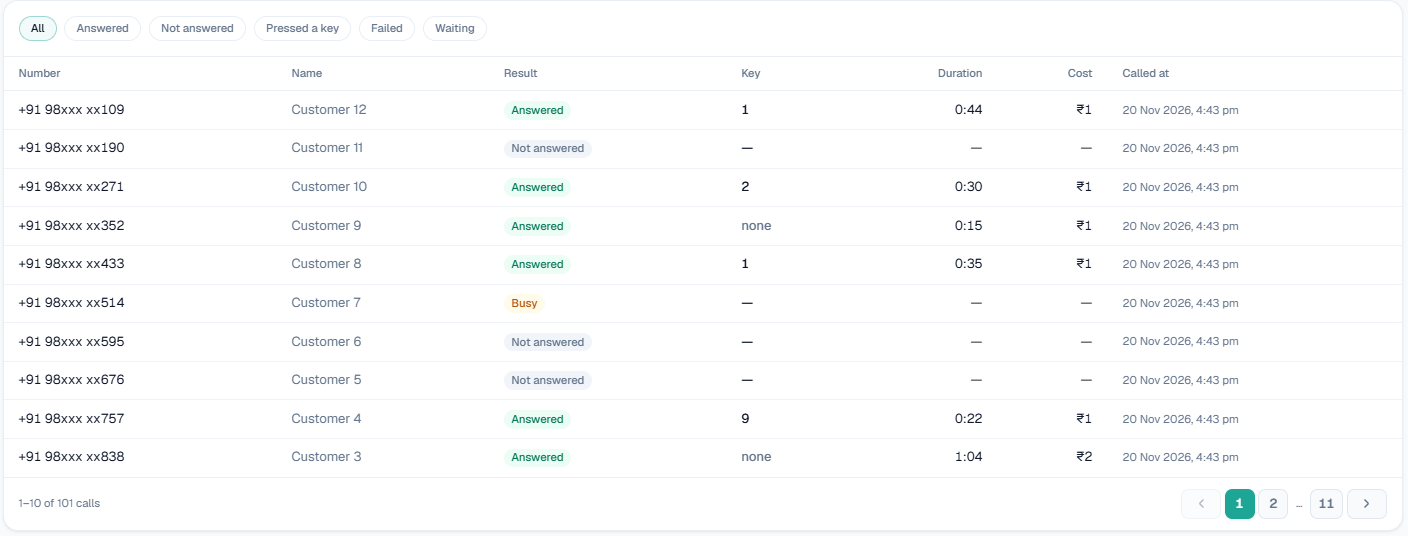
Press Download CSV for every call of the campaign in a spreadsheet.
Related
- Wallet & pricing for topping up and reading charges.
- MySA WhatsApp for sending WhatsApp without your own account.
- DND for the hours calls are not made.
- Campaigns for AI calls that hold a conversation instead of playing a recording.