Channels
Connect WhatsApp with Meta
Connect your WhatsApp Business number through Meta's official Cloud API with your own access token, so MySA answers its chats without a phone that has to stay online.
When to use it
| You have | Connect with |
|---|---|
| A WhatsApp or WhatsApp Business app on a phone | Connect WhatsApp (QR code or pairing code). See WhatsApp |
| A number on Meta's WhatsApp Business Platform (Cloud API) | Connect with Meta, on this page |
Once connected, a Meta number works like any other number in MySA. The AI answers from your Business Details. You can assign a chat to a teammate or hand it back to MySA. The exception list and Auto-Call apply, and every chat shows in Conversations. Replies to a missed WhatsApp call work only on numbers linked by QR code or pairing code.
Note: Meta lets a business send free text only within 24 hours of the customer's last message. MySA's replies to a customer who has just written always fall inside that window.
Before you start
Keep these four values from your Meta app ready:
| Value | Where to find it in Meta |
|---|---|
| Phone number ID | Your app → WhatsApp → API Setup, under "From". It is a long ID, not your phone number. |
| WhatsApp Business Account ID | Same page, just below the Phone number ID |
| Permanent access token | Business Settings → Users → System users → add an Admin system user → Generate new token. Pick your app, set expiry to Never, and tick whatsapp_business_messaging and whatsapp_business_management. |
| App secret | Your app → App settings → Basic → App secret (press Show) |
Note: The temporary token shown on API Setup stops working after 24 hours, so MySA refuses it. Use a permanent system-user token.
Connect the number
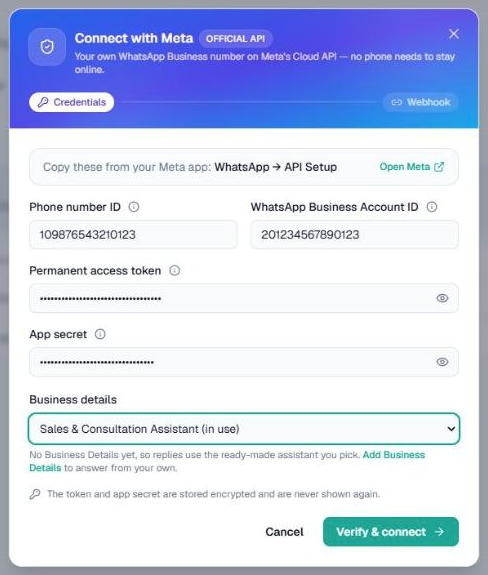
Open WhatsApp under Channels. On the Accounts tab, press Connect with Meta.

- Paste the Phone number ID, WhatsApp Business Account ID, Permanent access token and App secret. Each field has an ⓘ that says where to find it.
- Under Business details, pick the Business Details this number answers from. One number per Business Details.
- Press Verify & connect.
MySA then checks your details with Meta. It confirms that the token works and reaches this number, that the number belongs to that WhatsApp Business Account, and that the token never expires. It then links your Meta app to MySA. The checks take a few seconds:
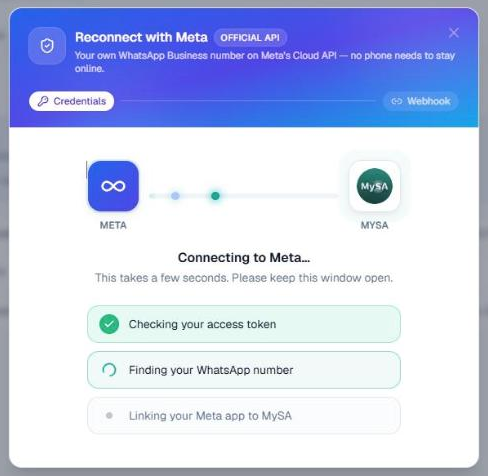
When every check passes, the number is connected:
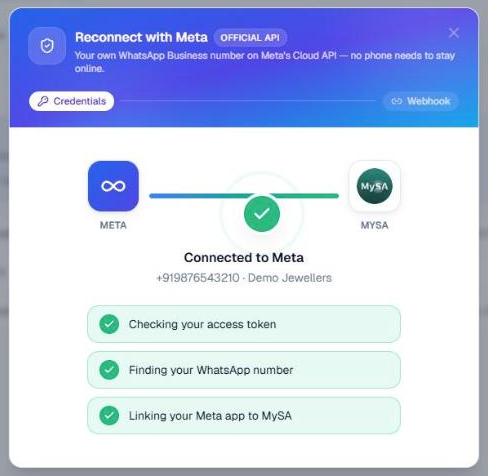
The token and app secret are stored encrypted and are never shown again.
If Meta refuses
The check that failed turns red, and Meta's reason is written under it. Nothing is saved. Press Fix details to go back to the form with everything still filled in.
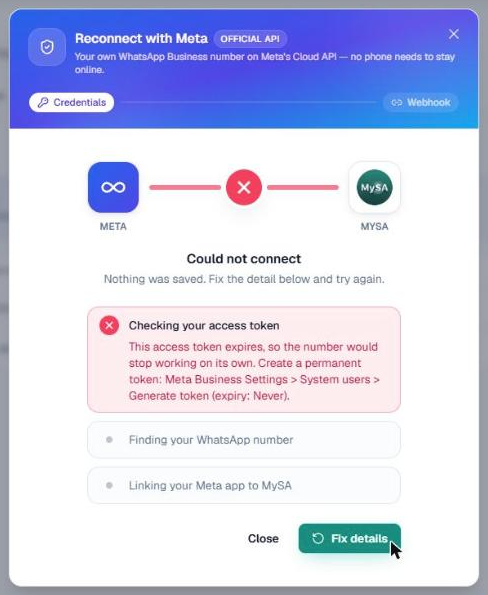
| What you see | What to do |
|---|---|
| The access token expires | Make a permanent system-user token (expiry Never) |
| Meta did not accept the access token | The token is wrong or revoked. Generate a new one. |
| The token is missing a permission | Tick whatsapp_business_messaging and whatsapp_business_management on the token |
| Meta could not find that Phone number ID | Copy it again from WhatsApp → API Setup |
| That Phone number ID is not in that WhatsApp Business Account | Copy both values from the same API Setup page |
| Already connected to another MySA account | One Meta number can be in one MySA workspace only |
| Connected with a QR code right now | Disconnect the QR link first, then connect with Meta |
Connect your Meta app to MySA
Replies can go out as soon as the number is connected. To receive messages, Meta has to send them to MySA. The next screen shows your own Callback URL and Verify token. They belong to your business only, and every number you connect with Meta uses the same pair.
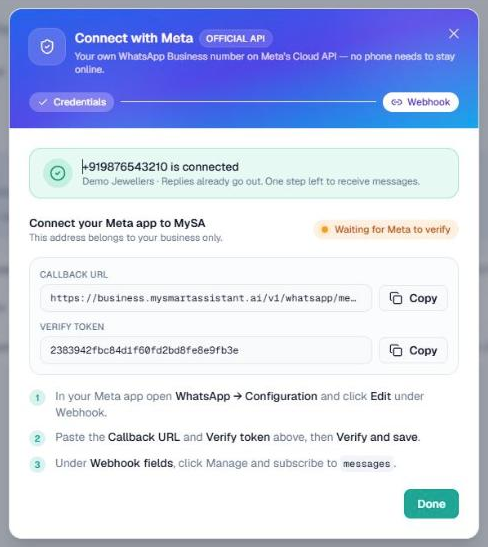
- In your Meta app, open WhatsApp → Configuration and press Edit under Webhook.
- Paste the Callback URL and Verify token, then press Verify and save.
- Under Webhook fields, press Manage and subscribe to
messages.
The badge at the top right updates by itself while you do this:
| Badge | Meaning |
|---|---|
| Waiting for Meta to verify | Meta has not called the Callback URL yet |
| Webhook verified | Meta checked the Verify token and accepted the address |
| Receiving messages | Messages from Meta are arriving |
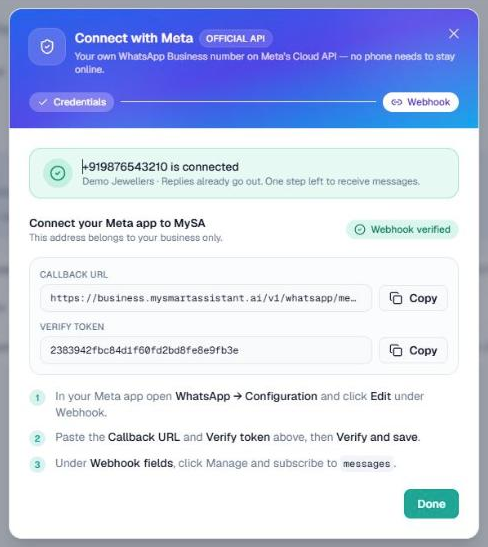
To see the address again later, press Webhook next to the number on the Accounts tab.
Manage the number
- Official API next to a number on the Accounts tab means it is connected through Meta.
- Disconnect stops MySA answering the number. The chat history stays and the token is deleted. Messages customers send afterwards still appear in Conversations, but MySA does not reply to them.
- A number connected with Meta cannot also be linked by QR code or pairing code. Disconnect it here first.
- Reconnect opens the same form with the Phone number ID and WhatsApp Business Account ID filled in. Paste a token and app secret again.
- If Meta stops accepting the token, the number shows as disconnected and the Owner is told. New messages are still kept in Conversations, unanswered. Reconnect it with a new token.
Note: Connect with Meta appears once MySA has switched it on for your workspace. A Meta number counts towards your workspace's number limit, like any other number. Read-only members cannot connect or disconnect numbers.
Related
- Meta WhatsApp API, the feature at a glance.
- WhatsApp for smart reply, missed calls, Auto-Call, exceptions and conversations.
- Business Details for what the AI answers from.
- WhatsApp broadcasts for sending one approved template to a list from your own number.